March 2022

Upgrade to MusicMaster Pro Version 8

In case you missed it last month, we released our new major update, MusicMaster Pro Version 8. If you still haven't made the switch, you can get it by clicking on Help, Check for Update or downloading the file from the Support Center of our website. We want you to make the most of all of the new features we've packed into this release, so here are a few ways you can get started:

First, for a quick overview of our Top 8 in Version 8, check out the video below.

Next, visit our Version 8 page to scroll through all the new features. There, you can also download a comprehensive PDF guide that shows you how to make the most of them.

For more information on using the new integrated I Like Music Store, you can watch a setup video and download a PDF walkthrough here.

You can also review the complete Read Me file for a list of all enhancements and bug fixes that are part of Version 8. This can be found in your Application folder, or through the Help menu under Release Notes.

If you still have questions, we'd be happy to give you a tour. Please reach out to MusicMaster support.

Hear the MusicMaster Origin Story on RadioDaze Podcast

Ever wonder how MusicMaster came to be? Go back in time 40 years with MusicMaster Founder/President Joe Knapp on the latest episode of Clear Media Network's Radio DAZE podcast, hosted by Mark McCray. Joe takes you back from building a pirate station in his childhood bedroom to his early days working in radio, what inspired him to build a better system for scheduling music, and how it later came to be used by tens of thousands of broadcasters around the world.
Click here to listen.

MusicMaster Presents "Best Music Breakfast Show" at Audio & Radio Industry Awards in London

The international radio award season is about to begin – and this year we’re happy to support The Audio & Radio Industry Awards in the UK for the first time. The ARIAS are the Oscars of UK radio and cover the most diverse range of genre, talent and output from public service radio, commercial radio, community radio and beyond.

The ARIAS were founded in 2016 and have become one of the biggest nights in the UK industry. As the leading music scheduling system in this market, MusicMaster will present the category "Best Music Breakfast Show". The nominees will be announced in the coming weeks. The ARIAS Ceremony will then take place on Tuesday, 3rd of May at the Adelphi Theatre in London.

MusicMaster Supports Radiodays Europe in Malmö, Sweden

Radiodays is one of the most important get togethers of the radio industry in Europe, and is ready to make a big comeback in Sweden from May 15 to 17 after being restricted by the pandemic. As a long-term partner, MusicMaster again will be sponsoring the event. Sven Zimmermann and Ellen Ziegler, from our international distributor ON AIR, set off to Malmö early this March to get a feel for this year’s host city. As one of the youngest towns in Sweden, Malmö spreads a lively flair and feels like a melting pot of ideas and creativity. So, it is both a good place and a good chance to meet up to exchange experiences, innovations, and emotions. With this on their minds, Ellen and Sven also searched for places suitable for encounters and discussions outside the event and its exhibition. We invite you to let us know about your travel plans and your time frames for side-events, or to schedule a visit at the MusicMaster Meeting Point. Click here for more information and to get in contact with us.

MusicMaster Welcomes New US Support Team Member


Chris Hulsether

MusicMaster clients in North America may now hear a new voice on the phone when calling support. We're excited to announce Chris Hulsether has joined the team as a MusicMaster Scheduling Consultant. Chris brings a diverse background both in radio and software support, making him a perfect fit for our growing team.

Chris lives in Fargo, North Dakota and confirms, "Yes, I love the (Fargo) movie and the TV show!" He has been working in radio for twenty years in small farm markets and rated markets like Fargo and Grand Forks, where he mostly programmed Country (New and Classic) and Classic Hits. He also programmed News/Talk and Full Service radio for farm towns. Chris's radio philosophy has always been "Give the people what they want! Playing the hits from the biggest artists in the format, which means small playlists and tight rotations, so everytime you tune in, a big hit that everyone loves is always playing."

Chris shared that he is a "big Las Vegas Raiders fan and a nerd about Comic book movies. As a Raiders fan I always loved this quote as a Programmer. 'Just Win Baby!' And now that I am with MusicMaster, another great quote from the Raiders comes to mind, 'Commitment to Excellence' which I plan to bring to this job everyday."

Chris with Trisha Yearwood and Garth Brooks

Chris with Blake Shelton

Taylor Swift and Chris

Chris and Luke Bryan

Chris with his girlfriend Nicole at Mt. Rushmore

Chris and Nicole at a Raiders game

Joe Knapp Shares "The Story Behind The Story" of Z-100/New York

MusicMaster President and Founder Joe Knapp's radio career began at the age of 11, when he built a transmitter out of spare parts and broadcast illegally out of his childhood bedroom. From there, Joe went on to build other legitimate stations from the ground up, including working alongside Scott Shannon to put the legendary Top 40 WHTZ (Z-100)/NEW YORK on the air. Below, Joe shares his behind-the-scenes story of how Z-100 came to be.


by Joe Knapp
President/Founder, MusicMaster

New York City. The Big Apple. If you can make it there, you can make it anywhere. I'd been to New York before, but I never experienced it from the perspective of a local resident. That all changed in the summer of 1983.

At that time, I was the Chief Engineer for Malrite Broadcasting's radio stations in Milwaukee, Wisconsin. My specialties included building new studios and setting up audio processing. My corporate supervisor was the Vice President of Engineering, Mr. Tom Bracanovich. He invited me to join him in New York as Malrite was preparing to acquire the license of WVNJ-FM in Newark, New Jersey. The plan was to build new studios in Secaucus and move the station's antenna from West Orange to the Empire State Building, making it the 12th station to share that building's complex Alford antenna system. The transmitter room was to be built on the 83rd floor in room 8307. We spent many long nights up in the 'mast' working on that project with consulting engineer Bob Silliman, who did much of the original engineering on that antenna.

My involvement started out assisting Tom by building the new studios in Secaucus. At that time, the entire 'Z-100' engineering team consisted of Tom and myself. Meanwhile, other corporate folks were working on the selection of a Program Director and trying to decide what format to play on this brand new "New York" radio station. WVNJ-FM had inadequate coverage of the metropolitan area at the time and they were playing Beautiful Music in the daytime and Jazz at night.

I brought Jim Bertram, a cabinet maker in Wisconsin who built the foundation for the new Milwaukee studios for me. Together, we designed and built the studio desks, then drove it all from Wisconsin to New York in a trailer attached to Jim's pickup truck in one continuous fifteen-hour trek.

The corporate VP of Programming, John Chaffee, and the corporate Program Director, Jim Wood, hired a research firm to conduct an auditorium test to determine which format would work best in the crowded New York market. I had already established a great relationship with John and Jim, so I was invited to sit in on these meetings. It came down to two format choices, either Jazz, or Top 40, which was also known as CHR. As I recall, John was leaning toward Jazz, but the Executive Vice President of the company, Carl Hirsch, insisted they go with the more glamorous CHR format.

Shortly after making that programming decision, Malrite found their Program Director. Scott Shannon had been extremely successful in Tampa, Florida, and now he'd be relocating to New York to take the helm of what would become WHTZ-FM, also known as Z-100. Since we all stayed at the same hotel, I got to know Scott Shannon very well.

I loved hearing Scott talk about his former station. He told some very interesting stories! One day, while having lunch at the hotel, Scott was talking about some crazy bit he and his morning team had done on his previous station. Scott had this booming "radio" voice, cool southern accent, and spoke at a volume that could be heard throughout the restaurant. As I sat there listening to him talk, I recall glancing around the room. Everyone in the place had stopped talking and were hanging on every word he said. A chill came down my spine. I knew then and there that something amazing was about to take the New York radio market by storm.


Click to Keep Reading...

Migrating Position Wizard and Flex Rules Analysis

by Laurie Knapp

In Version 8, it’s easier than ever to use Migrating Positions with Flex Rules. There’s a new wizard for adding Migrating Positions, a Pattern Builder which shows you sample clock assignments, and more display information to indicate potentially problematic Flex Rules settings.

About Migrating Positions

Migrating Positions are not new to MusicMaster Pro Version 8, but in case you have never used them before, here is an overview of how they work.

With this clock element type, you can add variety and spontaneity to your clocks, while still maintaining control. You can add a certain number of Migrating Positions into the clock and specify which categories these slots may be filled by. While scheduling, MusicMaster will assign one of those specified categories to each available Migrating Position. That assignment can be totally random, or you can add layers of control using Flex Rules.

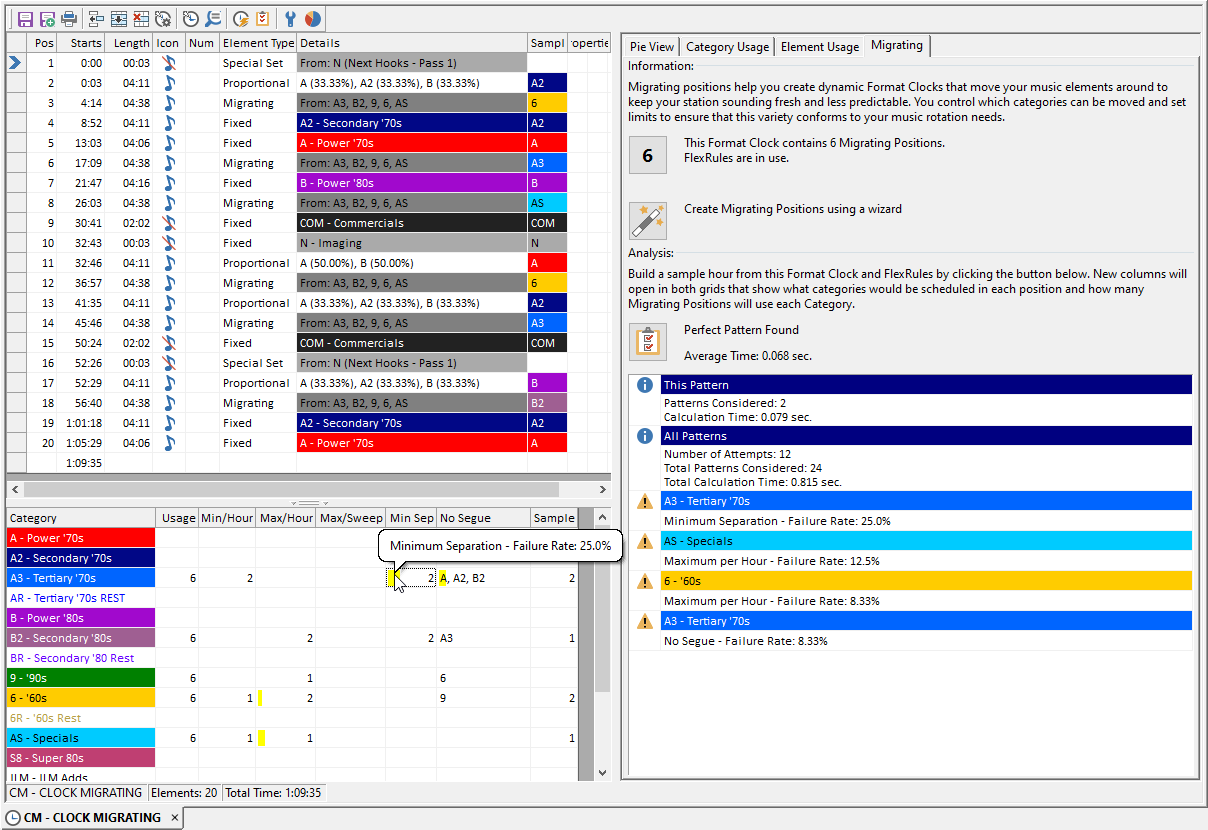
Here’s an example of a clock that uses all Migrating Positions.
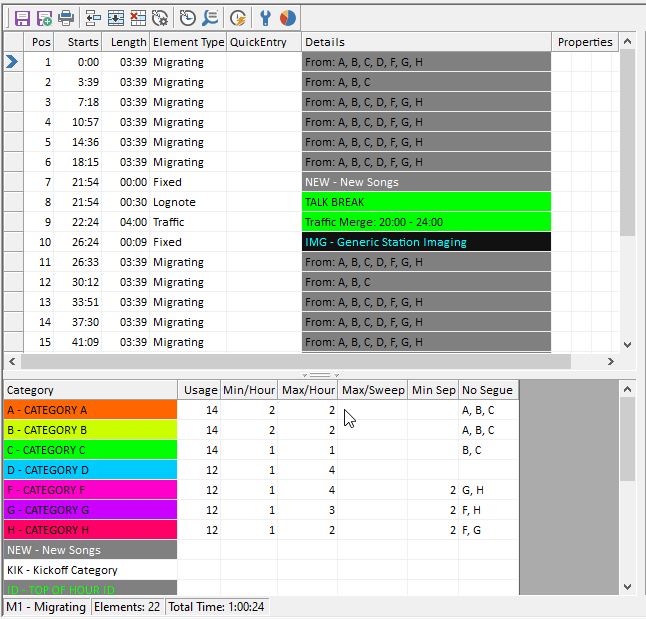
The Flex Rules are set up in the bottom panel. Here’s what each column indicates:

Usage tells you how many Migrating Positions are available for that category.

Next, you can specify the Minimum or Maximum number of category plays you want per hour or sweep, counted amongst Migrating Positions only.

You can also set a Minimum Separation you want to have between plays of the same category. Unlike the Min/Max, this will take into consideration all other category positions in your clock. Note: If you don’t want Non-Music categories to be counted, go to Tools > Options > Additional Properties, and under the Clocks header change FlexSkipNonMusic to 1.

Finally, in the NoSegue column, you can specify any other categories that this category is not allowed to play against. This also looks at all other category assignments in your clock.

For more on Migrating Positions, check out this blog article.

New to Version 8

Live Entry Warning

Previously, MusicMaster would warn users if some of their Flex Rules were potentially problematic or not mathematically possible. In Version 8, MusicMaster will now detect even more potential issues.

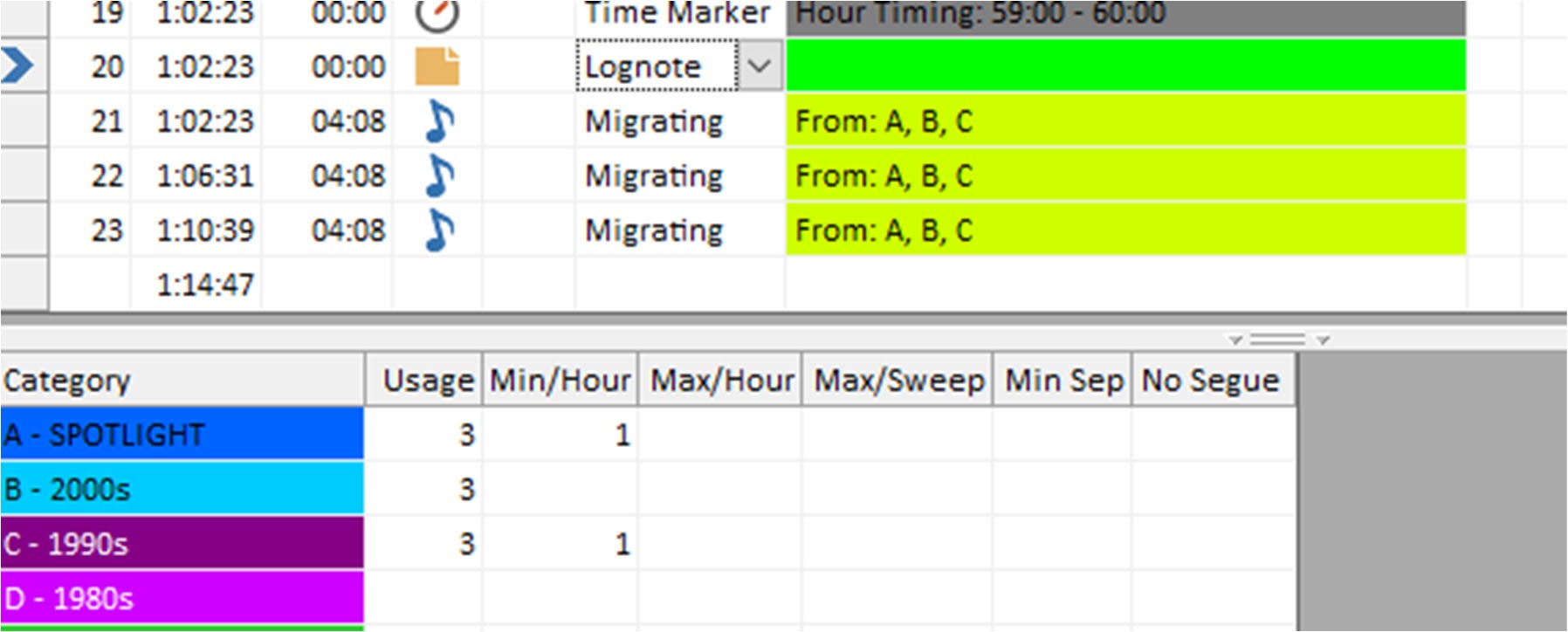
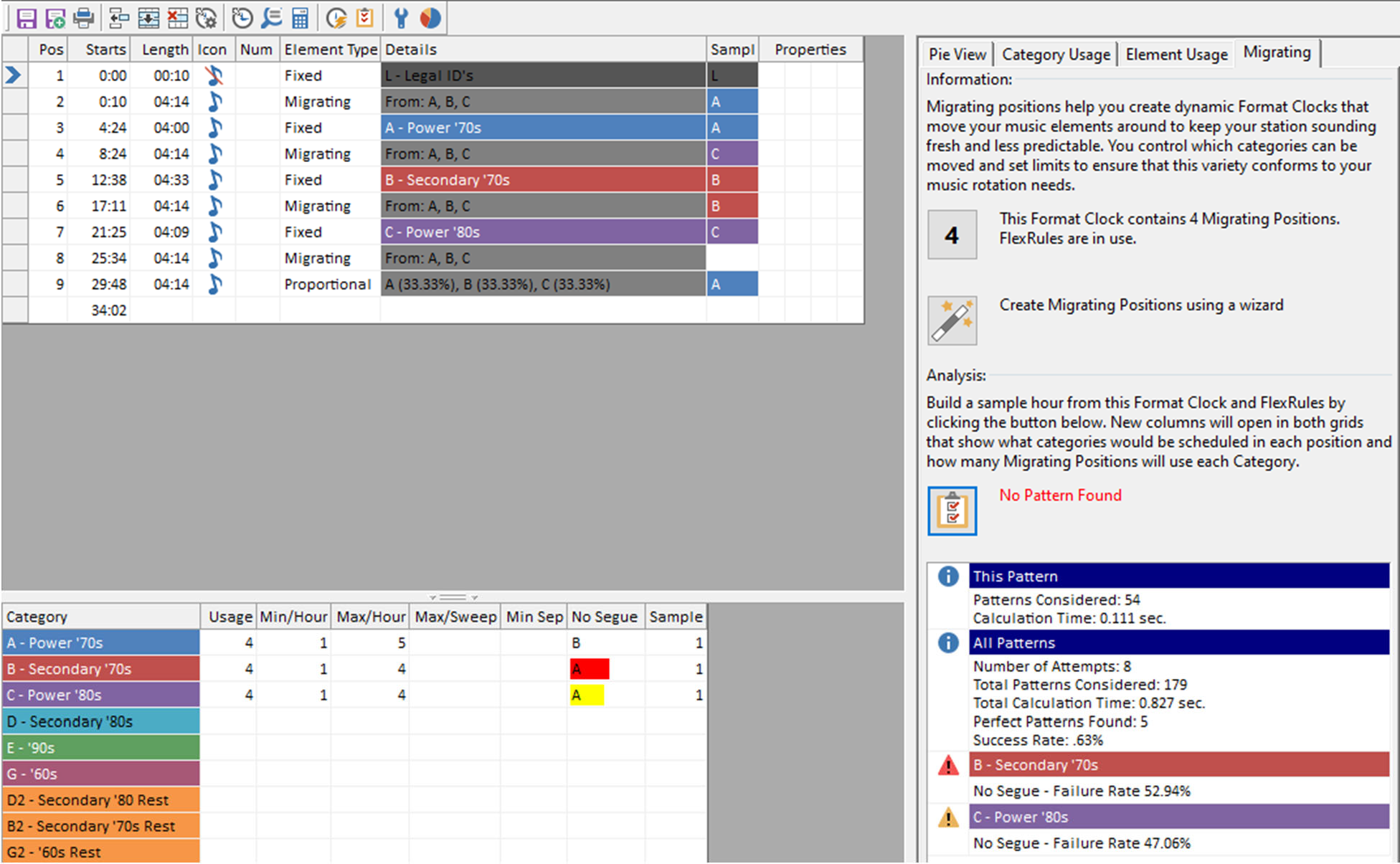
Just like before, you will be warned if the minimum category plays exceed the number of available migrating positions. But now, as an example, you’ll also be warned if your minimum separation value or “no segue” settings will prevent that category from meeting the minimum quota. The entry will appear red and you can mouse over that cell to see a tooltip that explains what the problem is.
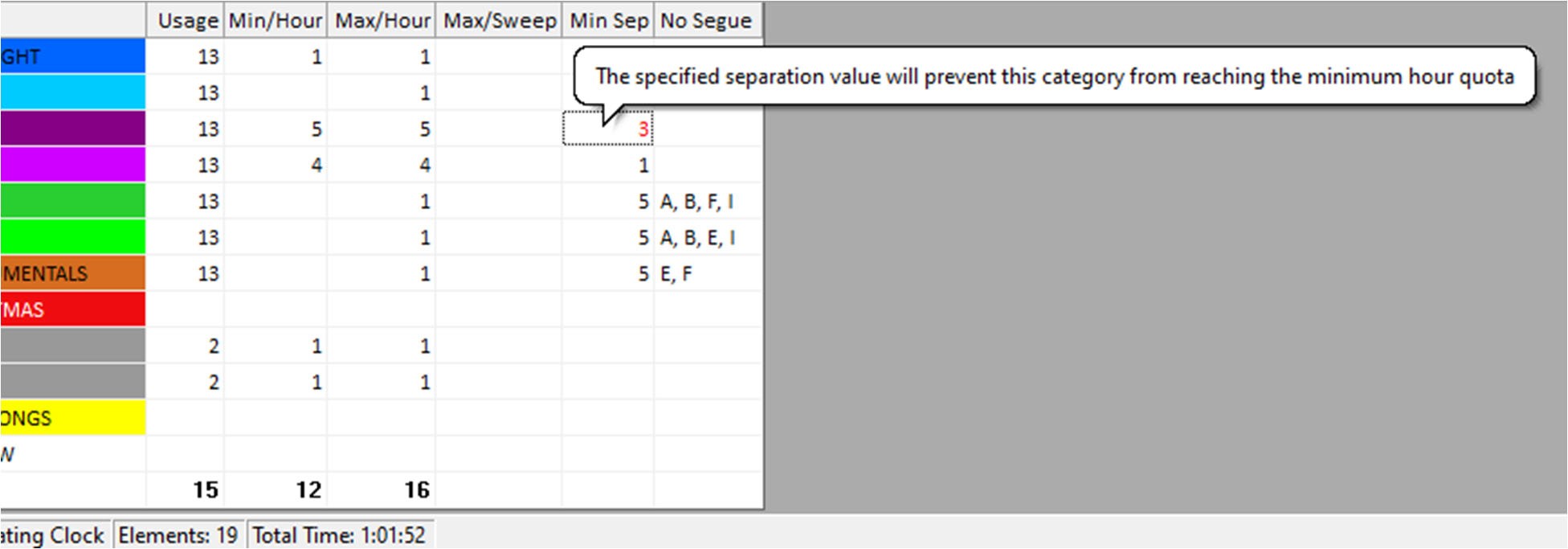
Note that this real‐time Flex Rule analysis will not uncover every single impossible condition that can be created by these settings, because a full real-time analysis of a very complex clock would create unwanted delay.

New Information Panel There is also a new Migrating Positions tab on the information panel that can be displayed on the right side of the Format Clock Editor. This new Migrating panel shows:

  • Information about the Migrating Positions currently in use, or if no Migrating Positions are in use, a link to Help Documentation about them.
  • Wizard function to create Migrating clock elements. (More details later)
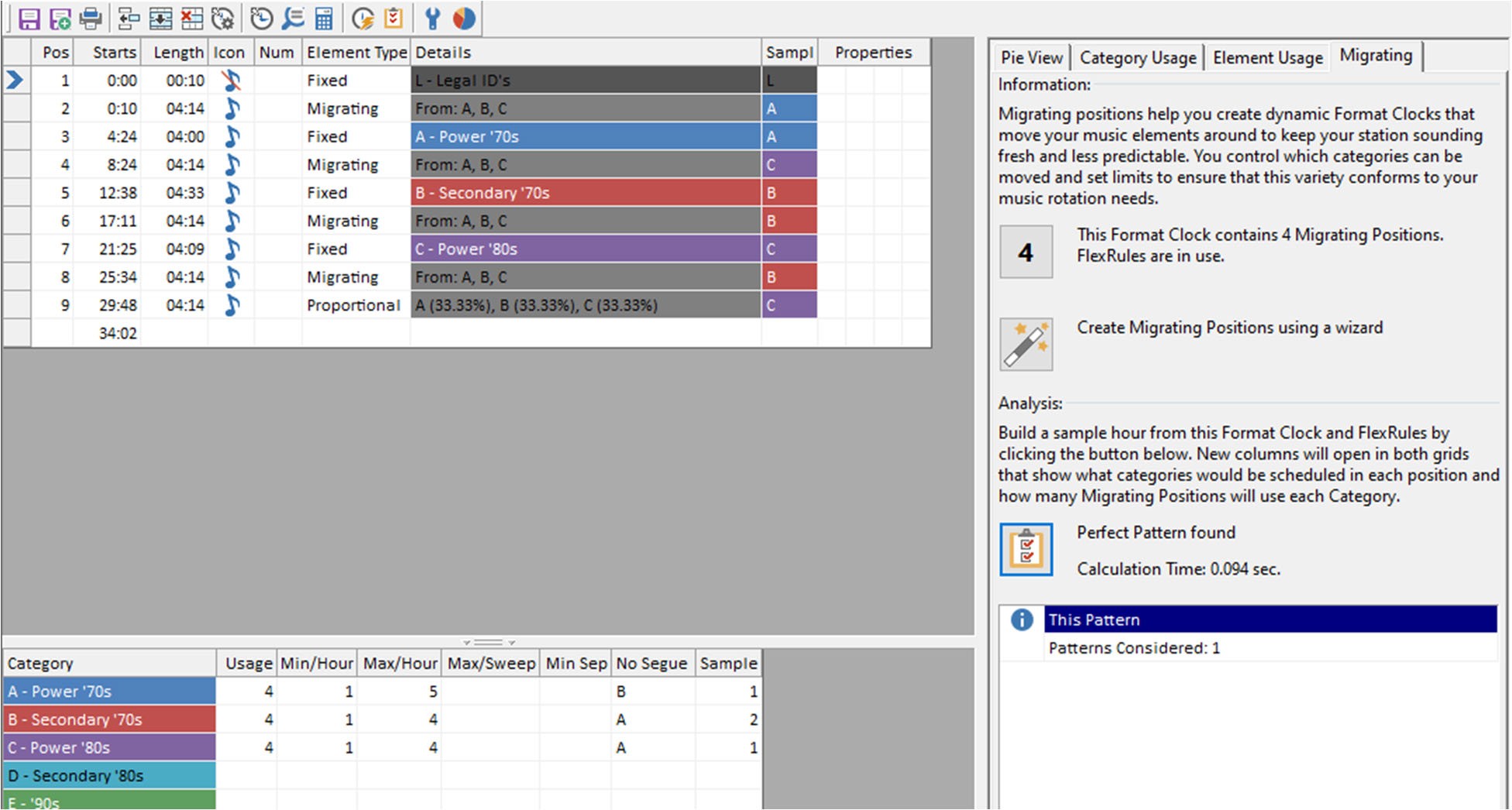
  • Pattern Builder: There is an Analysis button that uses the same functionality as the Automatic Scheduler to create an actual set of category assignments for the elements in your clock, which you can use to see sample outcomes. When used, a “Sample” column will open on the clock grid showing the category assignments. You can click the button again to see another potential pattern. If you make a change to your Migrating Positions, the column will close and you can run the analysis again to test your new settings. (More details below)
  • Analysis Results: Flex Rules that cause conflicts and issues will be noted in the results grid at the bottom of the editor and are also highlighted in the Flex Rules grid with explanatory tooltips. When running the Analysis multiple times, you will see statistics on the ongoing success or failure rate, which indicate how easily the Automatic Scheduler will be able to fulfill your chosen settings. (More details later)

Click to Keep Reading...

Copying Categories from One Database to Another

by Dave Tyler

Lately I have been getting a lot of calls and emails about the ability to copy songs from one database to another and if it is possible in MusicMaster. It is! MusicMaster is a Windows-based program so those same Copy/Paste features you use in Excel work in MusicMaster.

Let’s use this example. I have an Oldies/Classic Hits database and one of the PDs from our sister station wants to use the same category and songs in their database. It is possible but there is a caveat, and it is an Important one. If both stations actually share the audio and therefore the automation numbers or filenames are identical then you are good to go. If they are not you can still copy the basic metadata (Title, Artist etc.) but you will need to add the automation information manually on the receiving side.

In my example Station A has a Secondary 60’s category that I want in another database. I open MusicMaster twice. One incident has Station A (The original) and the other Station B (The receiving station). This is a really simple and straightforward process but I always recommend making a backup of both station before doing any mass actions like this. In the Station B click n the “Add Songs” icon and, per our example, add 33 song cards.

Now that you have the empty song cards waiting to be populated there are really three options you have in the copy/paste process.

You can A) Copy the entire category at once and then paste it all into the receiving station. You would do this by clicking on the little grey box in the top left corner of the category. You will see all songs are now selected. Simply Ctrl-C to copy (pic Below). Go to the top left cell in Station B and single click in it then Ctrl-V to paste. Please note when using this process you MUST be sure that ALL of the fields are in the exact same order in both databases or you risk pasting incorrect information in. For example if Station A had the fields in the order of Title, Artist, Artist Keyword and Station B had them in the order of Artist, Title, Artist Keyword then Station B would have the Artist in their Title field and the Title in the Artist field. Yikes! This is also why we made that backup prior to starting.

Our second option is to just copy the fields we want. In this example let’s say I do not want the Category field because the receiving station will call this category something different, however I do want all of the other fields and they are ordered the same in both stations. I could then simply click in the top left cell (In this case it would be the first Title cell), then scroll to the bottom of my 33 songs and single click into the bottom right cell for Runtime and you will see it selects all of the songs. Again Ctrl-C to copy (Note in pic below the “Category” field is not selected), then single click into the top left cell for Title in Station B and Ctrl-V to paste.

The third and final way is to go Column by column. Although this sounds like it would take a lot of time it really doesn’t and is my preferred way of doing this because I don’t need to go through the setup of making sure all of the fields are in the same order. In this example I just single click in the top cell for Title (in my example “A Hard Days Night”) then scroll to the bottom and Shift-Click on the last Title (While My Guitar Gently Weeps) and the entire column is selected.

Ctrl-C to copy and go to Station B, click in the top cell for Title and Ctrl-V to paste it in. Repeat the process for any other fields you require.

Copying from one database to another is very easy and quick to do. As mentioned earlier, be sure to make a backup in case something goes awry. We can’t say it often enough! It’s way easier to restore a backup after a mistake and takes the pressure off the process, no matter what you are doing.

If you have any questions just let us know. All of the Music Scheduling Consultants at MusicMaster would be happy to help you.

  Quick Tip

Station Memo

The Dataset menu has a Station memo option that allows you to keep track of different information that users can access. You can think of this like a little system to pass information between users or just as reminder to yourself. Since you can have multiple memos, these can cover different topics. Options include a drop down so you can pick the memo you wish to review along with icons to add or remove. There are also options to import and export text. Whether it's a note to yourself to remember to do something or a note to remind someone else, Station Memos allow you to manage that information in one place.

Welcome to MusicMaster!

Use the dropdown menu below to view a list of stations and locations.
Click a station on the list to visit its homepage and listen live!


Lauri Pearson

Owner and Program Director - LauriRadio.com

March may have been Women’s History Month, but LauriRadio celebrates it 24/7/365! Streaming live from Austin, TX, LauriRadio, the First All-Female Radio Station embodies all Fem voices (including LGBTQIA & Non-Binary). A full-time station broadcasting Alternative, Indie, Rock & Roll, Blues, Funk, Americana, Surf Rock, Punk, unapologetic Pop, and more, plus an hourly nod to the trailblazers who paved the way. Officially launched March of 2021, LauriRadio is a force, a megaphone and a movement meant to leave you feeling better than when you found it.

Lauri is on-air from 10 a.m. – 7 p.m. CST seven days a week. Sixteen categories of music are programmed daily, with rally cries and battle cries, but no crybaby songs ever. LauriRadio is the only radio station playing Joan Jett at the top of every hour. Music is matched with sound bites from rebels and queens – comedy bits, movie clips, and spoken word interspersed throughout every hour. Each song is hand-picked – not just the hits – and whenever possible the original recordings are used just as the artist wrote, recorded, and intended, not radio edits. LauriRadio offers an open invite for artist submissions and listener suggestions in order to continuously champion songs not found in commercial radio.

Women of Color are represented throughout each hour, including those who defy labels of identity and genre. Acknowledging the contributions of collaborators, LauriRadio also highlights those who’ve supported, recorded and toured with female artists.

Lauri Pearson, Owner and Program Director, commented: “The only vulnerability you’ll find on LauriRadio is the kind that challenges preconceptions and limitations. Music has a way of getting you to stand together, yet on your own, to face truths you wouldn’t otherwise consider. It’s about tenacity, survival, and not letting anyone or anything take you out of the game.”

As for her experience with MusicMaster, Lauri shared: “When the idea first came about for LauriRadio, I consulted with a couple trusted programming vets on the necessary technical aspects of running an independent radio station. As a longtime on-air jock, I've heard many PDs & MDs sing the praises of MusicMaster, so it became obvious rather quickly that if I wanted to do this correctly, I'd need to go with the recognized industry standard. The intuitiveness of the scheduling software system is at par with the personalized guidance received from support team, and along the way I made friends with both. Thanks to Laurie, Melanie and Brian for turning my learning curve into station growth spurts! MusicMaster for the win!”

Lauri is an independent business owner and lifelong music lover who has worked at major labels, broadcast media, and on-air at radio since 1991. LauriRadio is a labor of love, existing for anyone whose music defines them.

Lauri was also recently featured in All Access as a “Women to Watch”. Click here to read her Q&A.

MusicMaster, Inc.
MusicMaster.com

8700 Stonebrook Pkwy, #1167
Frisco, TX 75034
sales@musicmaster.com
469.717.0100