November 2025

MusicMaster Welcomes Pete Manríquez

MusicMaster is proud to announce the newest addition to its North American team, Pete Manríquez, who joins as Sales and Support Associate. In his new role, Pete will primarily serve MusicMaster’s Spanish-speaking clients across the Americas and lead new business development efforts throughout Latin America.

Pete is a veteran radio executive and programming strategist with a career spanning major U.S. markets and South America, including key leadership work in Lima, Peru. He has held top industry roles such as VP of Programming at Univision Radio and Program Director at CBS Radio’s WLZL “El Zol.”

Widely regarded as a pioneer in bringing reggaeton to mainstream radio, Pete helped shape influential formats like “La Kalle” and has played a major role in the international launch and breakout of numerous Latin and global music artists. His innovative programming and digital strategies consistently pushed stations to top ratings, while his leadership extended to major concerts, multimillion-dollar promotions, and raising over $2 million for the Children’s Miracle Network Radiothon. Pete is recognized for his creative vision and enduring impact on Latin and U.S. radio.

“As we continue to expand throughout Latin America and support our many Spanish-speaking users here at home, I’m confident Pete will help us reach new audiences and bring even greater value to our clients,” said Laurie Knapp, CEO of MusicMaster. “With his deep roots in the artistry of music programming and his genuine ability to connect with people, Pete perfectly embodies our mission to empower broadcasters everywhere.”

"Joining the MusicMaster team is an absolute win," Pete shared. "This software has fueled every victory in my programming career. It’s the heartbeat of great radio.”

From all of us at MusicMaster - ¡Bienvenido, Pete! We’re thrilled to have you on board and can’t wait to see all you’ll accomplish.

Ideas & Innovation at IMS² International Music Scheduling Summit

November 6 in Berlin was a celebration of creativity, technology, and the future of music scheduling. The annual IMS² | International Music Scheduling Summit, proudly sponsored by MusicMaster, brought together professionals from around the world for a full day of discussion and discovery. The sessions explored why radio remains vibrant in a streaming-driven era and how it continues to evolve through community building and digital strategies. Attendees gained practical insights into MusicMaster’s Client-Server Edition, guided by our VP and CTO Scott Wirt, whose expertise offered a rare look behind the scenes of the software that powers so many stations.

The conversation moved into programming excellence and strategies for growth in competitive markets, highlighting how audience-first thinking drives success. Another key theme was the influence of streaming platforms, with lessons on personalization, data-driven content, and creating listening experiences that truly connect. Cultural diversity also took center stage, showing how local traditions and listener behavior shape station identity and sound, and what it takes to adapt formats for global audiences while maintaining authenticity.

In the afternoon, the focus shifted to innovation and collaboration in European radio, with a spotlight on creative approaches that make the Dutch market one of the most dynamic in the industry. Attendees also explored the challenges and rewards of multilingual programming in classical and jazz formats, and how cultural radio can inspire audiences.

The day concluded with a special session featuring our President and Founder Joe Knapp, who shared the complete story of MusicMaster - from its groundbreaking beginnings to becoming the world’s leading music scheduling solution. His reflections reminded everyone how vision and innovation have shaped decades of progress in our industry.

The atmosphere was electric, fueled by networking, knowledge sharing, and a shared passion for music. IMS² 2025 proved once again that the art and science of music scheduling is alive, evolving, and ready for the future. Check out the highlights from the Summit below!

Save Time With Category QuickMove

by Vicky James

Back In the Day… I recall years ago being in a music meeting when the process of jotting down music changes, taking them back to my office, and manually making the changes in each category was still a thing. Nowadays, you can easily access categories and instantly make moves by dragging elements to the target category using Category QuickMove. You can also make changes to the song card data here as well! This feature is ideally used in smaller categories and allows up to 8 categories to be reorganized at a time.

QuickMove is available across all versions of MusicMaster: Pro, Client-Server, and the Web Client. We’ll demonstrate it using CS.

Click Dataset, Library, and Category QuickMove.

Note that the feature prompts a reminder that QuickMove works well with small categories.

A screenshot of a computer

AI-generated content may be incorrect.

Choose the Categories that you would like to view in QuickMove. You must select at least 2 and up to 8 categories, if needed. It will populate with only the description of each element. First, we will create a layout.

Select Modify Layout and add the fields you would like to view in the panel seen above. I suggest, at a minimum, adding the Title, Artist, and IDs to the view.

A screenshot of a computer

AI-generated content may be incorrect.

Once the layout is set, SAVE your layout.

A screenshot of a computer

AI-generated content may be incorrect.

Now that the view is configured, you can quickly click and drag elements to the new category. Notice the Song Count at the very bottom of the window shows the previous category song count, along with how many songs have been added or subtracted. Since the number of songs in your category affects your rotation patterns, you may want to track these changes to keep the counts consistent.

A screenshot of a computer

AI-generated content may be incorrect.

Category QuickMove is also available in the Web Client, complete with drag-and-drop capabilities!

A screenshot of a computer

AI-generated content may be incorrect.

Don't Get Stuck in Traffic

by Dave Tyler

Ok, so the word “Traffic” has a negative connotation in most cases, but inside a radio or TV station, the more traffic the better! We’re talking about the spots that pay the bills and keep the tower pumping more wattage to the cottage and ohms to the homes! Money baby!

So, what does this have to do with Music Scheduling? Well, it depends on your needs. Some folks want to see their traffic spots in the Schedule Editor so they can time their hours out a little more precisely, while others have automation systems that require a single combined music/traffic log to be exported.

To keep things simple, let’s just go over bringing traffic into MusicMaster for timing purposes. I will also go over how to import other “.Def” files for library synchronization and reconciliation. Creating a “Def” definition file for any of these is a topic for another day, but great information can be found in our Help section with a simple search. Your dedicated MusicMaster Support rep can help you as well.

This feature is available in all versions of MusicMaster, but I’ll be demonstrating it in MusicMaster CS and the Web Client.

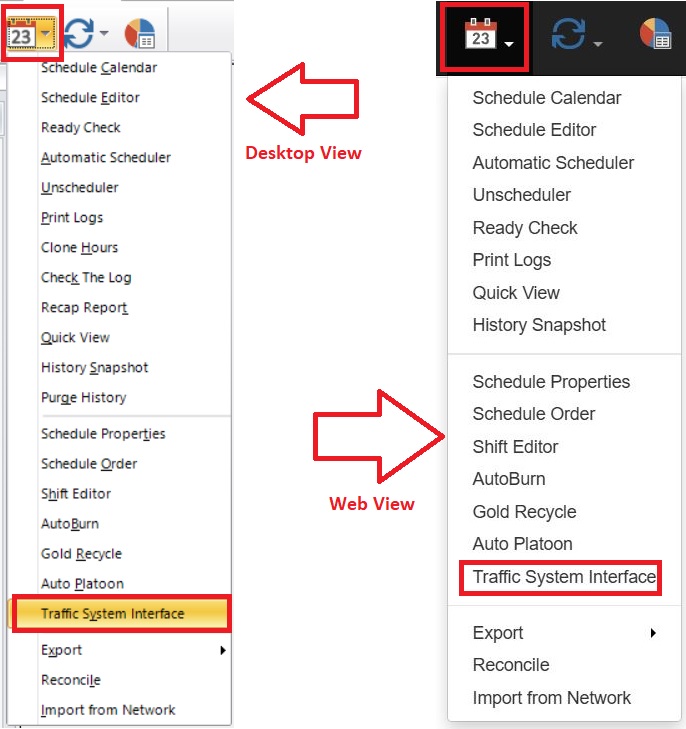
First things first, we need to import a “Def” file. To do this, click on the dropdown for the Schedule Calendar and select “Traffic System Interface”. Below is how this looks in our CS Desktop and Web versions:
A screenshot of a computer

Description automatically generated

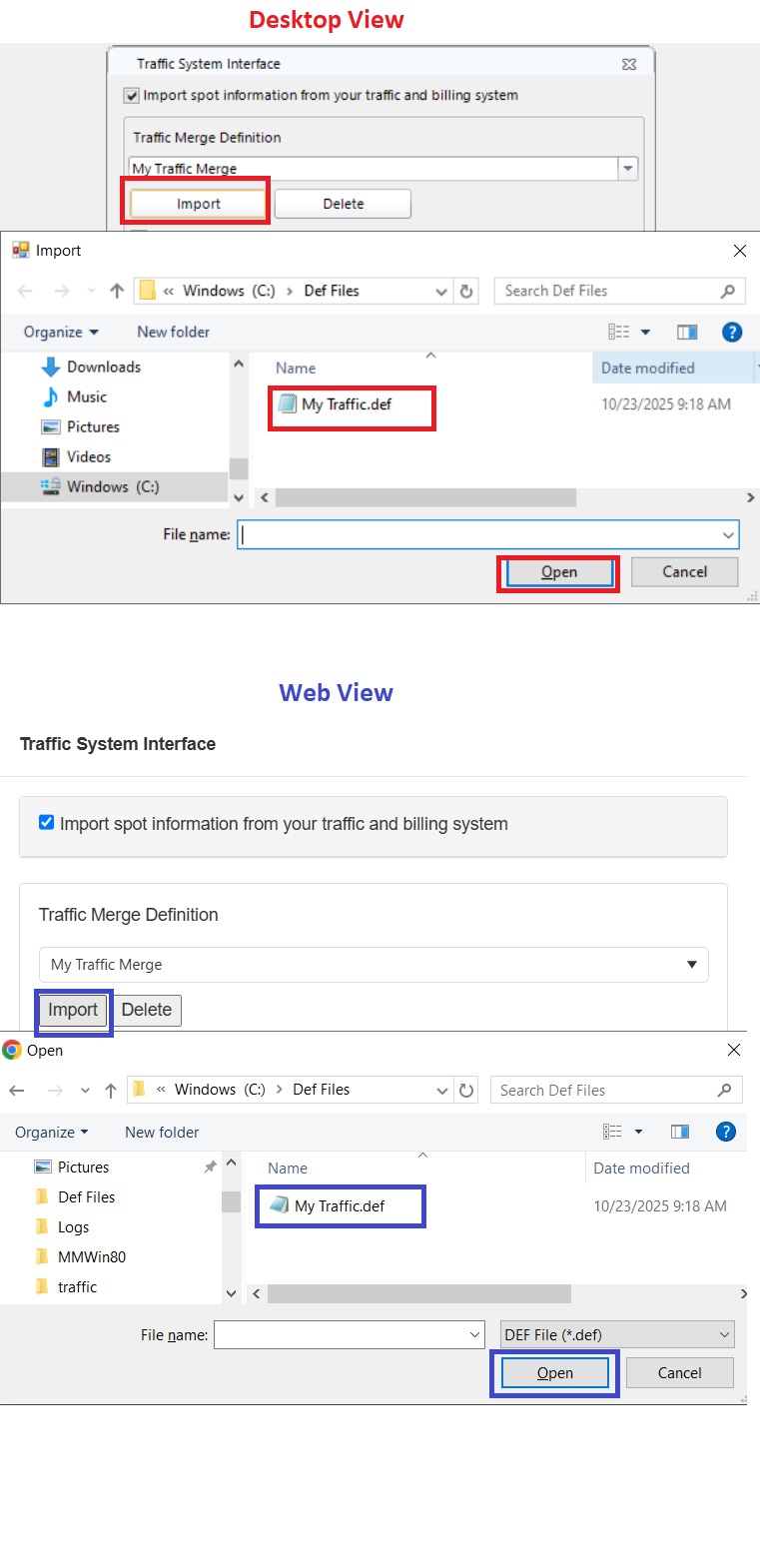
Once selected, the Traffic System Interface box will pop up. There are a couple of things we need to do here, but first, let’s import our Traffic Definition file. This is the file written to import the information from the traffic log into our MusicMaster Schedule Editor. Once you locate your def file, click “Open”, and it will import into your station. Here are the dual looks from the desktop and Web clients:
A screenshot of a computer

Description automatically generated

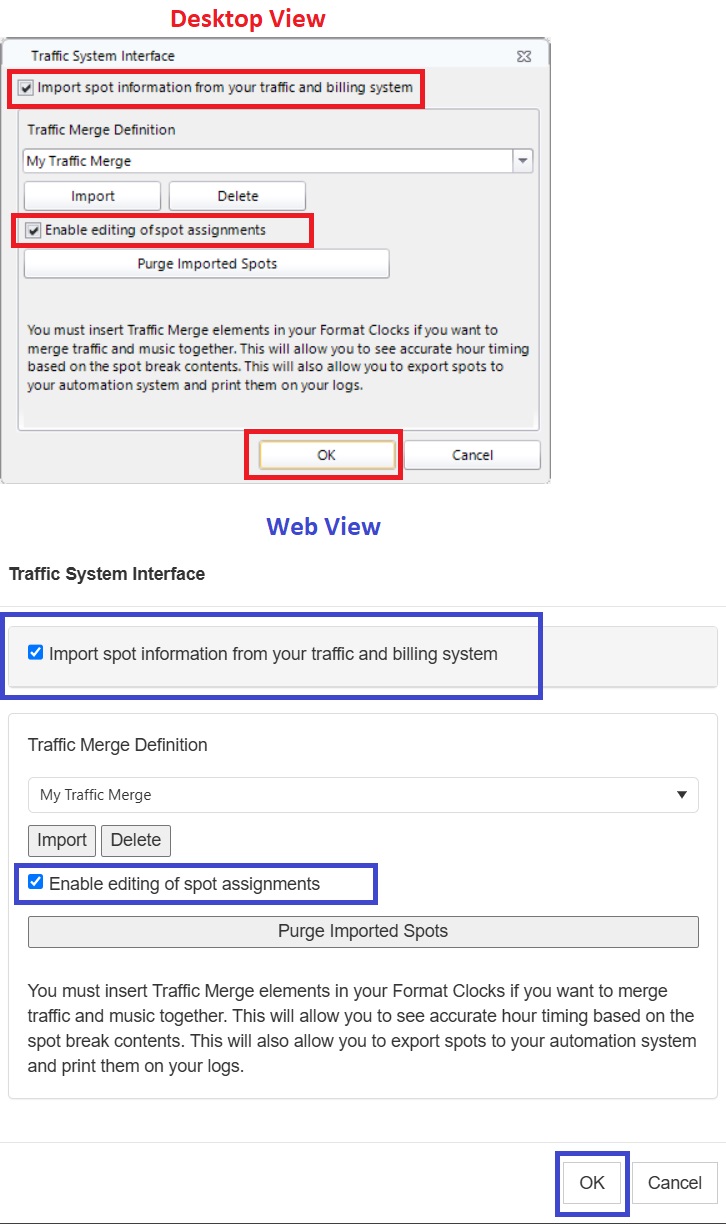
Nice job! Now that it is imported, we’ll get to those other things I had mentioned we needed to knock out. We want to check the boxes for “Import Spot Information from Your Traffic System” and if you are exporting traffic from MusicMaster you may want to “Enable Editing of Spot Assignments”. If you’re like me, if I am going to export traffic along with music, then having the ability to edit the order of the spots to keep the same voice or a similar client away from each other would be important. If not, then leave this unchecked.
A screenshot of a computer

Description automatically generated

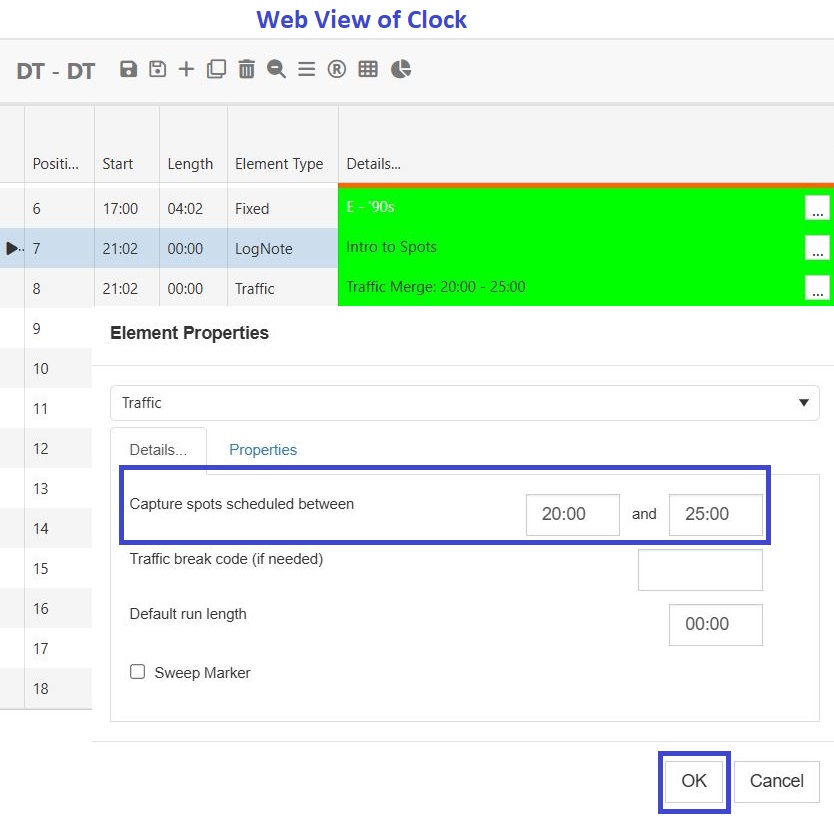
Alright, we are cookin’ with gas now! We have successfully imported the def file, so what’s left to do? We need to set up our clocks with “Traffic Merge” elements. It is important to note that these Traffic Merge points can be wider/longer than the actual stopset. Think of them as funnels that suck in the spots from the traffic log and place them where you want them in the music log. In my example, I have a 20:00 Break that is 3 minutes long. I make my Traffic Merge point a bit wider to make sure it grabs all the spots scheduled for this time. I set it to capture any spots sent from my Traffic Department between 20:00-25:00 after for this hour. It is necessary to know when your traffic is being sent. If your Traffic Director is sending your 20 break spots at 19:00 after and your merge is looking for spots between 20:00-25:00 this will result in a “Loose Spot(s)”, and you will not see it in the editor unless you right-click on the traffic merge and choose “View Loose Spots”. You want to be on the same page with your Traffic Director on this point. Here is what the Traffic Merge will look like in your clock(s).
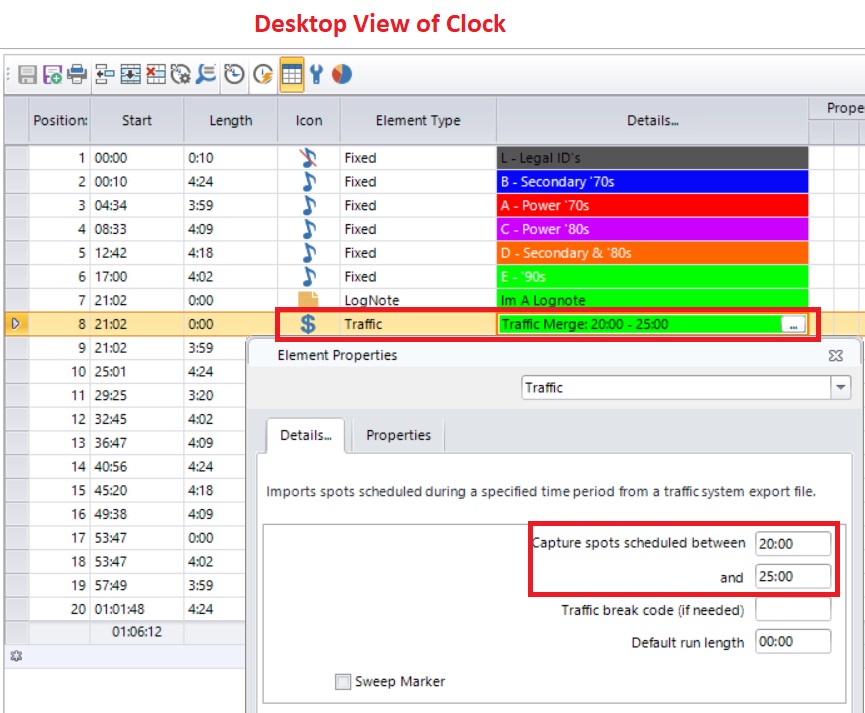
A screenshot of a desktop view of clock

Description automatically generated

A screenshot of a web view of clock

Description automatically generated

You will need these positions in any clocks you want to see traffic in. Save your clock(s) and enter them in the desired assignment grid (unless they already are in there).

Now we want to do a little work in the editor layout, so open your Schedule Editor and then click “Modify Editor Layout”. Scroll down on the bottom right until you reach the “Grid” section. You want “Auto Expand Child” set to “True”. This will allow MusicMaster to display the spots when you open the editor. With it set to false, there would be a small dropdown arrow to the left of the Traffic Merge position that you could click to see the commercials. Once done, click OK and then save the layout by clicking the small “Save” icon to the right of the Modify Editor Layout button. If the other parts of the above setup have been done, this step is not necessary in the Web version.
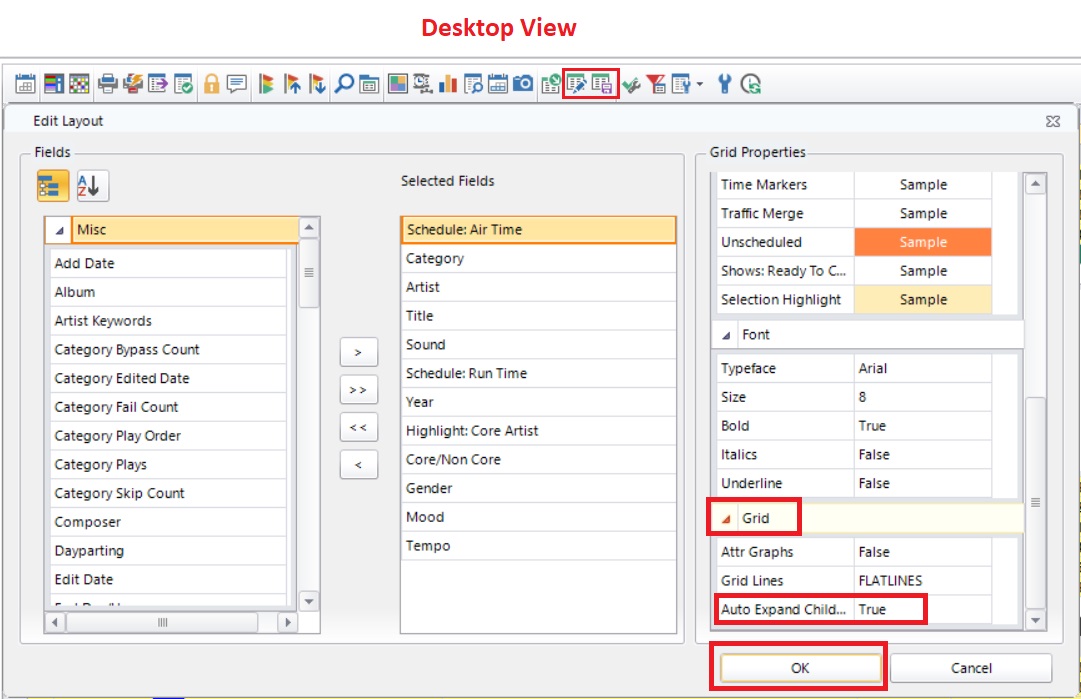
A screenshot of a desktop view

Description automatically generated

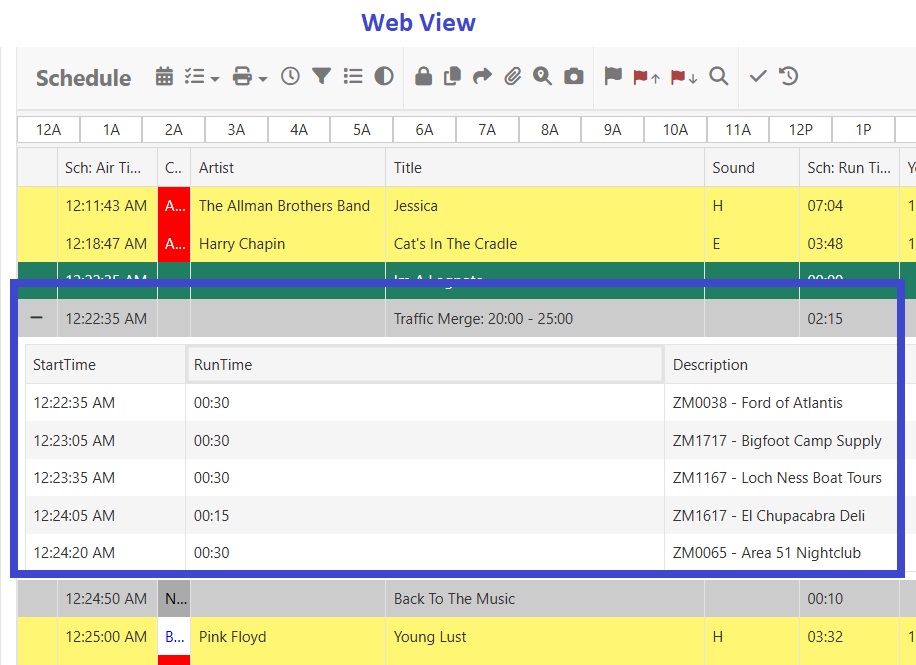
We have finally arrived at the grand reveal! Let’s open the Schedule Editor to a date that we know the traffic logs have already been sent, and voila! Spots!
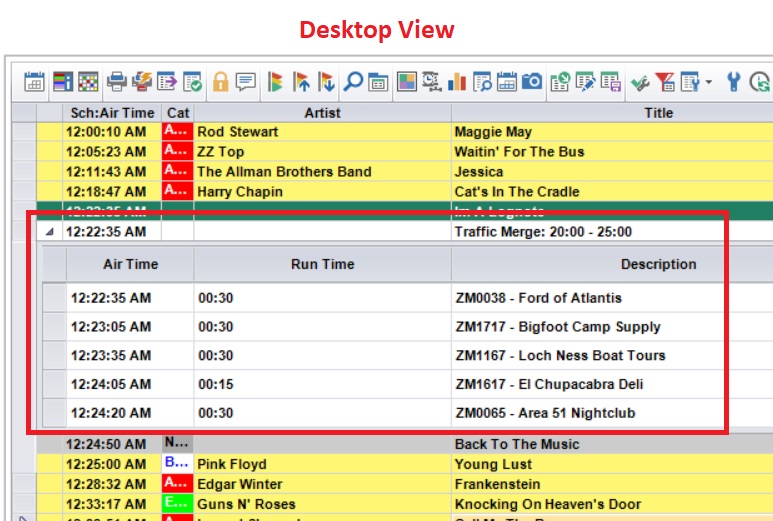
A screenshot of a computer

Description automatically generated

A screenshot of a web view

Description automatically generated

Before wrapping things up here let’s look at how we can import a reconciliation and/or a Library Sync def file. Reconciling will update your logs in MusicMaster with what aired in automation. This is helpful if you have extra songs at the end of each hour that often get bumped, or if jocks change songs out during their airshift. This also assures your BMI/ASCAP, CRTC, Sound Exchange etc. reports are accurate.

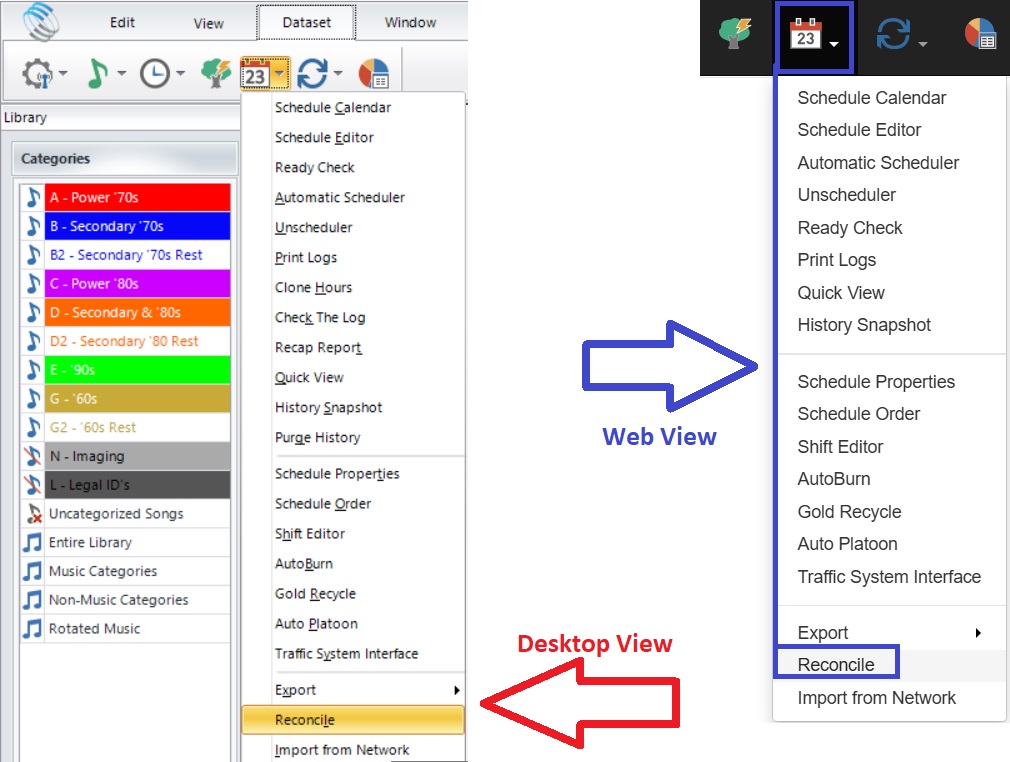
To import a reconciliation file, click on Schedule/Reconcile:
A screenshot of a computer

Description automatically generated

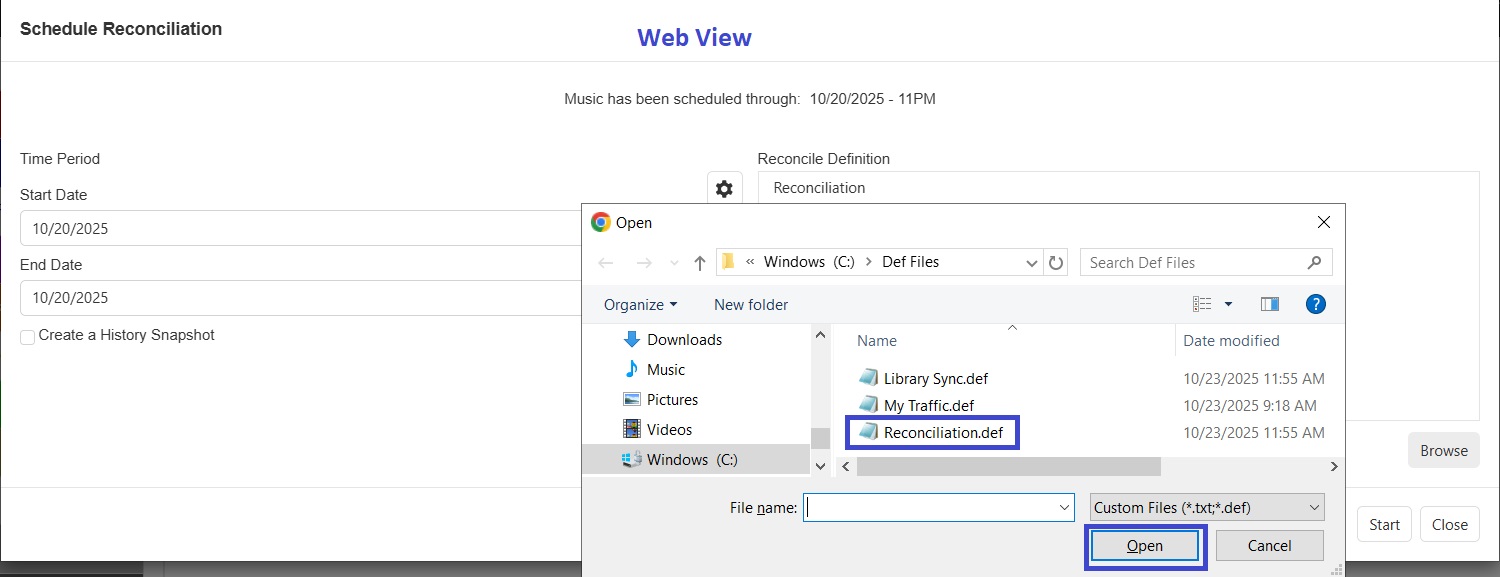
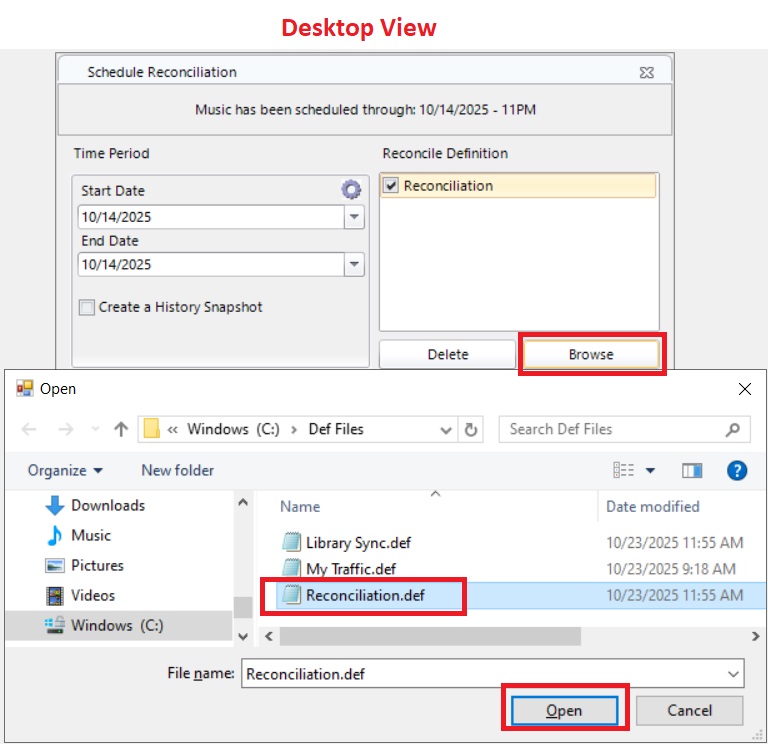
Now you can click the Browse button and find the def file you need and click OK.
A screenshot of a computer

Description automatically generated

A screenshot of a computer

Description automatically generated

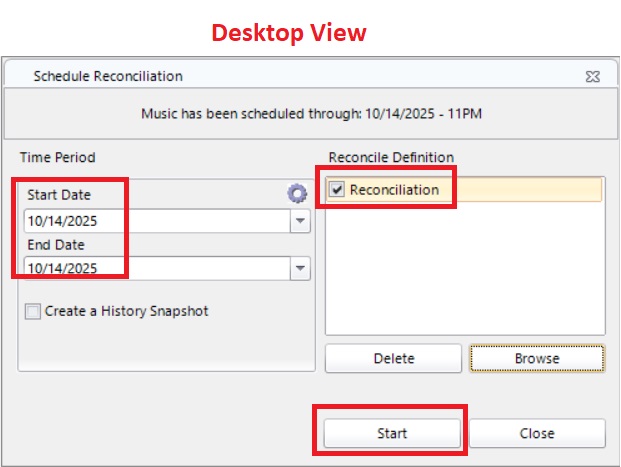
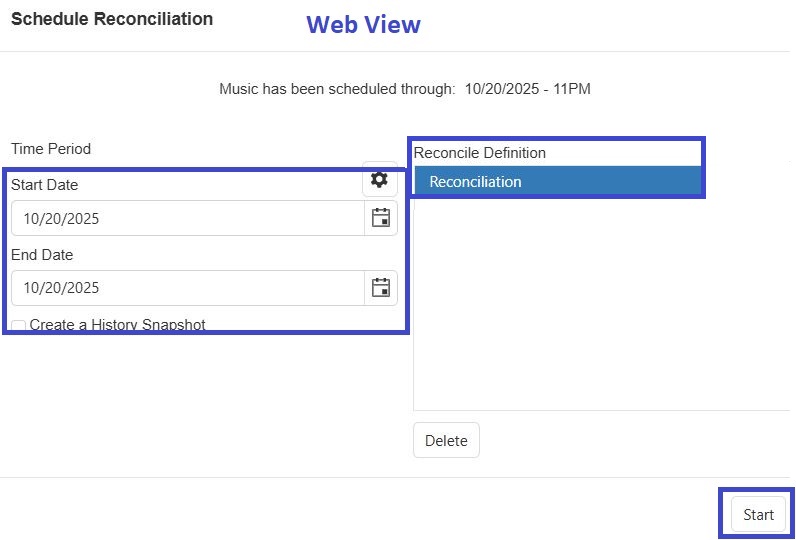
You can reconcile your past logs by going to Schedule/Reconcile and selecting the dates you want to reconcile, make sure the box is checked for the def file, then click Start.
A screenshot of a desktop view

Description automatically generated

A screenshot of a web view

Description automatically generated

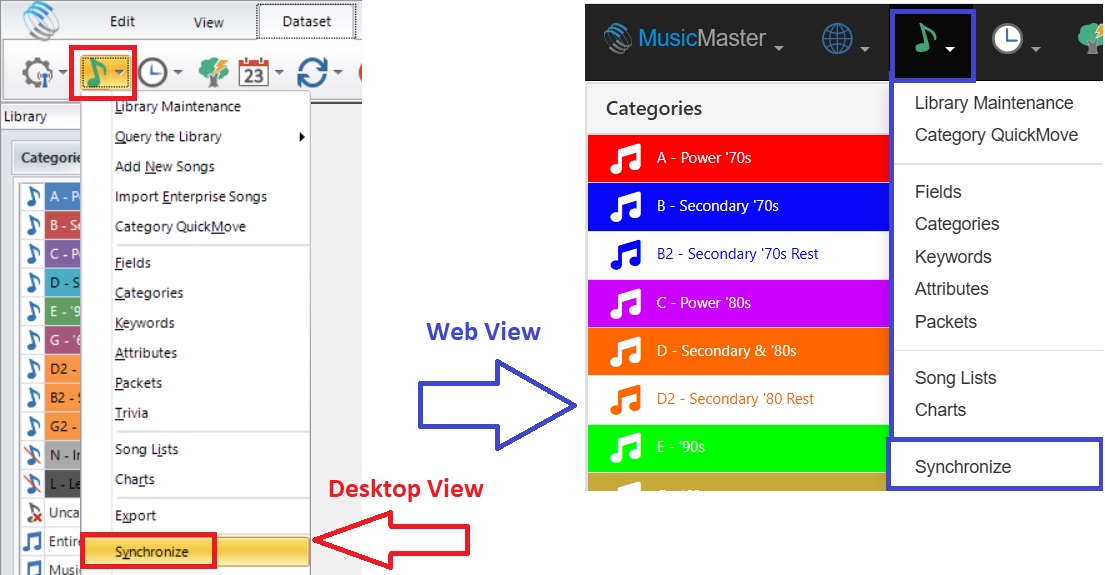
Moving on, let’s import a Library Sync file. Library Syncs are used to add or update metadata (song and song info) from your automation system into MusicMaster. Importing the Def is similar to both the traffic and reconciliation processes. Click on Library/Synchronize.
A screenshot of a computer

Description automatically generated

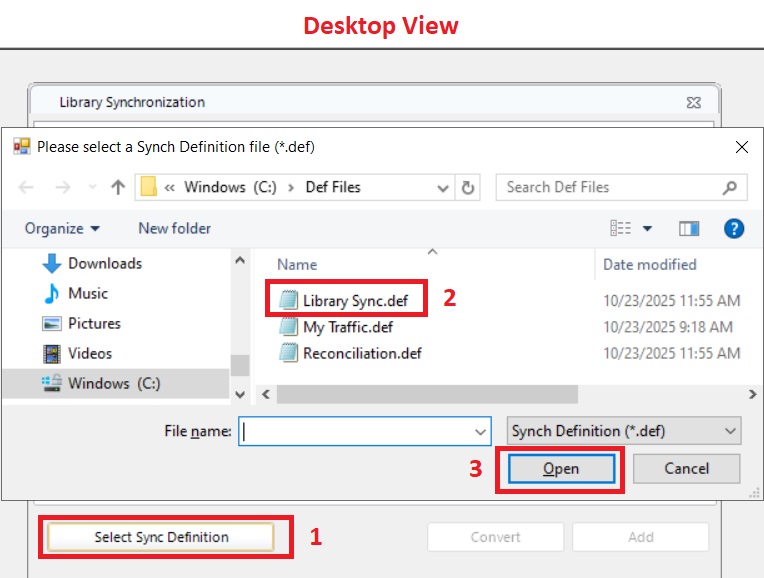
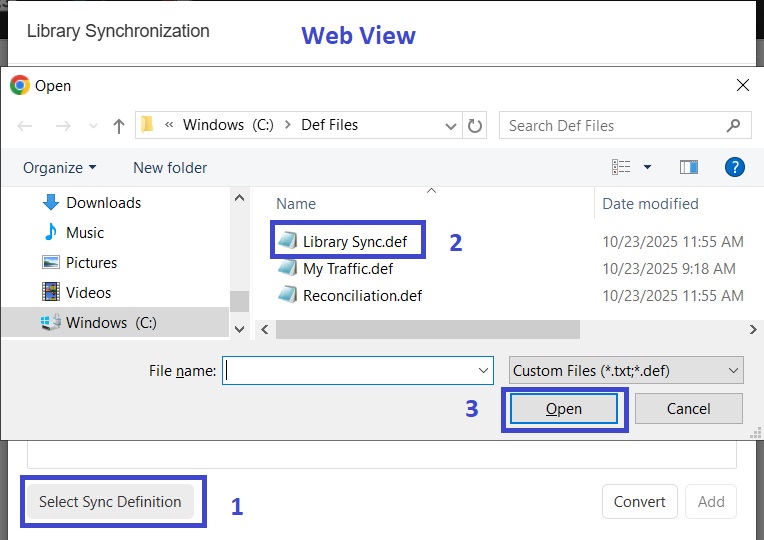
Click to select the Library Synchronization Definition file from the location where you saved it. Click Open.
A screenshot of a desktop view

Description automatically generated

A screenshot of a computer

Description automatically generated

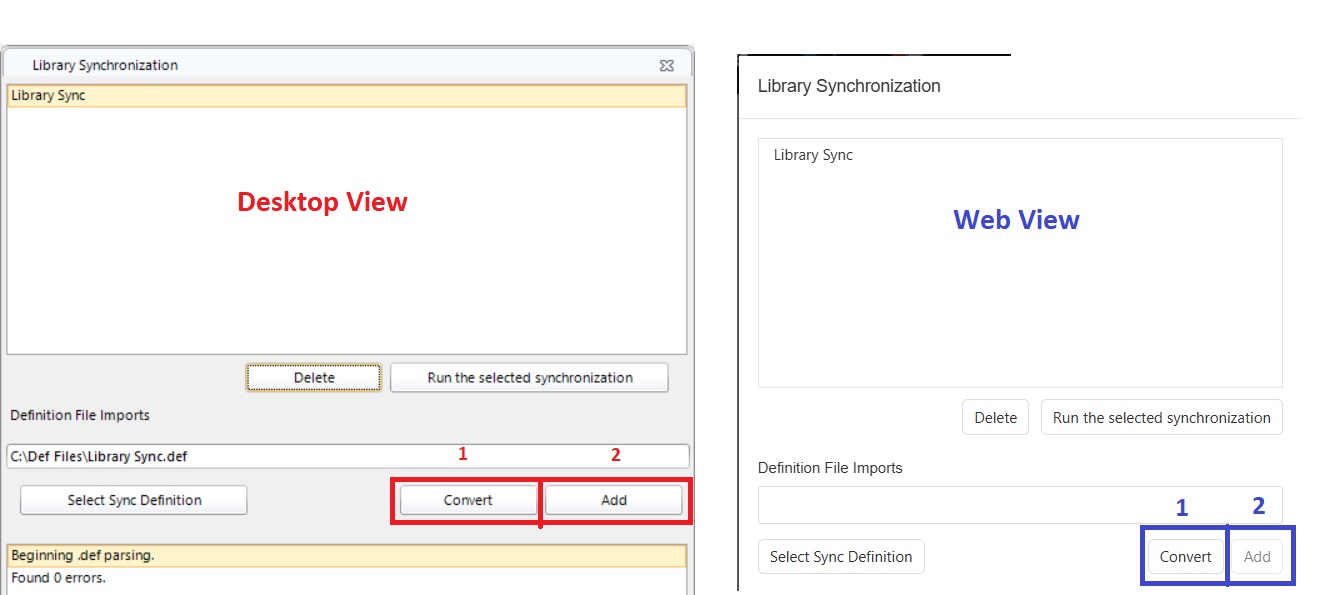
Once selected, if the “Add” button is not available, you may need to click “Convert” first, then “Add”.
A screenshot of a computer screen

Description automatically generated

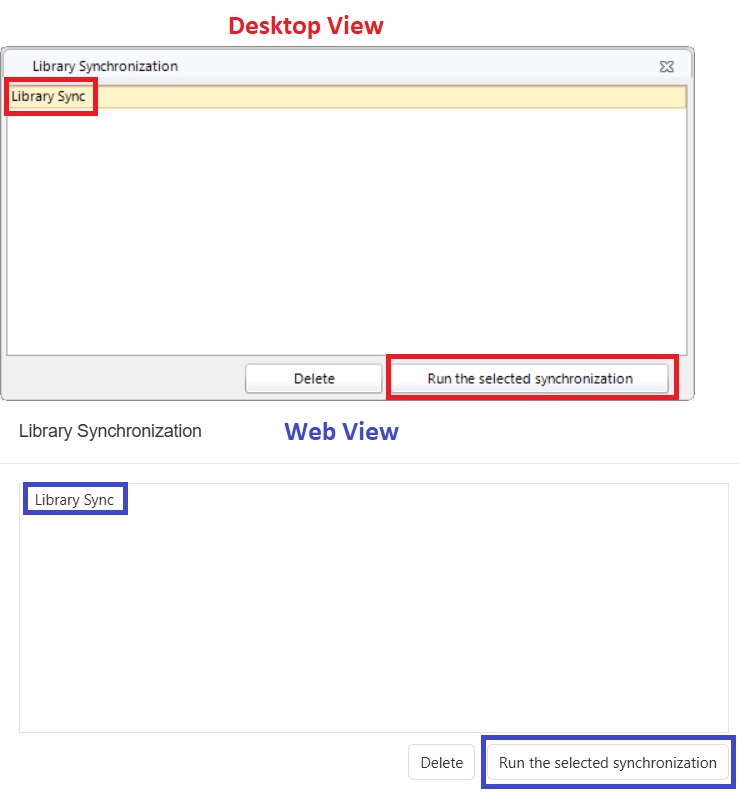
Now you can synchronize your library by going to Library/Synchronize and running the file.
A screenshot of a computer

Description automatically generated

And that, my friends, is how you can import your Traffic, Reconciliation & Library Synchronization definitions into MusicMaster, as demonstrated in our CS Desktop and Web versions. It is worth noting that it is not necessary to do this process in both the Desktop AND the Web clients. Doing it in one does it for the others because they all reference the same database.

As always, if you have any questions, please contact your dedicated MusicMaster Scheduling Consultant.

Welcome to MusicMaster!

Use the dropdown menu below to view a list of stations and locations.
Click a station on the list to visit its homepage and listen live !


Jay R Smith - Saudi Arabia

This month, we are proud to feature Jay R Smith. Jay is the Program Manager of a national CHR station in Saudi Arabia and has worked in radio across the United States, Malaysia, the UAE and Saudi Arabia. His career abroad has shaped his programming philosophy, which centers on building a station that reflects culture, not just charts or systems.

He is known for his clean music flow, strong rotations, instinctive programming style and the ability to bring a station’s personality to life. Outside of programming, Jay R produces music, DJs and creates original remixes. He enjoys working across different markets and believes radio is at its best when it mirrors the community it serves.

Jay shared, "I have been using MusicMaster for about a year now. I schedule a national CHR station here in Saudi Arabia, and before MusicMaster I worked with both RCS and Dalet scheduling software. The difference has been massive in a very good way.

"One thing I love most about MusicMaster is that there are multiple ways to accomplish the same task. In radio, every programmer has their own style and their own workflow, so having a platform that adapts to both program directors and assistant program directors makes life easier for everyone. If I had to pick a favorite feature, the Optimum Goal Scheduling stands out. It gives you clean, accurate rotations without having to fight the system.

"When I was on Dalet, we were running a tighter rotation than the other stations in our cluster and were constantly dealing with rotation challenges. MusicMaster fixed that right away. Our rotations became consistent and predictable, and the overall flow of the station improved instantly. My daily logs went from taking four hours to one, and the workflow quality jumped to an A plus. I used to make one small adjustment in Dalet and it would throw everything off. With MusicMaster, the opposite happens. I can automate what I want, but still go inside and shape the log so it feels like mine.

"I also appreciate how MusicMaster lets me program for the culture, not just follow a rigid system. Working abroad has taught me that every market has its own heartbeat, and MusicMaster gives me the freedom to build a sound that reflects that. It fits my personality, but it also has the flexibility to fit someone else’s style, because there are so many ways to approach the same goal."

MusicMaster, Inc.
MusicMaster.com

8700 Stonebrook Pkwy, #1167
Frisco, TX 75034
sales@musicmaster.com
469.717.0100