Different Query Options For Different Data Types
by Laurie Knapp
MusicMaster has many different query options to help you find specific songs in your library. Beyond the basics, like searching by artist or title, you can find songs based on combinations of their keywords, attributes or other metadata. This is not only helpful when referencing or cleaning up your database but also when building song lists, special programming or finding that perfect song to fill a spot in your log.
Each different database field type (like attribute or numeric) has different Query Filter options available to it. In this article, we’ll look at some of the most common data field types used, and the different ways you can search for information stored in those fields. Knowing the many options that are available will inspire you with more ways to save time and get creative with your queries.
Remember, you can use any combination of these filters or any combination of fields to build complex queries. If you do add more than one search filter, be sure to select whether you want the results to match All or just Any of the search terms. You can also use the Sort Keys at the bottom of the Query box to sort your results by up to three fields.
You can Save your Queries so you can run them again and again to bring up a list of songs that meet those criteria.
Another tool you may want to explore further is the Prompted Query. This allows you to save a query that only contains the Filters but has blanks for the value. That way, each time you run it, you’ll get a simple form where you can fill in different values to search by. More info on Prompted Queries can be found here.
Text Fields
For text or memo type fields, you’re most likely looking to match some text value or phrase. Some examples of data you may store as text are:
-
Artist, Title, Album (not keywords)
- Composer, Label or Publisher
- Audio Filename or Hard Drive Location
- URL for Artist Website
- Identifying information like spine or cart number.
(A Memo Field is used for longer bits of text, such as notes, lyrics or other descriptive information.)
Your query filter options for these types of fields allow you to search for an exact text match (“equals”) or a partial match (“contains” or “begins with” or “ends with”).
You can also search for the opposite – does not equal, does not contain, etc.
For example, maybe you want to search for all songs by The Eagles but want to exclude any of their live recordings. If you know you wrote “live” somewhere in the title of those recordings, you could run this search.
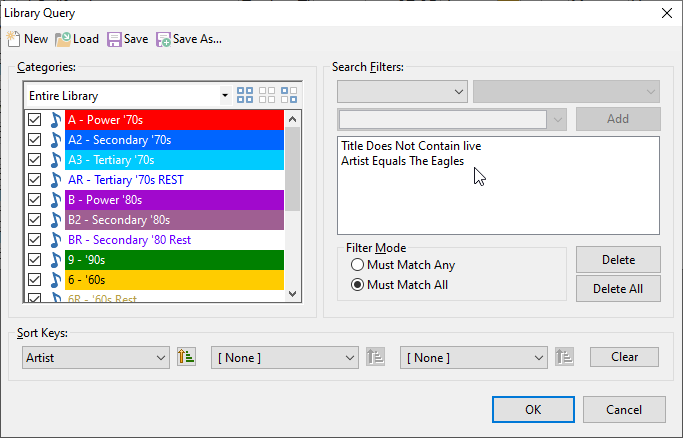
Note that you can use AutoFill or use the drop down in the value box to pick from a list of your Artists. This way you’ll know for sure whether you wrote them as “Eagles” or “The Eagles”.
Another helpful way to use Queries is for database maintenance. You can find songs that are missing data in a field by selecting the filter option “Is Blank”. (By the way, this applies to more than just Text Fields!)
For example, you could find all songs where you haven’t yet filled in an Audio Filename or the Website URL yet so you can get caught up adding that information.
You can also use “Is Not Blank” to find fields that do have data in them. For example, you could search for all songs where you’ve made notes in the “To Do” memo field and pull up a list of songs that still need work.
Attribute Fields
With attribute queries, you’re usually looking to find songs that are coded with a specific attribute or combination of attributes. Remember, some attribute fields contain just one piece of information (like Attribute-Overall type fields) and some can store more than one value (like Attribute-Multiple, Attribute-Combo or Attribute-In/Out type fields).
If you have fields that hold more than one value, you have to decide what combination of values you want to search for.
For example, you may have Attribute-Multiple codes for the song’s Themes, which includes (among other things) C for Cars and S for Summer.
- If you want to find a song that is either about Cars OR Summer, you’d use “Contains Any of CS” to find either C or S coded songs.
- If you want to find a song that ONLY is about Cars and Summer and nothing else, you’d use “Contains Only CS”.
-
If you want to find a song that is about BOTH Cars AND Summer but may also have other themes associated with it as well, you’d use “Contains All of CS”.
- Not only would this find songs that are just coded CS, but it could also find songs that contain other themes, like CDS for Cars, Dancing and Summer.
- For a more advanced example: If you want to find a song that is about Cars AND Summer but is not about Breakups (B) OR Heartache (H), then you’d use two layers of filters. “Contains All of CS” and “Does Not Contain Any of BH”.

By the way, the above concept also applies to Keywords that have multiple values too. More on Keywords later.
Click to Keep Reading...
Another common attribute example is Tempo. If you have an Attribute-Overall field for tempo, you only have one value stored, which as you can probably guess, is the overall song tempo.
You can search for an exact match of songs that have a certain overall tempo.
What if you want to find either slow OR medium-slow songs? At first, you might think you’ll have to add two layers: Tempo-Overall Equals 1 and Tempo-Overall Equals 2 and then select “Must Match Any” to find songs that meet either criterion.
But a faster way to do this is to combine the two codes together by using “Contains Any Of 12”!
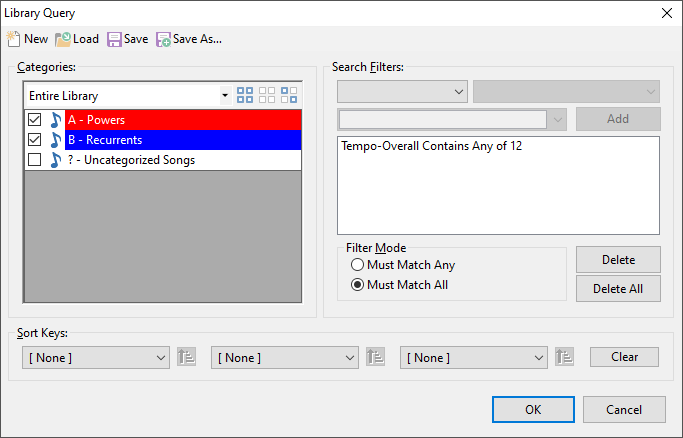
The Attribute-Overall field only stored one value. But if you have an Attribute-Combo field for tempo, you are storing a three-digit code that represents the intro tempo, the overall tempo and the ending tempo as one value. This could look like “131” or “SMS” for a song that starts and ends slow but overall has a medium tempo.
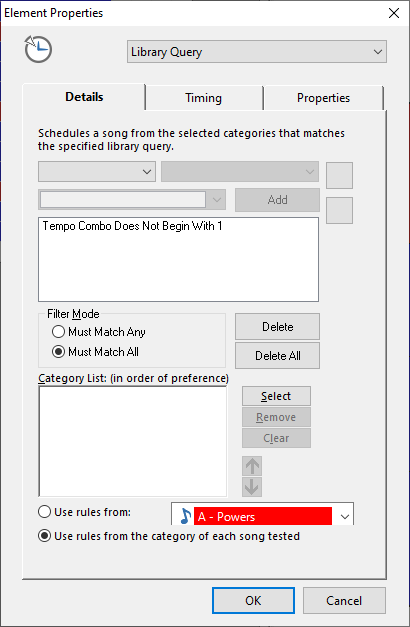
Here you have more options since there are more values to work with in that field. For example, if you want to find all songs that have a slow intro, you could use the query “Begins With 1”. You also have options for Ends With, Does Not Begin With, and Does Not End With.
You might use this to place a Library Query element in your clocks so that songs coming out of your breaks do not begin with a slow tempo. (More on Library Query elements here)
Finally, just like in other field types, you can use “Is Blank” or “Is Not Blank” to quickly find all songs that are missing certain attribute codes, or that have been filled in already.
Keyword Fields
Keywords are usually written out as text (versus an abbreviated code), but they have similar properties to Attributes in that you assign one or more to a song. They are different in how they are used by the Rules and Special Sets but they have similar options when it comes to Queries.
The same options noted above can be used to search for a combination of Only, Any and All keywords on a song. Since Keywords are written as text, you can also search for a full or partial match of the text itself.
You’ll note additional options on fields that can hold multiple keywords. This might be used if you have songs with multiple performers or contributing artists. For example, I may have an Artist Keywords field that contains multiple keywords for both the primary artist and anyone who contributed to the track. Some unique queries I can run on this field are:
-
Count: Equals, Does Not Equal, Greater/Less Than
- Primary Keyword Equals or Contains
- Contains or Does Not Contain
For example, I can bring up a list of all songs where Drake is the primary artist (first on the list) by using “Primary Keyword Equals Drake”. This wouldn’t bring up any songs where Drake is listed only as a secondary or contributing artist. I could also search for Artist Keywords Contains “Paul Simon” to find a list of both his solo music and his Simon & Garfunkel music.
Another maintenance use is to find all the songs that have multiple artists listed by using Count Greater Than 1.
You can also assign Trivia to keywords the same way you assign trivia to individual Songs. There are additional query options pertaining to Trivia with Keywords to handle this.
For example, you can search for Keywords that either do or don’t have any trivia associated with them. Or you can search by the trivia start or kill date. You can also search within the trivia text itself to get a list of songs where the keyword trivia mentions something specific like a concert or birthday.
Date Fields
Dates are stored with month, day, and year information. MusicMaster has many query options help you narrow down a date range, both in relation to the calendar itself and the days you have scheduled. Some examples are:
-
Matches Current Date
- Within Last/Next X Days
- Within Current Week/Month
- Within Last/Next X Scheduled Days
- Matches Last Scheduled Date/Week/Month
- Month/Day/Year Matches
- Equals
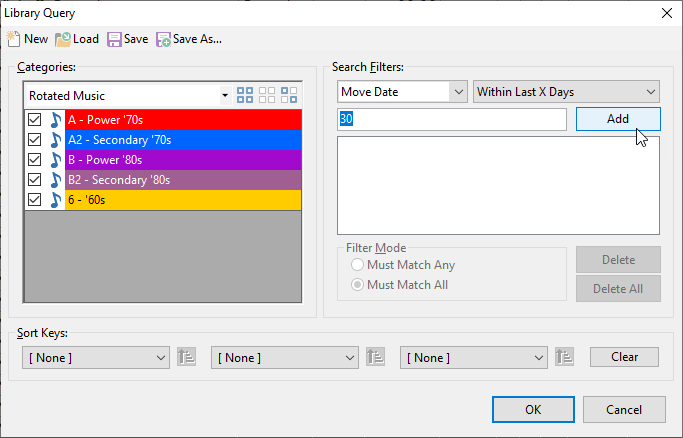
Some Internal (built-in) fields accept dates, such as Add Date or Move Date, which indicate when a song was added to the library or when it was moved into its category. For example, you might want to find all the songs that you added to your library last year.
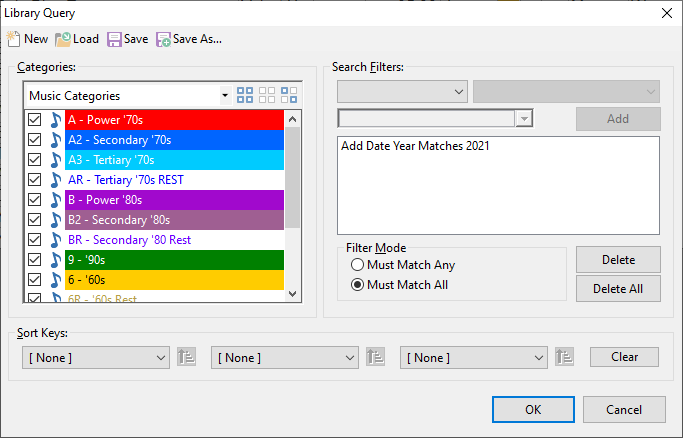
Or, you could find songs that were moved to a new category within the last 30 days, like this:
Another built-in example is Start or End Day/Hour. These are used to determine when a song can start to be considered for scheduling, and when it’s no longer eligible for consideration.
For example, if you have set a Start Day set, you might want to pull up a list of songs that will be debuting in the upcoming week. This query would look like “Start Day/Hour Within Next 7 Days”.
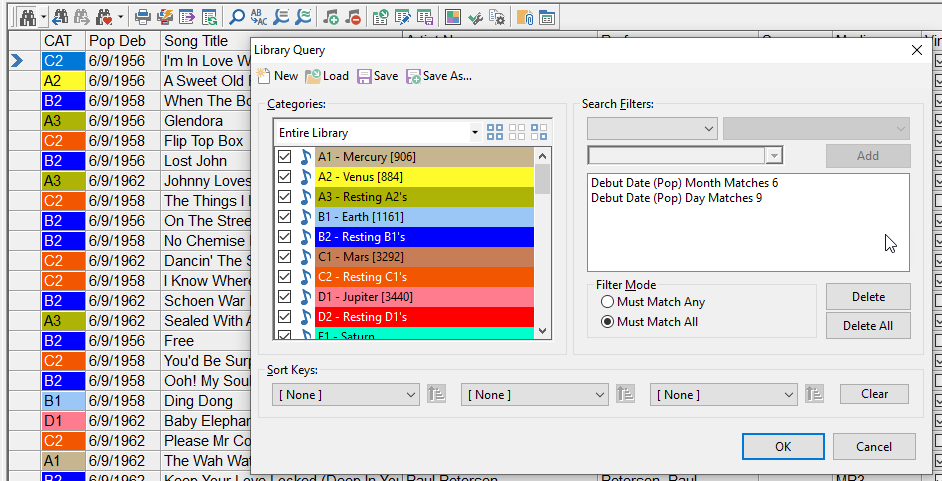
You might also use dates to store chart or research information, such as when a particular research test was performed or on what date a song was released or debuted on the charts. For example, you could pull up a list of songs that first charted on today’s date (June 9), but from any year.
Numeric Fields
These types of fields store numbers of varying kinds, such as the year a song was released, chart positions or research scores.
As you might expect, these types of fields have query filters that are mathematical, such as “equal to”, “greater than” or “less than or equal to.” So for an easy example, here’s how you might find songs that were released from 1965 through 1970.

You can also use the “Is Blank” and “Is Not Blank” to find songs that do or do not have values in this field. One example for this would be if you have fields for the Chart Position or Research Score. You could use this query with “Is Not Blank” to find all songs that have any value for chart position, which essentially means they charted. Or you could use “Is Blank” to find all the songs that you haven’t added research scores for yet.
Runtime is an Internal field but behaves like a numeric field. You can use filters like equal, greater than or less than. An example query would be to find all songs that are less than 3:00 in runtime.
There’s also another interesting option available for Runtime called “Close To” and “Is Not Close To”. This allows you to get a fuzzier match to that target runtime, by finding matches within a window of time around it. The default is 10 seconds, but you can change it in Tools > Options > Additional Properties under the Library section. In the Close To box, fill in the number of you want as a search window around the value you enter.
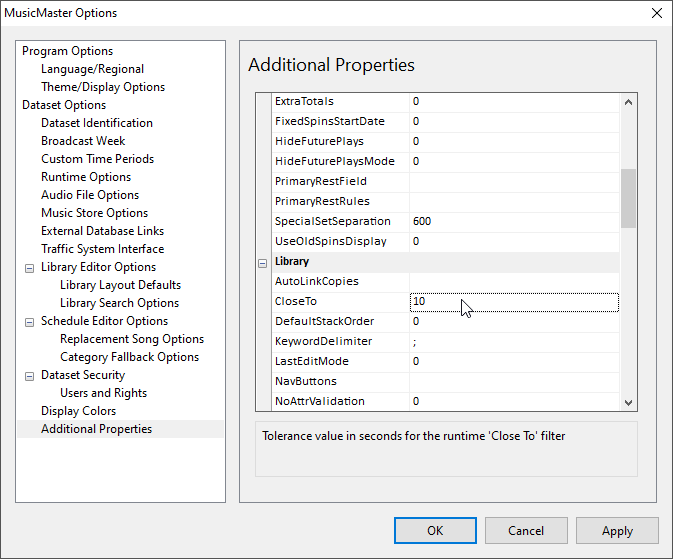
By the way, 10 seconds means 5 seconds on either side of the value you enter. So in the example above, if you searched for run times “close to 03:00” you’d get songs ranging from 2:55 to 3:05.

Other Internal Fields
There are some additional options available for internal fields. For example, you can find songs that have any Dayparting or Packeting on them by using the query filter “Exists”.
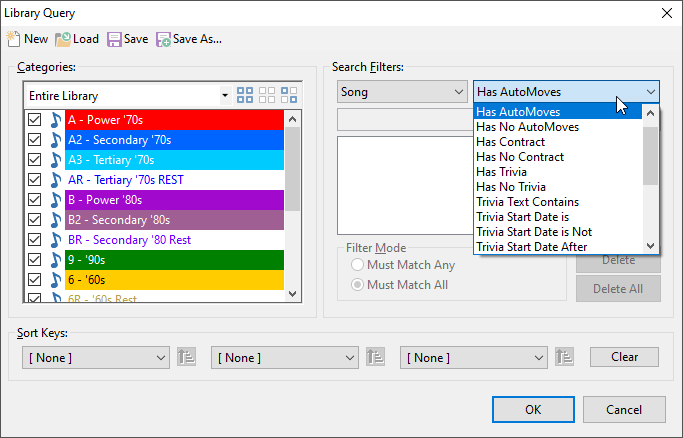
One useful internal field is Song. As you might imagine, this is a reference to the song itself, independent of any metadata you have on it. Many things in MusicMaster relate to the song as a whole, including a subset of rules (Song/History rules) as well as things like Airplay Contracts, Trivia and Auto Moves (when a song is scheduled to move to a new category). There are Query Filter options that refer to these things, as pictured below.
More on Airplay Contracts: https://musicmaster.com/?p=7584
Video on AutoMoves: https://youtu.be/J7jZcfx3IfY
Conclusion
As you can see, there are many creative ways you can use queries to find the songs you’re looking for, whether you’re doing maintenance on your database or putting together some special programming. As you build your database, think about the kinds of fields you may want to add in order to store information that you’ll later put to work in queries!
If you have any questions, feel free to contact your MusicMaster Scheduling Consultant.