
MusicMaster Blog
Managing Multiple Stations Just Got Easier With MusicMaster CS Publicado por Laurie Knapp en enero 30th, 2026
by Jerry Butler
Anyone who has programmed multiple stations simultaneously understands how fast the hours in a day can slip away. You make music updates in one station, then you repeat the same changes in another, and then another. Add new songs, research changes, category adjustments, and seasonal music, and suddenly it feels like you spend more time duplicating work than actually programming.
MusicMaster CS was designed to eliminate that cycle.
Two key features can streamline your workflow across stations:
• Category Sync
• Station Distribution
They solve different problems, but together they streamline everything from routine updates to enterprise-level format management.
Why Programmers Use These Features
Category Sync: One Update, Many Stations
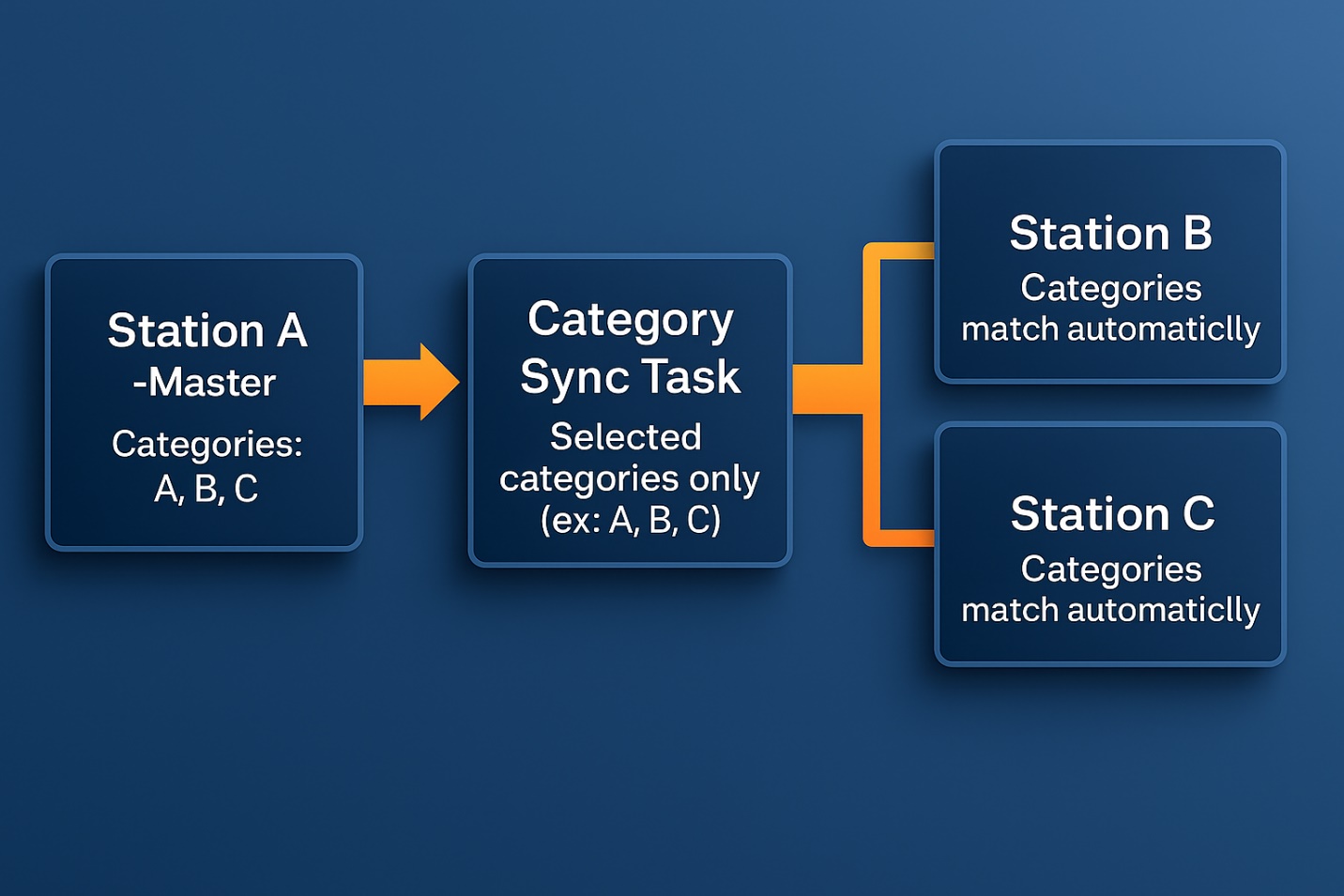
Category Sync allows you to make updates in one station and automatically share that information with any other station you choose.
Programmers rely on Category Sync because it removes the most time-consuming parts of multi-station management. You enter a new song once, and MusicMaster CS sends it exactly where it needs to go. Every station receives the same enterprise-level metadata, coding, research scores, etc. This keeps formats aligned, reduces manual repetition, and ensures accuracy across the entire operation. Since all stations draw from the same updated information, you avoid inconsistent coding or forgotten changes that can throw off rotations.
Category Sync is especially valuable for clusters with multiple versions of the same format because it establishes a common foundation that stays consistent and easy to maintain.
Station Distribution: Flexibility When Stations Are Similar, But Not Identical
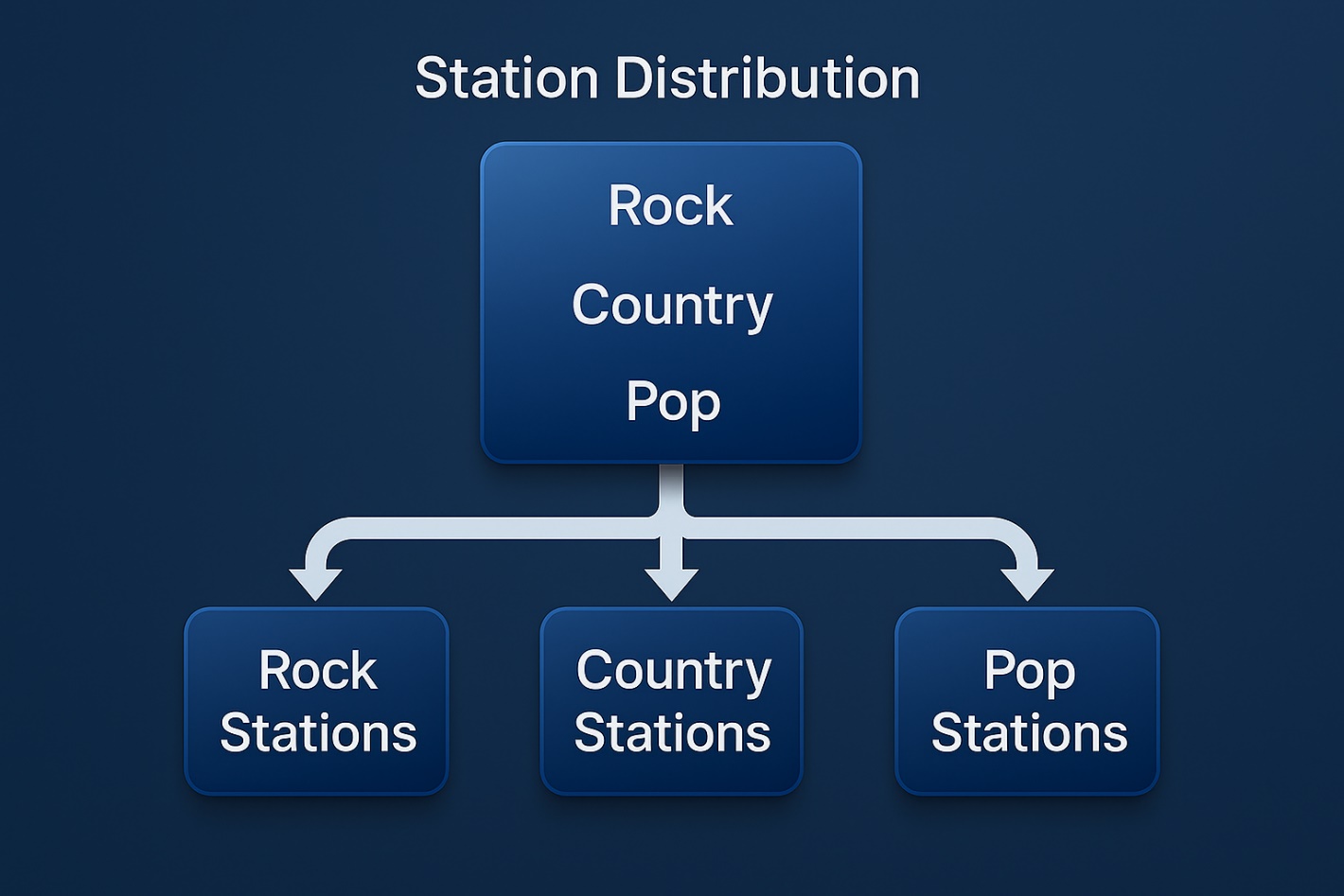
Station Distribution is designed for operations where stations share parts of a format but still require their own unique sound.
Programmers use this feature because it provides selective, controlled sharing. You can choose exactly which songs, based on custom filters that you choose, to distribute. The destination stations then have the freedom to make local adjustments without altering the original source station. This is ideal for stations that share core music but differ in regionally important titles, seasonal rotations, or specialty formats.
Station Distribution helps clusters maintain consistency while preserving the flexibility each programmer needs in their own market.
Now that you understand why programmers use these features, here is how you can set them up.
Setting Up Category Sync
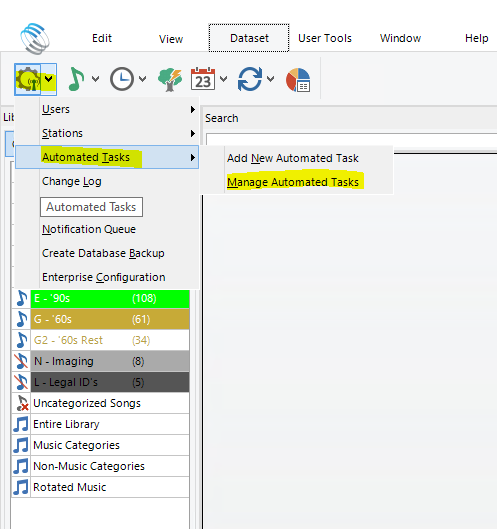
- Click on the Enterprise gear Icon on the top left of your screen.
- Go to Automated Tasks and click on Manage Automated Tasks. (You could also click Add New Automated Tasks)
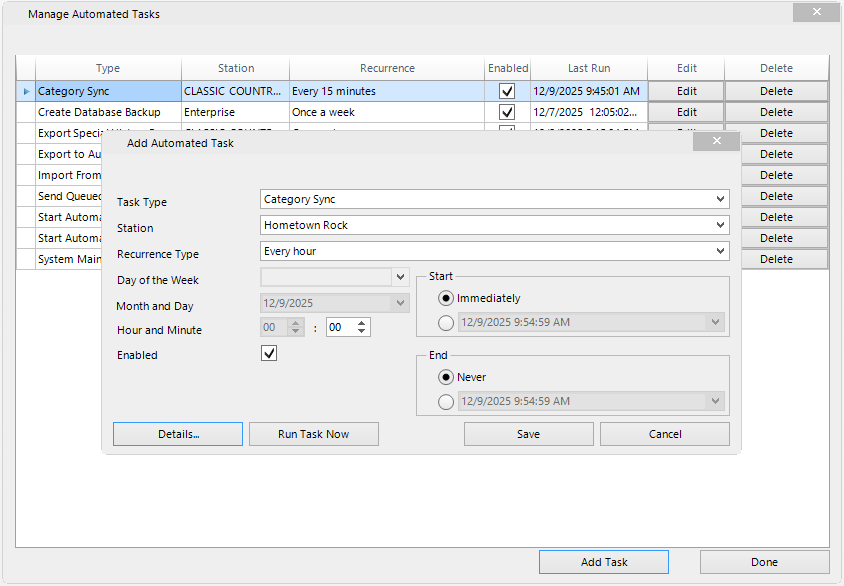
- Click Add Task
- Select Category Sync in the Task Type Dropdown Menu.
- Choose your source station.
- Select how often you would like to run the category sync.
- Click Details.
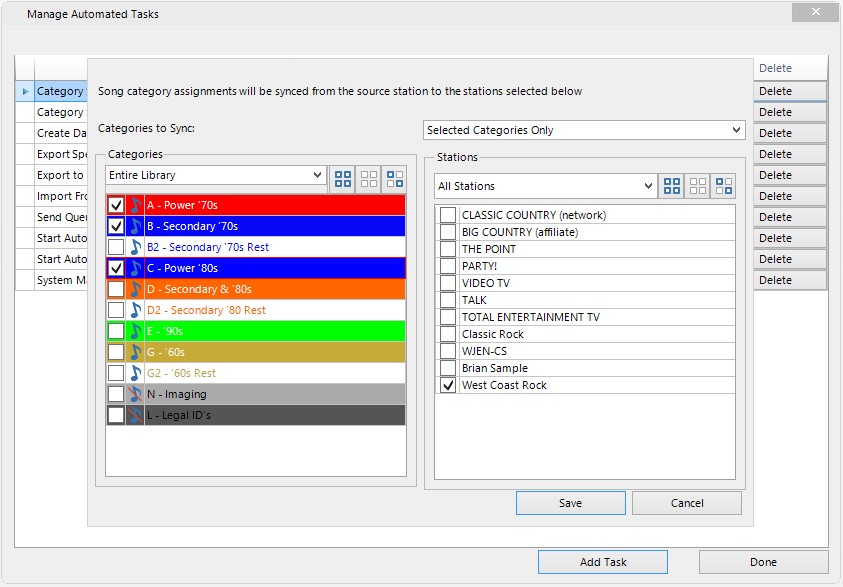
- Select which categories you would like to sync between stations using the dropdown for all categories, music categories, non-music categories, or select categories only.
- Select stations you want to update.
- Save and MusicMaster CS handles the rest.
Station Distribution: Setting Up Patriotic Song Distribution Across Formats
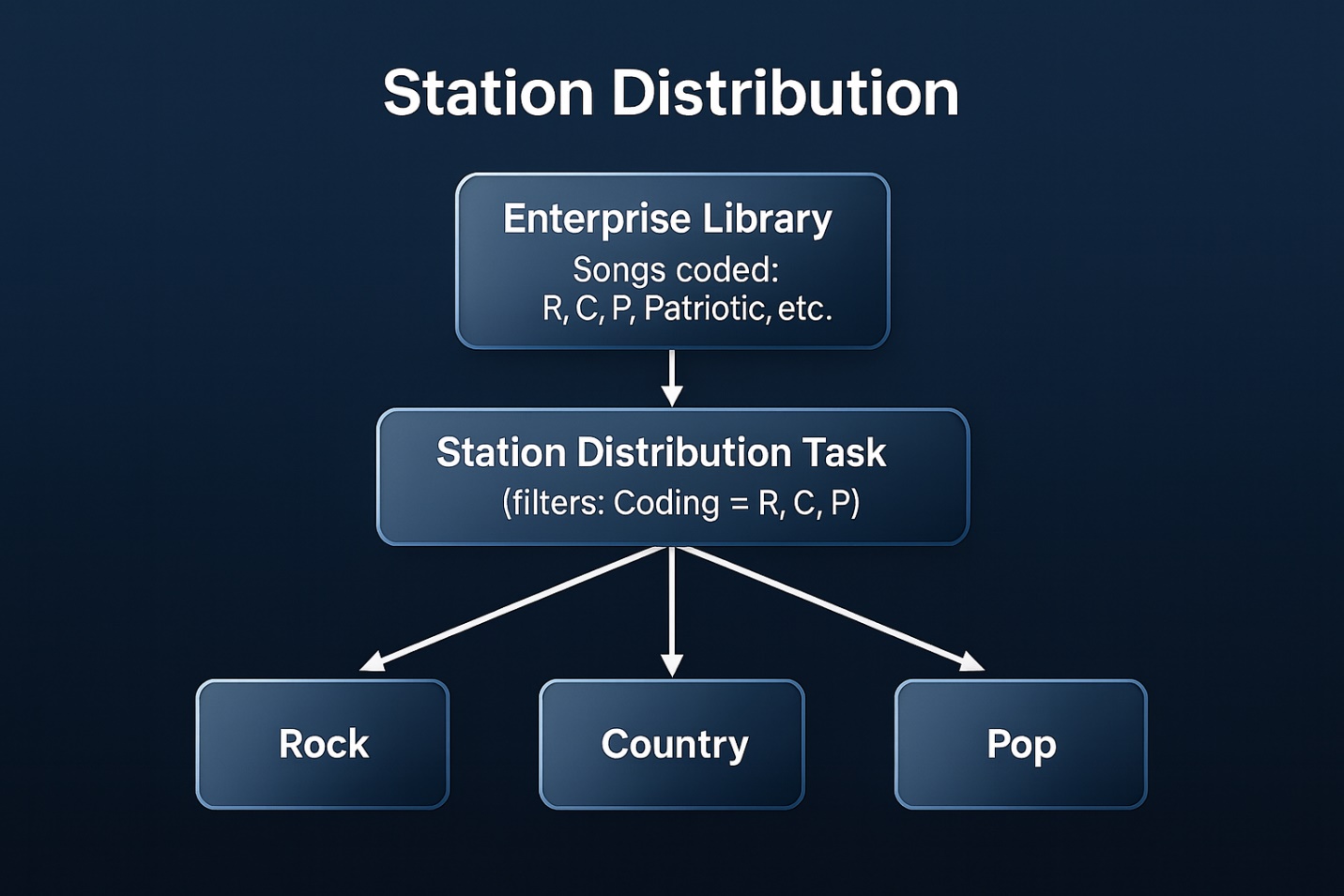
This Is Where Station Distribution Shines
Let’s say you’re preparing music for a patriotic holiday weekend. The fields you use for your filters have to be enterprise-level fields so you can filter the library from the enterprise level. Station-level attributes won’t be visible in the Enterprise. For this case, we’ve already coded our library by genre and specialty:
• Specialty = Patriotic
• Genre = Rock / Country / Pop
Setting Up Station Distribution:
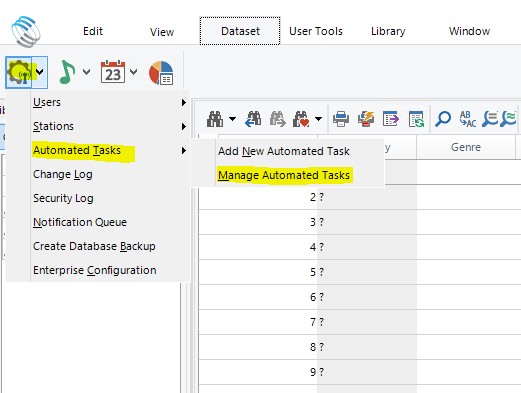
- In the Enterprise, click on the Enterprise gear Icon on the top left of your screen.
- Go to Automated Tasks and click on Manage Automated Tasks. (You could also click Add New Automated Tasks)
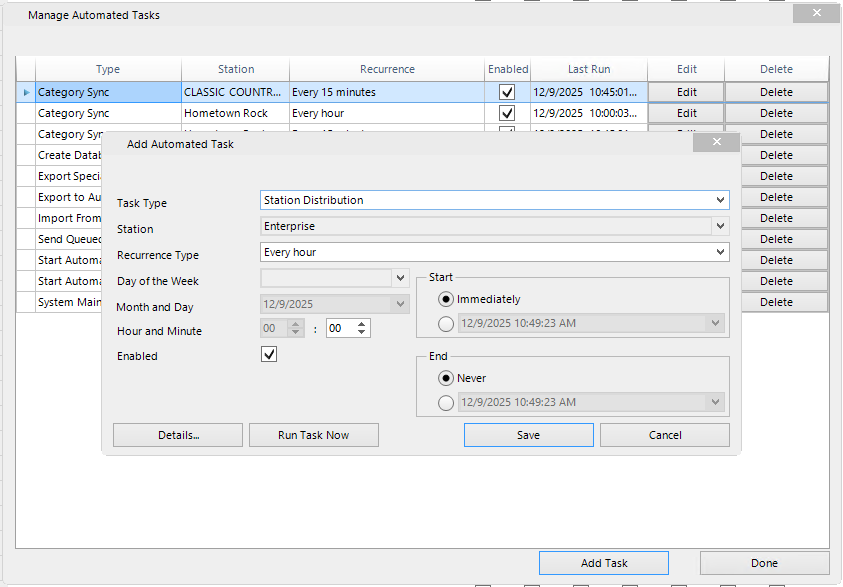
- Click Add Task
- Select Station Distribution in the Task Type Dropdown Menu.
- Set how often you want this automated task to run under Recurrence Type.
- Click Details.
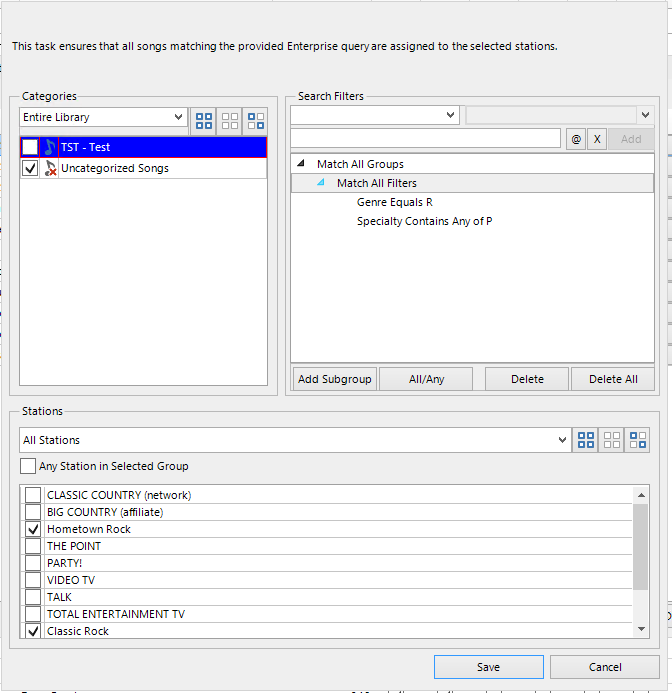
- Select categories on the left.
- Create your filters (ex: For this instance, we are using R for Rock in Genre and P for Patriotic song in Specialty.)
- Select stations you would like to distribute the new songs to.
- Save and let CS distribute automatically. New songs will be added to the uncategorized folder in the target stations.
Repeat these steps for each format, and songs will be distributed to the appropriate stations. This is just one example of how Station Distribution can be used. If you can filter it at the enterprise level, you can distribute.
As you can see, these powerful automation tools in MusicMaster CS allow you to manage multiple stations with greater consistency, accuracy, and efficiency. Whether your goal is to keep formats aligned through Category Sync or customize shared content with Station Distribution, these features reduce repetitive work and give you more time to focus on programming strategy. If you have questions or would like help setting up these features, contact your MusicMaster Scheduling Consultant.