
MusicMaster Blog
New Feature: Media Sets geposted von Laurie Knapp am Juli 23rd, 2026
Media Sets
by Paul Ziino
A new feature found in MusicMaster Client-Server version 3.4 is “Media Sets.” What are they and how do I use them? Glad you asked!
A Media Set is a way you can have alternate versions of songs schedule automatically or replace songs with an alternate version easily. First things first, we need to set them up.
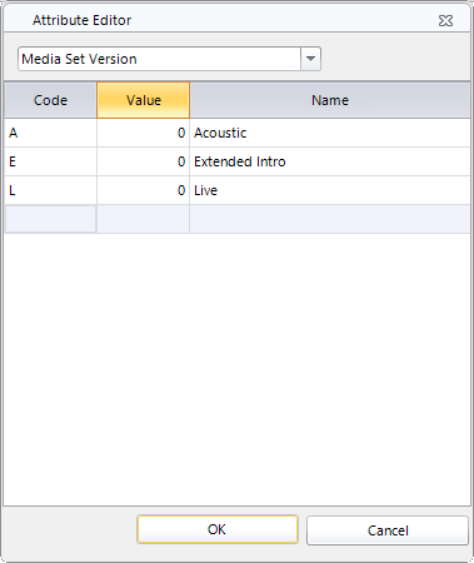
In our example we have different versions of songs. We have our standard studio versions as well as acoustic, live, and extended intro versions. We create codes for these in Library/Attributes under Media Set Version. Note I’ve not created a code for the studio version as we will assume that all songs are studio versions unless coded otherwise.
I have three versions of “Torn” by Natalie Imbruglia in my station. I code them accordingly and then click into the Media Set ID field of the first of those, then the edit helper (three dot box) to add songs to this Media Set. Once in the Media Set Editor, click the icon to add songs to the media set, then query the library for the other instances of “Torn.” Select them and OK.
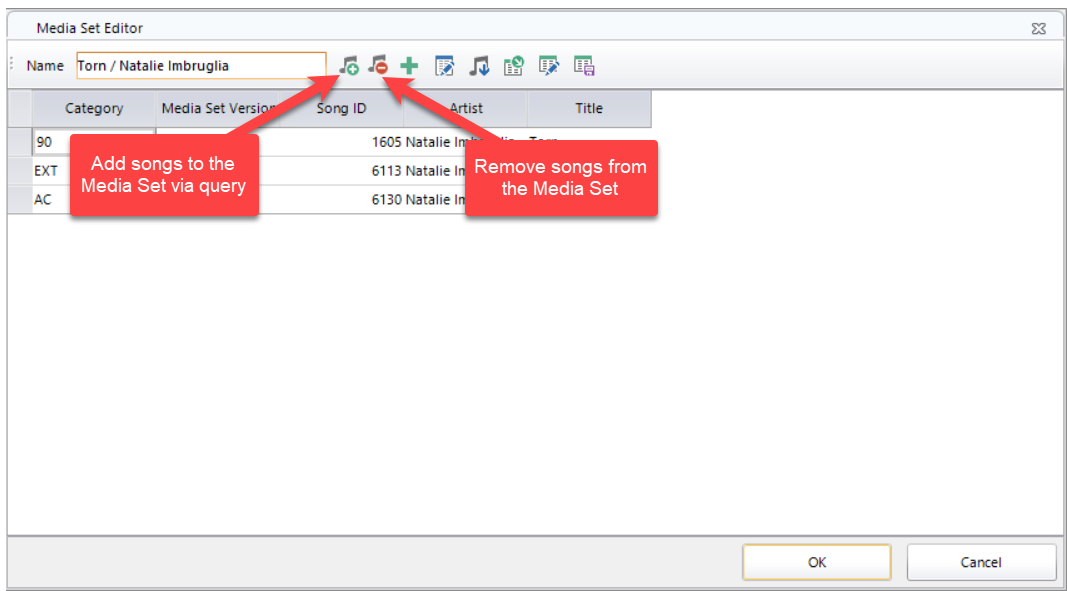
Now we see all three copies are in the same Media Set and that they are coded as desired.

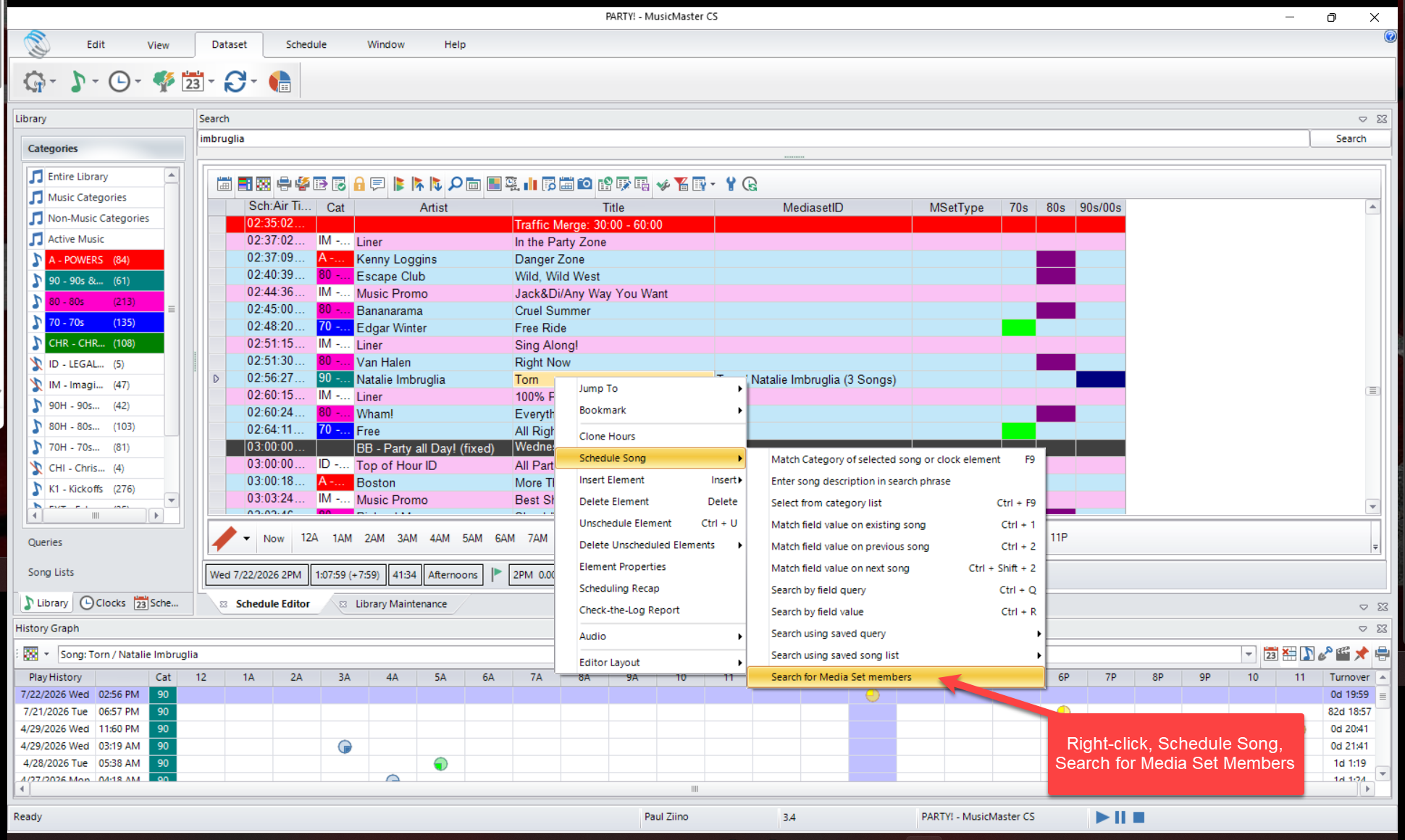
When Torn is scheduled in the log, I can quickly switch it for one of the other versions of the song by right-clicking on it, clicking Schedule Song, then Search for Media Set members. Note, this option is only available on songs contained within a media set. If you do this on a song that is not part of a media set, that search option will not be present in the menu.
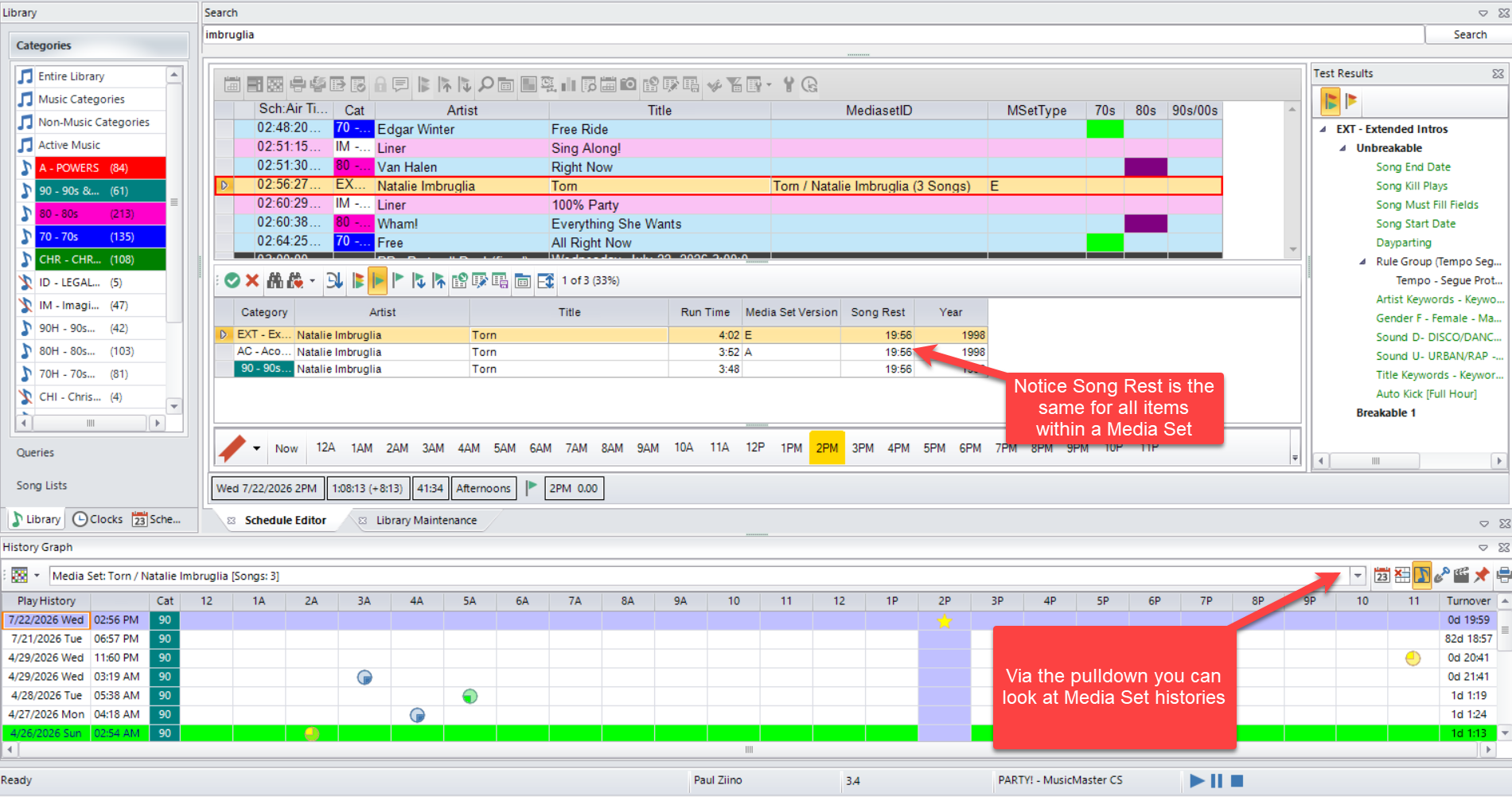
Your replacement list of songs will appear. Media Set members share Song Rest and you can use the drop-down at the far right of your history graph to see the history of the Media Set or the individual songs within.
That’s the basics of using Media Sets. Now let’s dive into how you can let the clocks do some of that work for you.
Coming out of my commercial breaks, I’d like to encourage MusicMaster to schedule songs that have an extended intro if possible. To do this, I can open that element in the clock via double-clicking or clicking that edit helper icon, then go to the Properties tab. At the bottom you’ll see Media Set Preference. Click into that field and check the Allow and/or Prevent box for the Media Set codes you do/do not want. In this case, I wanted to Allow Extended Intros, so I’ll check that box. Then OK.
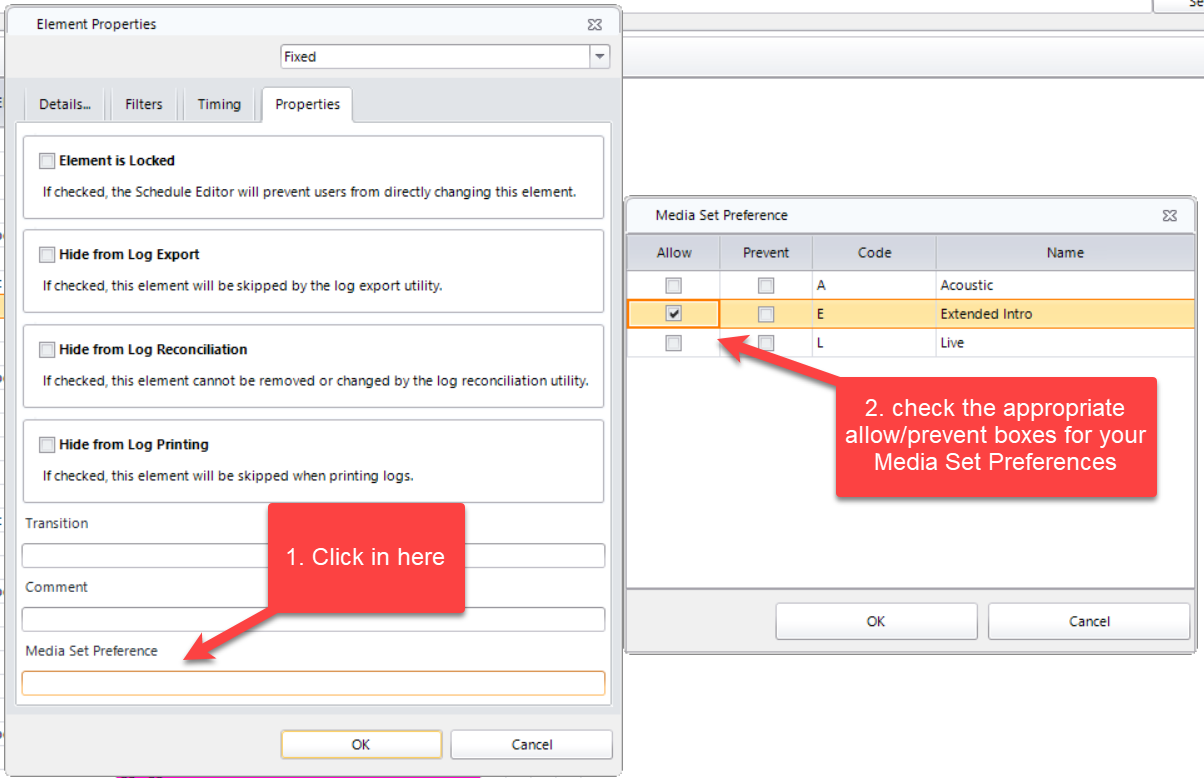
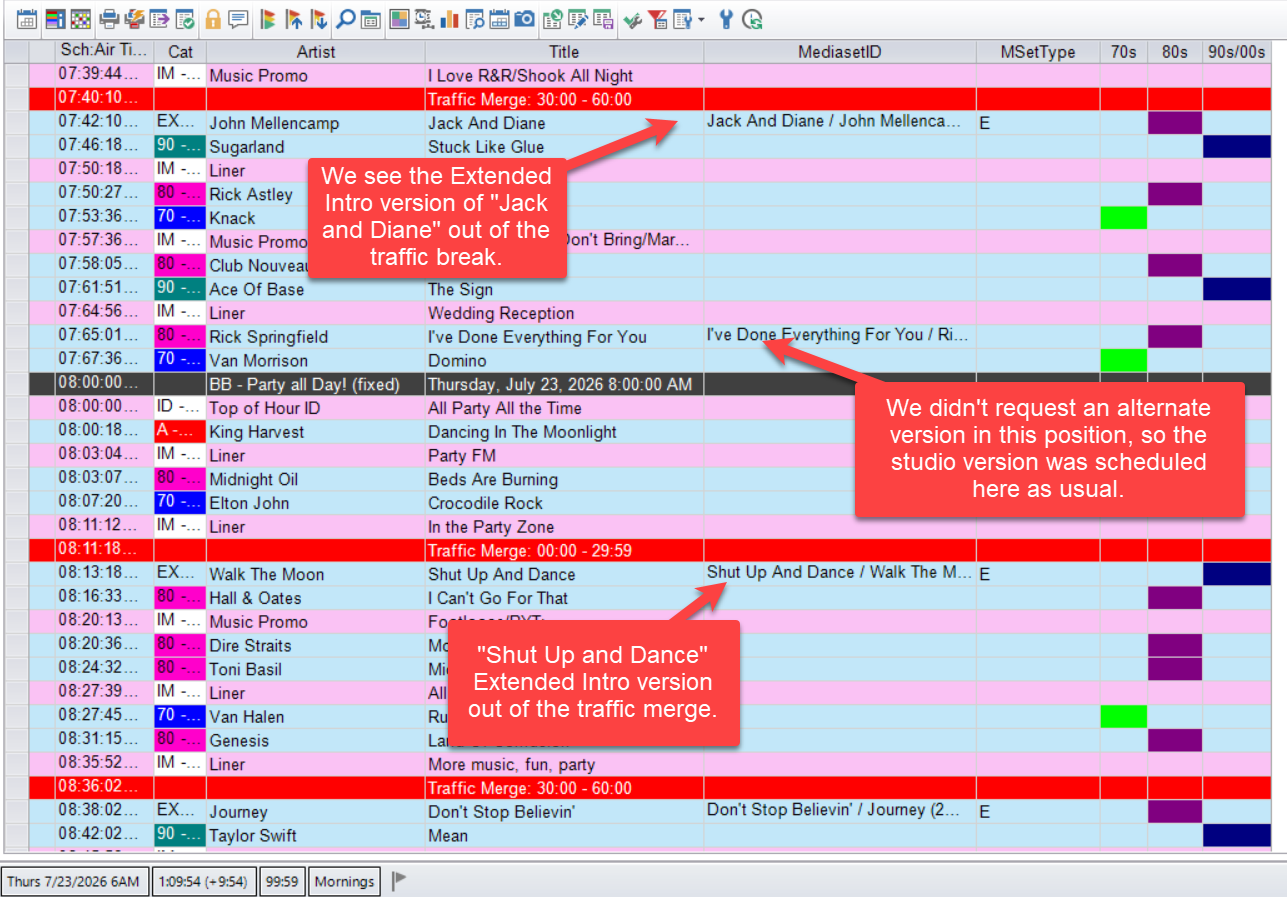
Now when scheduling using this clock, those positions will schedule normally, but if the song selected is part of a Media Set that contains a song coded for Extended Intro, that will be the song scheduled. Other positions will schedule normally unless we are calling for a specific Media Set Version or we edit a different item from the Media Set into the schedule by hand.
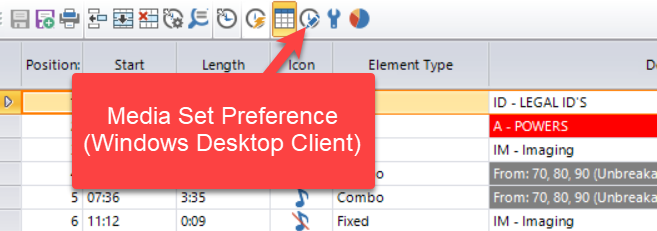
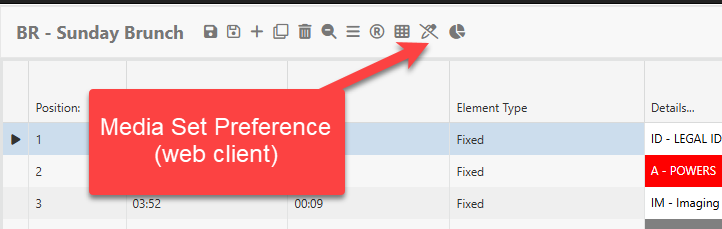
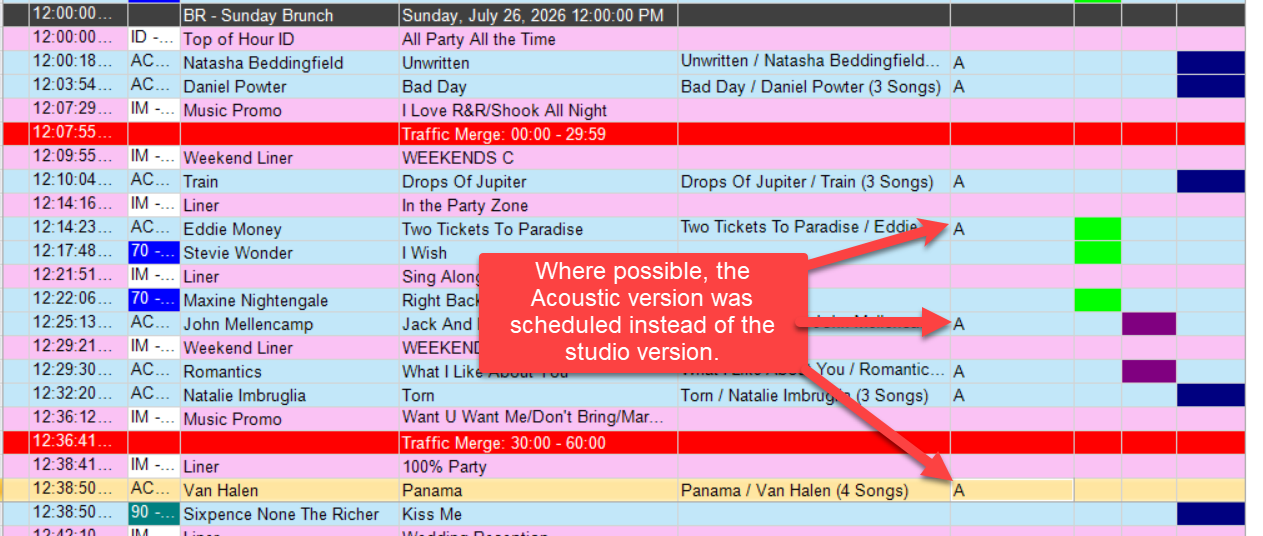
We can go another step further with the clock. We can click the Media Set Preference icon then set it for the entire clock all at once. We could indicate we want to focus on Acoustic versions of songs during our Sunday Brunch program, so we set the Media Set Preference accordingly. Now when that clock is used, if a position is to be filled by a song that is part of a Media Set that contains a version coded as Acoustic, that version will be scheduled.
And once it is scheduled, you’ll see that Acoustic versions show up whenever the song that would have been scheduled from the clock category has a song coded as A within its Media Set.
Our developers at MusicMaster are always adding new and innovative features to the software. If you have an interesting idea, make sure to share it with your MusicMaster Scheduling Consultant. You never know, it might just show up in a future release!