Bitte aktualisieren Sie die Version Ihres Browsers, damit Sie diese Seite in der richtigen Darstellung sehen können.

MusicMaster Blog

Why Is MusicMaster Violating My Artist Separation Rules? geposted von Laurie Knapp am Oktober 20th, 2026

by Laurie Knapp

You’ve carefully configured your Artist Keyword Time Separation rules, but when you review your schedule, you notice songs by the same artist playing closer together than they should. What’s going on? While it might appear that MusicMaster is ignoring your rules, there are several reasons why an artist separation violation can occur. Here are eight common causes to investigate and how to identify them.

1. The Category Is Bypassing the Rule

If your Artist Keyword Time Separation rule is configured under All Categories, check whether the category in question has been excluded.

Right-click All Categories in the Rule Tree and select Rule Tree Properties. Any category checked in the All-Category Bypass list will ignore every All Categories rule, including artist separation.

2. The Rule Isn’t Active for That Time or Category

A rule may be configured correctly but not active during the hour in question.

Right-click the category and select View Category Rule List to see exactly which rules are being tested for that category at a particular time.

If your artist separation rule is inside a Rule Group with time restrictions, it may not apply during certain hours. Try changing the review time in the window to confirm when the rule is active.

3. A Custom Keyword Setting Is Overriding the General Rule

Individual artist keywords can have their own separation settings that override the general Rule Tree configuration.

You can review these settings under Dataset/Library/Keywords or through the keyword’s Keyword Properties dialog.

If an artist’s individual separation time is set to something other than Auto, that custom value takes precedence over the Rule Tree setting. As a result, a song may pass rule testing even when it appears to violate your general artist separation requirement.

4. Category Exclusive Mode Is Enabled

Check whether your Artist Keyword Time Separation rule is configured to use Category Exclusive Mode.

When this mode is enabled, the rule only evaluates songs within the same category. Two songs by the same artist in different categories won’t be tested against each other for separation.

If you expect artist separation to apply across multiple categories, this setting could explain the apparent violation.

5. The Song Was Scheduled Without Rule Testing

Not every item placed into a schedule goes through the normal rule-testing process.

For example:

  • Saved Song Lists: Items scheduled through a Saved Song List do not undergo rule testing.
  • Forced Positions: Songs placed in forced positions are scheduled automatically without being tested against the rules.

Other songs scheduled around these positions will still be tested against them, but the forced or saved-list items themselves can create apparent violations.

6. Someone Manually Edited the Schedule

A song may have been placed into the schedule manually after the automatic scheduling process was completed.

To identify these changes, add the Schedule field to your Schedule Editor view.

Any position marked with an M was manually placed and bypassed automatic rule checking.

7. Runtime Differences Changed the Song Spacing

During automatic scheduling, MusicMaster uses average runtimes for categories that haven’t yet been scheduled.

If the actual songs selected for those positions run shorter than their category averages, previously scheduled songs can end up closer together than originally calculated.

This can produce an apparent artist separation violation even though the songs passed their rule tests when they were initially scheduled.

8. Network Elements Were Imported After Local Scheduling

If your station imports network programming, the order in which you build your schedule can affect rule compliance.

Importing network elements after scheduling local music may introduce conflicts with songs that were already placed.

To avoid this, Import from Network first, then schedule your local programming around those imported elements.

How to Diagnose an Artist Separation Violation

When you encounter a specific violation, the Test Results panel in the Schedule Editor is one of the best places to investigate.

Open the full Rule Tree for the position and examine the color associated with each rule:

Color Meaning
Green: The rule passed.
Yellow: A breakable rule was violated.
Red: An unbreakable rule was violated.
Black: The rule was not tested, often because of a rule bypass, or some condition that was already met in a higher-level rule or rule group.

You can also hover over a rule to see its settings and how close the song came to passing the test.

This information can help you determine whether the issue involves an inactive rule, a bypass, a scheduling exception, or another factor.

Getting Your Artist Separation Back on Track

An apparent artist separation violation doesn’t necessarily mean your scheduling rules aren’t working. Often, the explanation lies in a category bypass, an individual keyword setting, a scheduling method that skips rule testing, or a change in song timing.

Start by examining the affected position in the Schedule Editor’s Test Results panel, then work through the possibilities above. Once you identify why the rule wasn’t enforced as expected, you can make the appropriate adjustment and get your rotations back on track.

Tags:

How MusicMaster CS Improves Collaboration geposted von Laurie Knapp am September 24th, 2026

by Brian Wheeler

MusicMaster has long provided users with a wide range of features and products designed to aid in programming their stations and reaching their audience. MusicMaster CS takes that effort to a new level. Here are three ways CS can enhance collaboration with your fellow programmers like never before.

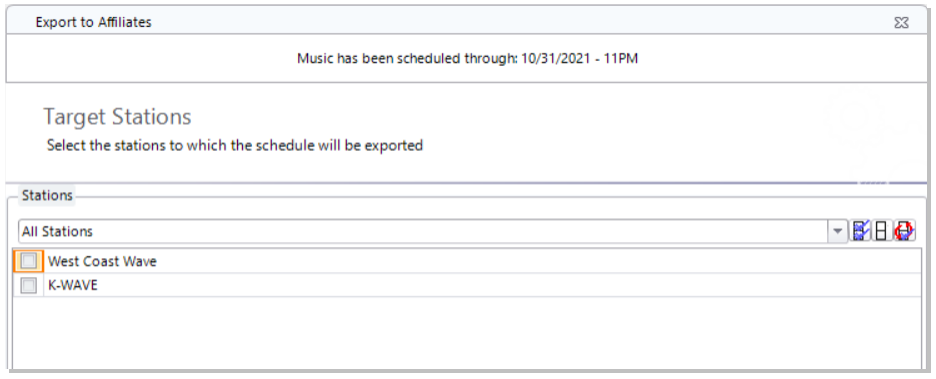
You may or may not be familiar with our Network/Affiliate feature, which allows you to share portions of or entire logs for broadcast with affiliates or sister stations. It’s a great feature that’s available in MusicMaster Pro as well as CS. But CS takes this feature to the next level with its capability to share internally with very little effort. You can select stations within your company to receive your export simply by checking a box.

Of course, you can still send files to affiliates or sister stations that aren’t directly connected via our Enterprise feature, but the internal capabilities of CS are on full display with this handy option.

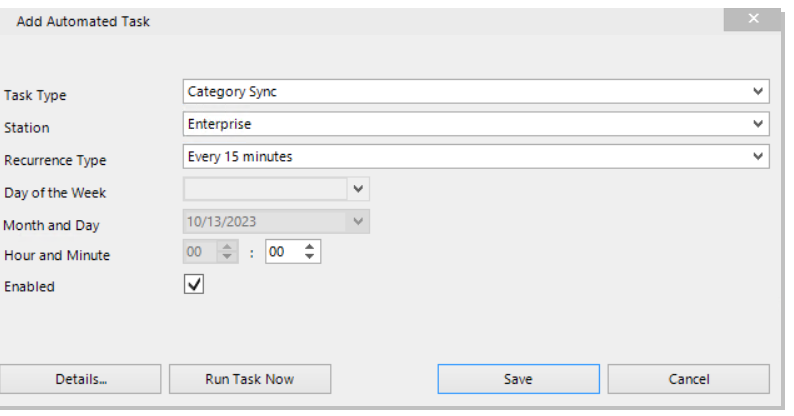
Another time-saving feature available in CS is Category Sync. This enables each user to obtain library information without each end-user having to enter the data. When configured, you can save time and ensure accuracy and uniformity by entering the information at a master station level. The follower stations receive clean, accurate, consistent data quickly and efficiently. Best of all, this task can be automated, so users don’t have to remember to activate the sync.

One more feature to mention is the capability to have multiple users working on the data simultaneously. CS features Enterprise level data, which allows for curation at a top level, plus the ability to configure stations as such so rules and coding can have a local flavor while still maintaining coherence across the company and their respective formats. What’s more, multiple users can enter data within the software both on CS and Web platforms, making the updated information appear moments after the changes have occurred.

All these enhancements make cross-station collaboration easier than ever. Is a programmer going on vacation? Seamlessly jump in and keep the station running smoothly. Maybe you need a special program created quickly and one of your stations has one curated and ready to share? Distribute that program quickly and securely to all interested parties with a couple clicks of the mouse. A sister station has developed a weekend program that’s gotten great response in their market? Try it out on other in-network markets with ease.

If these features sound attractive to you, reach out to your friends here at MusicMaster and we’ll answer any questions you may have about making these features a part of your broadcast toolbox.

Tags:

The Ultimate Tie-Breaker: How MusicMaster’s Optimum Goals Pick the „Best“ Song (Not Just A Good One) geposted von Laurie Knapp am August 25th, 2026

by Chris Hulsether and Joe Knapp

Picture this: it’s 2:47 PM, and MusicMaster is staring down five songs that all pass every single rule you’ve built. They’re all clean. They’re all safe to play. They’re all… equally fine.

So which one actually plays?

If you’ve ever wondered how the scheduler makes that final call, the answer could be the next song in the schedule order, but the better answer is when you use Optimum Goal Scheduling, and once you understand it, you’ll start thinking about your rule tree a little differently.

Wait, Don’t Rules Already Handle This?

Sort of. Rules are bouncers, they decide who’s allowed in the club. But once you’ve got a handful of songs that all cleared the door, rules go quiet. They don’t have an opinion about which of those „acceptable“ songs is actually the best one for this exact moment.

That’s where Goals step in. Think of Goals as the tie-breaker judge who shows up after the bouncers have done their job, looks at everyone still standing, and says, „Okay, out of all of you… who’s really earned this slot?“

How the Judging Actually Works

Here’s the behind-the-scenes version:

MusicMaster scans your search depth and builds a shortlist of every song that survives your rules.

That shortlist gets handed to your Goals.

Each Goal scores every song on the list.

If you’re running multiple Goals, the ones higher up your list carry more weight.

All those scores get combined into one overall score per song.

Highest score wins the slot.

One quirk worth knowing: if there’s only one song left standing after your rules run, the Goals don’t even get invoked, there’s no tie to break. Goals only enter the picture when there’s genuinely a choice to make.

Now let’s talk about three of the MVPs of the Goal lineup.

Optimum Song Rest, The „Everybody Deserves a Turn“ Goal
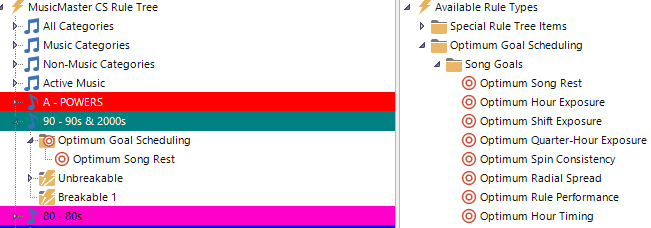
This is the simplest goal to wrap your head around, and often the most satisfying to watch work. It simply favors whichever song has rested the longest since it last played.

The Optimum Goals learn from your database and just know how to do their job. It’s like having an AI agent working within MusicMaster. That’s why there are no settings you need to adjust.

Optimum Rest scores 100 when the song tested has rested the ideal amount, given the math, based on category size and clock calls. Less rested songs get a lower score, while songs that are overdue for airplay get a slightly higher score.

Optimum Radial Spread, The Goal With a Sense of Time and Place

This one is really smart! Radial Spread favors songs that have rested the longest specifically in the part of the day being tested, and it weights nearby hours more heavily than distant ones.

Why that matters: Imagine a song has played heavily in your morning drive but hasn’t touched your evening hours in weeks. Straight-up song rest might not flag it as urgent if it played recently overall. But Radial Spread looks at the shape of when it’s played and notices, „hey, this song hasn’t been anywhere near this part of the day in a while,“ and gives it a boost specifically for filling that gap.

Example: A song played twice during morning drive this week but hasn’t been scheduled in the evening in over a month. When evening comes around and it clears your rules, Radial Spread recognizes the evening „hole“ in its play history and weights it favorably, helping your station avoid that subtle feeling of songs always showing up at the same time of day.

Optimum Keyword Rest, Rest Tracking for Artists (and More)
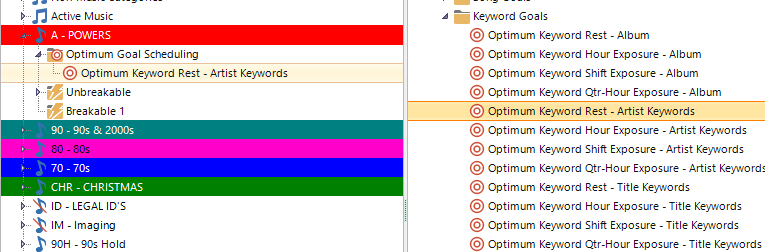
Song Rest looks at individual songs. Optimum Keyword Rest zooms out and looks at keywords, which is exactly what you want when you’re managing artist separation, not just song separation.

Every keyword has its own ideal rest amount, and this Goal favors whichever song’s keyword has rested closest to that ideal.

Example: Let’s say you’ve got an „Artist Keyword“ tagging every song by a specific artist. Two different songs by that artist both clear your rules for the same slot. Optimum Keyword Rest checks how long it’s been since that artist last played (not just the individual songs) and favors the one that best matches the artist’s ideal rest window, helping you avoid that „wait, didn’t we just hear this artist?“ feeling, even when it’s technically a different song. It works constantly to separate songs with the same Artist Keyword as evenly as possible.

The Real Takeaway

Optimum Goals aren’t a replacement for your rules, they’re what kicks in after your rules have already done their job narrowing the field. It’s worth keeping some rules in place even when using Goals. Rules set the guardrails; Goals pick the winner within them. For things like Artist separation, you only need one simple minimum time separation rule that acts like a “brick wall” to prevent a worst-case scenario. Same with Minimum Rest for individual songs. The more complicated rules you may have used in the past can all go away. Let the Goals do their job instead!

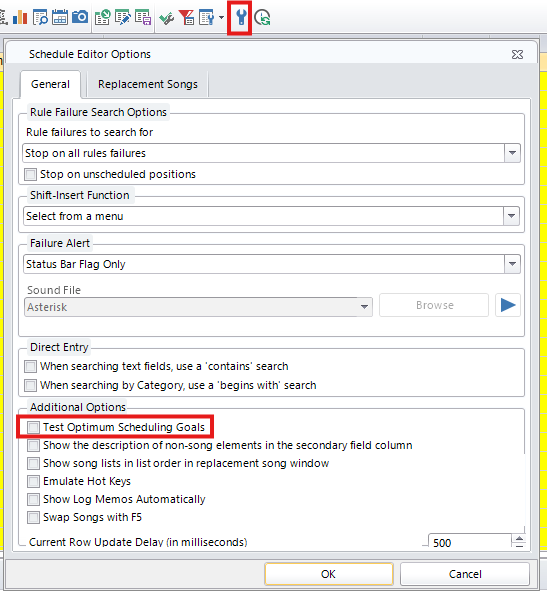
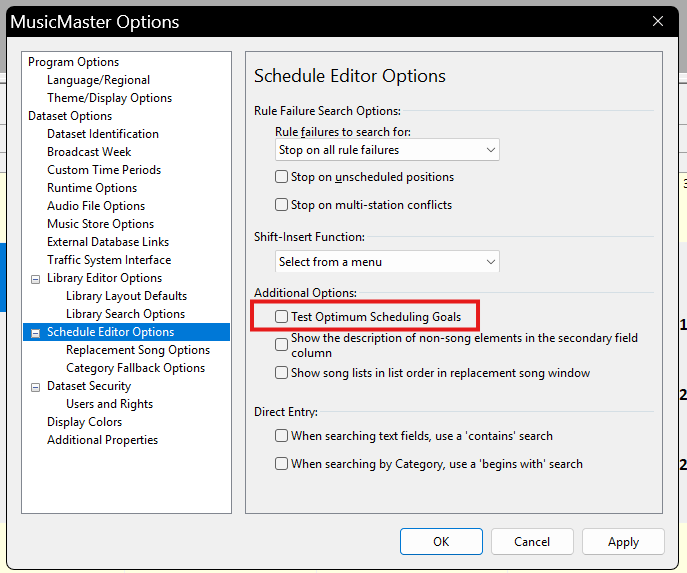
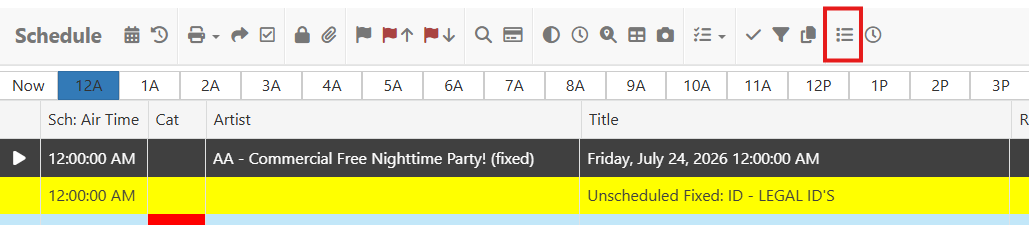
If you haven’t experimented with stacking a couple of these, say, Song Rest as your priority and Radial Spread as backup, it’s worth testing in the Schedule Editor’s replacement window. Just flip on „Test Optimum Scheduling Goals“ under Additional Options, and you can watch the scoring happen in real time.

In MusicMaster CS look for the Wrench Icon in the Schedule Editor:
In PRO Go to Tools/Options/Schedule Editor Options
In CS Web look for the Options Icon in the Schedule Editor:
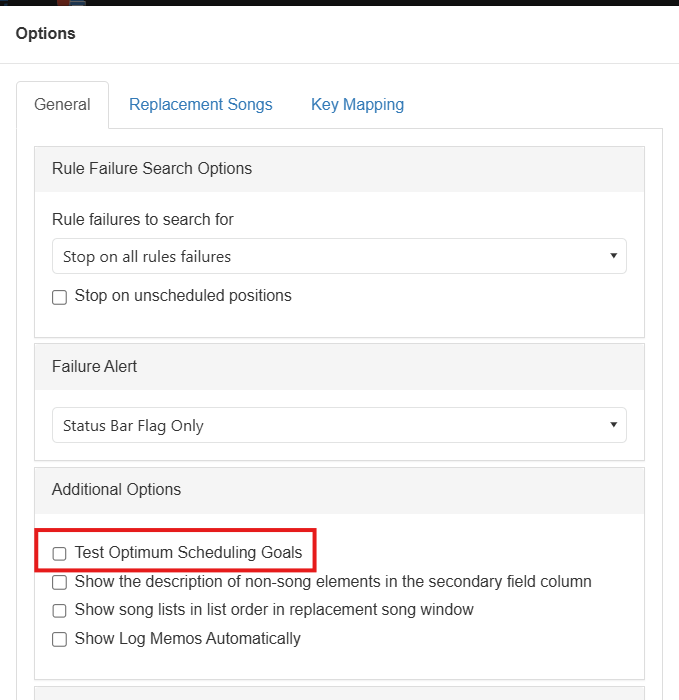
Once you see it in action, you’ll never look at a „tie“ in your search depth the same way again.

If you have any questions about Optimum Goals Scheduling and what goals work best for you, contact your Music Scheduling Consultant!

When Perfect Rotations Sound Anything But Perfect geposted von Laurie Knapp am Juli 27th, 2026

By Jerry Butler

I’ve worked with hundreds of stations over the years, and I’ve seen the same thing happen more times than I can count.

A programmer spends hours fine-tuning a MusicMaster database. Every rule is in place. Artist separation looks great. Category rotations are balanced. The schedule runs clean, and every report says everything is exactly as it should be. Then they listen to the station.

Instead of sounding natural, it sounds… programmed.

There’s nothing technically wrong with it, but something just feels off.

The reason is simple: music scheduling isn’t about making a schedule look perfect. It’s about making a station sound great.

As programmers, we spend a lot of time looking at reports. We check rotations, artist separation, category balance, tempo flow, and all the other things MusicMaster does so well. Those reports are valuable because they help us build consistency and avoid obvious scheduling mistakes.

Your listeners don’t hear those reports. They hear whether the station flows naturally. They notice when the same artists seem to show up at the same times every day. They notice when every hour starts to feel alike, even if they can’t explain why. They’re judging your station by what they hear, not by how clean your reports look.

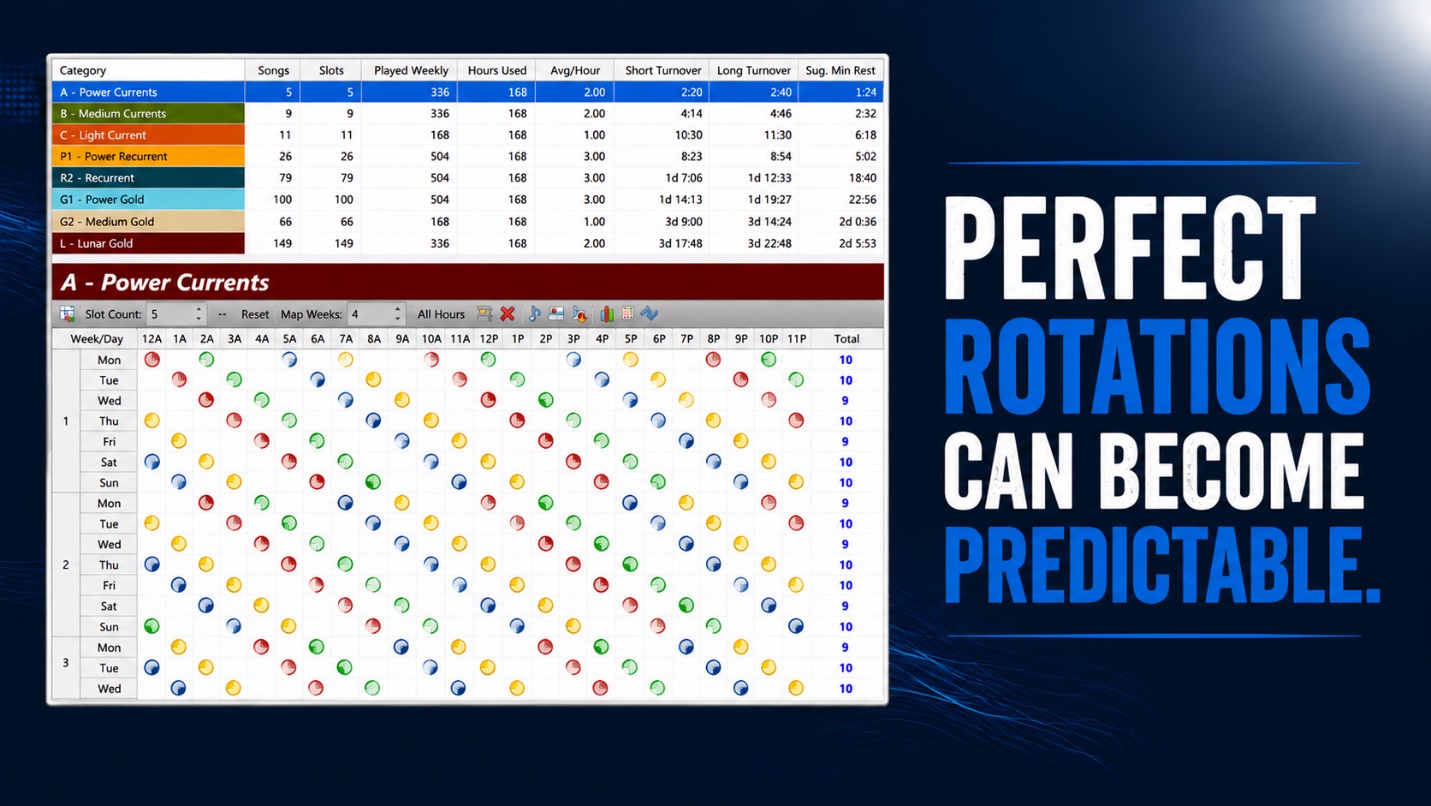
One of the biggest traps in music scheduling is trying to make everything perfectly even. Maybe every Power category rotates exactly every few hours. Every Gold category follows the exact same order every day. Every recurrent appears at nearly the same time each afternoon.

On paper, that schedule looks beautiful. On the air, it can become very predictable.

Listeners are incredibly good at recognizing patterns. They may not realize why the station feels repetitive, but eventually they’ll start thinking, „Didn’t I just hear this?“ That’s not because your rotations are wrong. It’s because they’re too perfect.

Think about the stations you’ve always admired. They probably weren’t perfectly balanced every single hour, but they sounded effortless. The music flowed. The energy changed naturally. Songs surprised you once in a while. The station felt alive.

That’s what we’re trying to recreate today.

I’ve always believed that radio programming is both a science and an art. The science is building a solid database, creating smart clocks, setting the right rules, and letting MusicMaster do what it does best. The art is knowing when to make a programming decision that no software can make for you.

MusicMaster gives us the tools to build consistency, but it still takes a programmer to make the station sound human. Software can build the schedule, but it can’t replace experience, instincts, or great ears.

The best programmers know how to blend science with art. That’s where great radio happens.

One piece of advice I give programmers is to spend less time staring at reports and more time listening.

Take a drive and listen to your station. Stream it while you’re working around the house. Better yet, listen over several days. You’ll hear things no report will ever show you. Maybe two songs have similar intros. Maybe similar songs end up too close together. Maybe the station loses energy at the same point every hour.

Those aren’t software problems. They’re programming decisions.

If your ears tell you something isn’t working, don’t ignore them just because the reports look perfect.

One of the reasons I’ve always liked MusicMaster is that it gives programmers options. Features like optimum goal scheduling, timing goals, rotation weight, and various clock options like combo, proportional, or migrating positions aren’t there just to satisfy reports. They’re there to help your station sound less predictable while still protecting your format.

Use those tools, but don’t be afraid to make adjustments when your ears tell you something isn’t working. Sometimes the best schedule isn’t the one with the cleanest report. It’s the one that simply sounds better.

At the end of the day, we’re not programming for ourselves, the on-air personalities, or MusicMaster. We’re programming for listeners.

MusicMaster is an incredible tool. It can enforce rules, balance rotations, and build outstanding schedules. What it can’t do is replace programming judgment. That’s still your job.

The best programmers I’ve known all have one thing in common. They know when to trust the software, and they know when to trust their ears.

As you finish reading this blog, ask yourself one simple question:

If I got in my car tomorrow morning and turned on my station, would I want to keep listening?

If the answer is yes, you’ve done your job.

And in the end, that’s far more important than having a perfect-looking schedule.

If you would like more information or help making your station less predictable, reach out to your MusicMaster Scheduling Consultant today.

New Feature: Media Sets geposted von Laurie Knapp am Juli 23rd, 2026

Media Sets
by Paul Ziino

A new feature found in MusicMaster Client-Server version 3.4 is “Media Sets.” What are they and how do I use them? Glad you asked!

A Media Set is a way you can have alternate versions of songs schedule automatically or replace songs with an alternate version easily. First things first, we need to set them up.

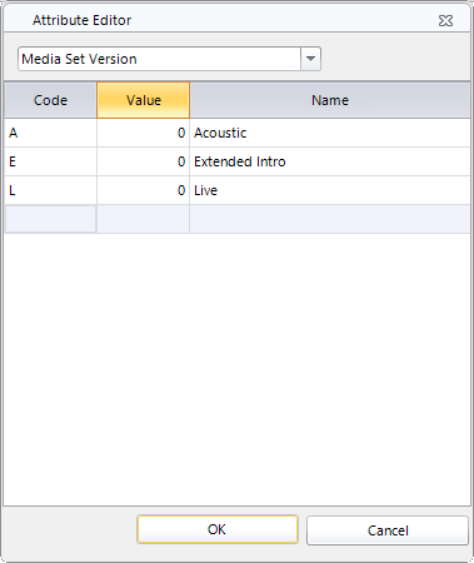
In our example we have different versions of songs. We have our standard studio versions as well as acoustic, live, and extended intro versions. We create codes for these in Library/Attributes under Media Set Version. Note I’ve not created a code for the studio version as we will assume that all songs are studio versions unless coded otherwise.

A screenshot of a computer

AI-generated content may be incorrect.

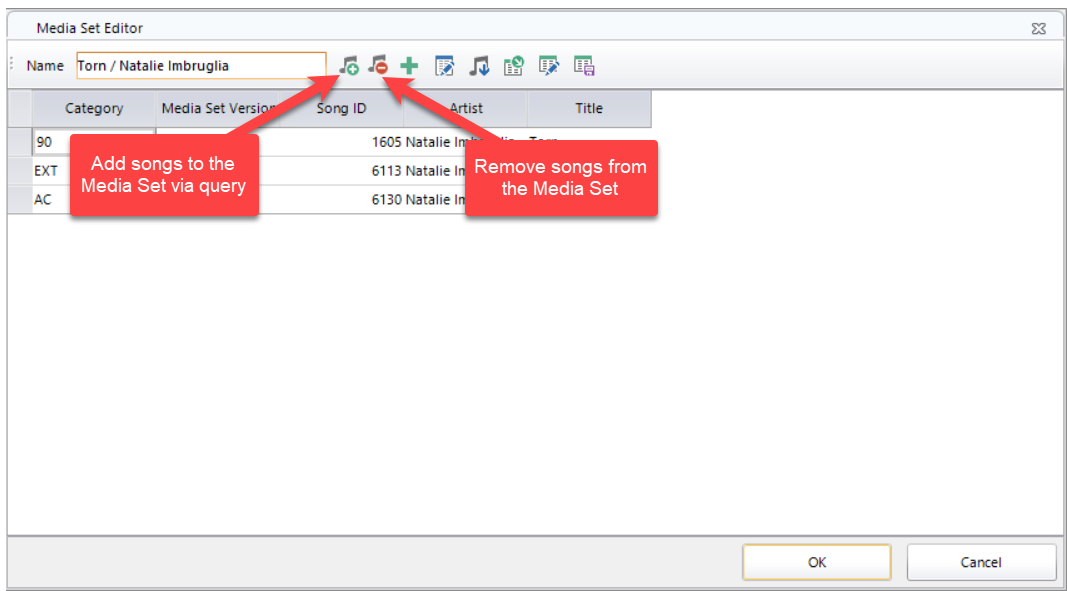
I have three versions of “Torn” by Natalie Imbruglia in my station. I code them accordingly and then click into the Media Set ID field of the first of those, then the edit helper (three dot box) to add songs to this Media Set. Once in the Media Set Editor, click the icon to add songs to the media set, then query the library for the other instances of “Torn.” Select them and OK.

A screenshot of a computer

AI-generated content may be incorrect.

Now we see all three copies are in the same Media Set and that they are coded as desired.

A screenshot of a computer

AI-generated content may be incorrect.

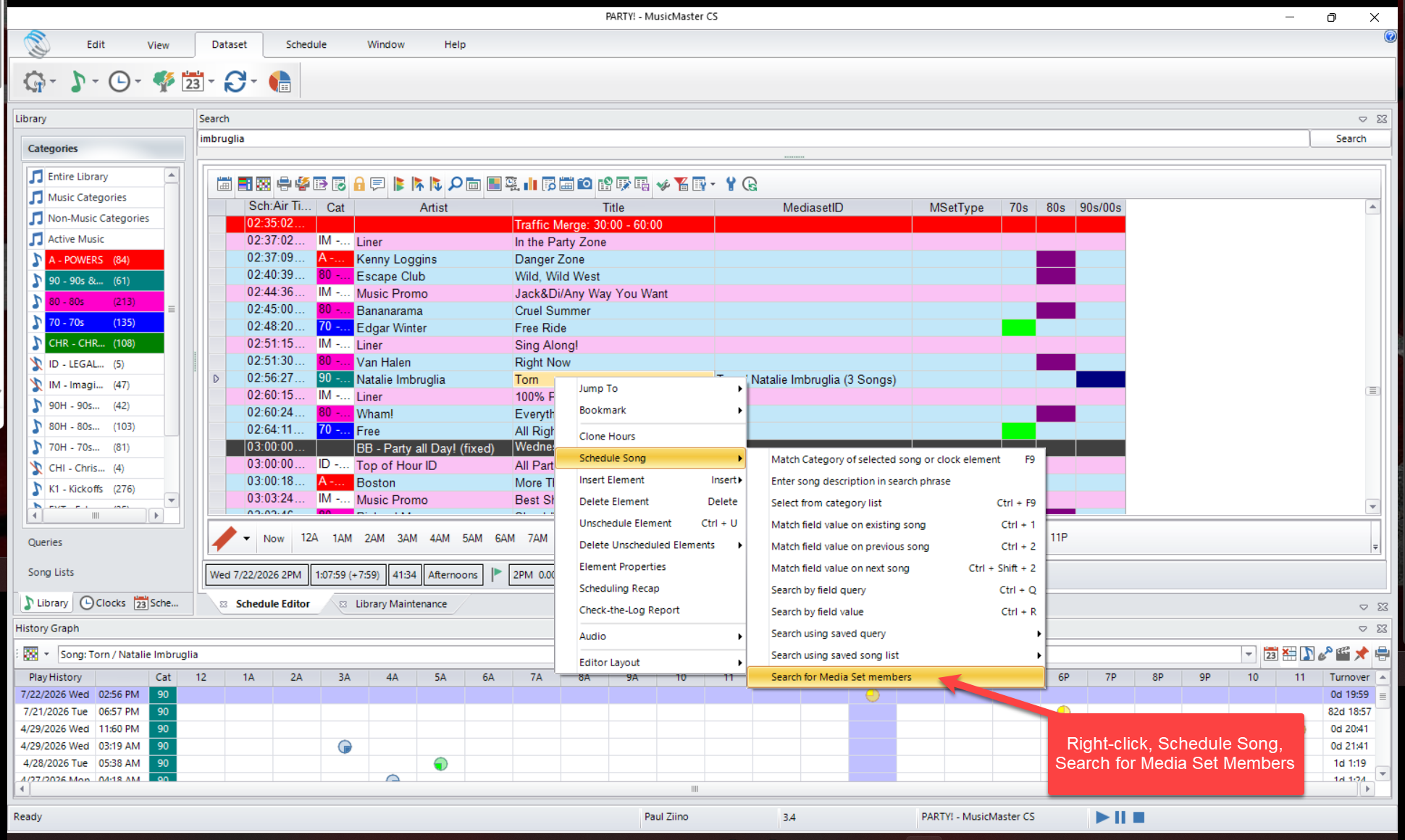
When Torn is scheduled in the log, I can quickly switch it for one of the other versions of the song by right-clicking on it, clicking Schedule Song, then Search for Media Set members. Note, this option is only available on songs contained within a media set. If you do this on a song that is not part of a media set, that search option will not be present in the menu.

A screenshot of a computer

AI-generated content may be incorrect.

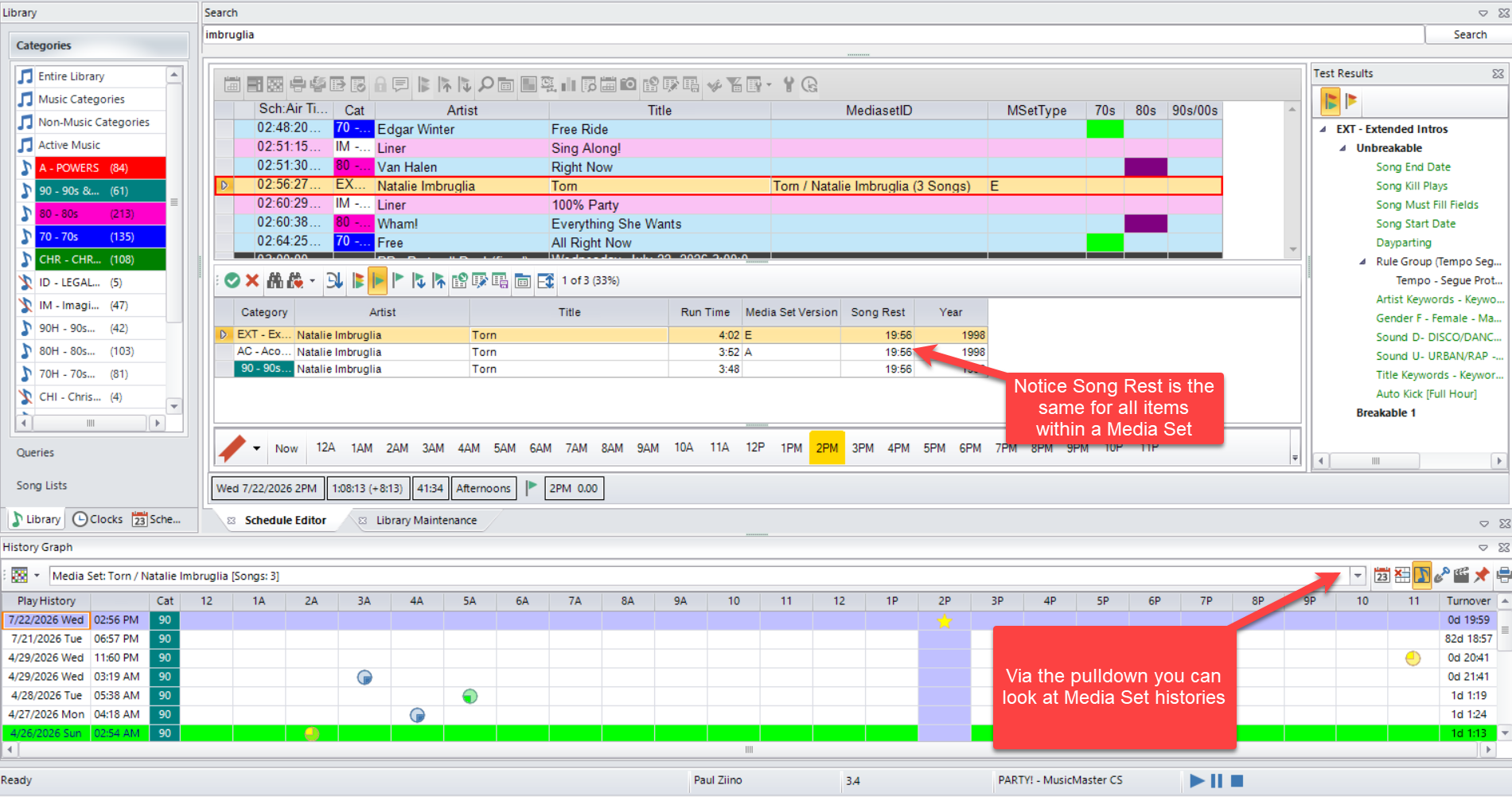
Your replacement list of songs will appear. Media Set members share Song Rest and you can use the drop-down at the far right of your history graph to see the history of the Media Set or the individual songs within.

A screenshot of a computer

AI-generated content may be incorrect.

That’s the basics of using Media Sets. Now let’s dive into how you can let the clocks do some of that work for you.

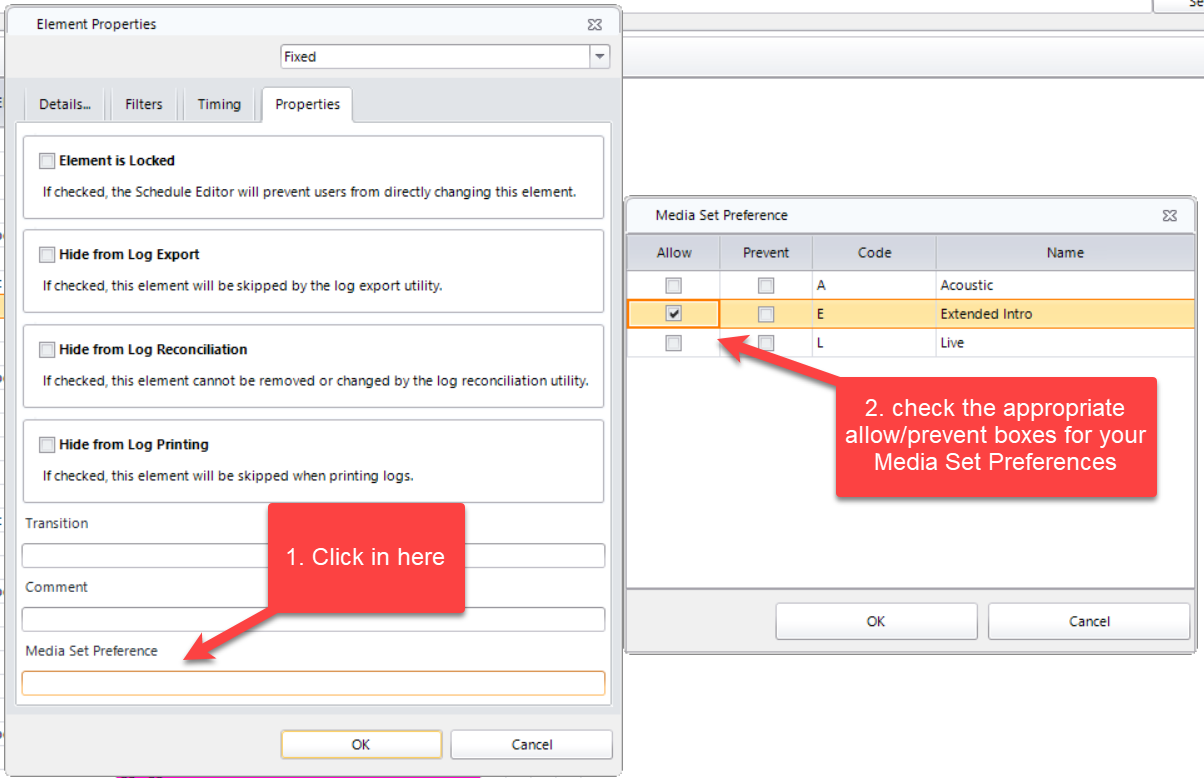
Coming out of my commercial breaks, I’d like to encourage MusicMaster to schedule songs that have an extended intro if possible. To do this, I can open that element in the clock via double-clicking or clicking that edit helper icon, then go to the Properties tab. At the bottom you’ll see Media Set Preference. Click into that field and check the Allow and/or Prevent box for the Media Set codes you do/do not want. In this case, I wanted to Allow Extended Intros, so I’ll check that box. Then OK.

A screenshot of a computer

AI-generated content may be incorrect.

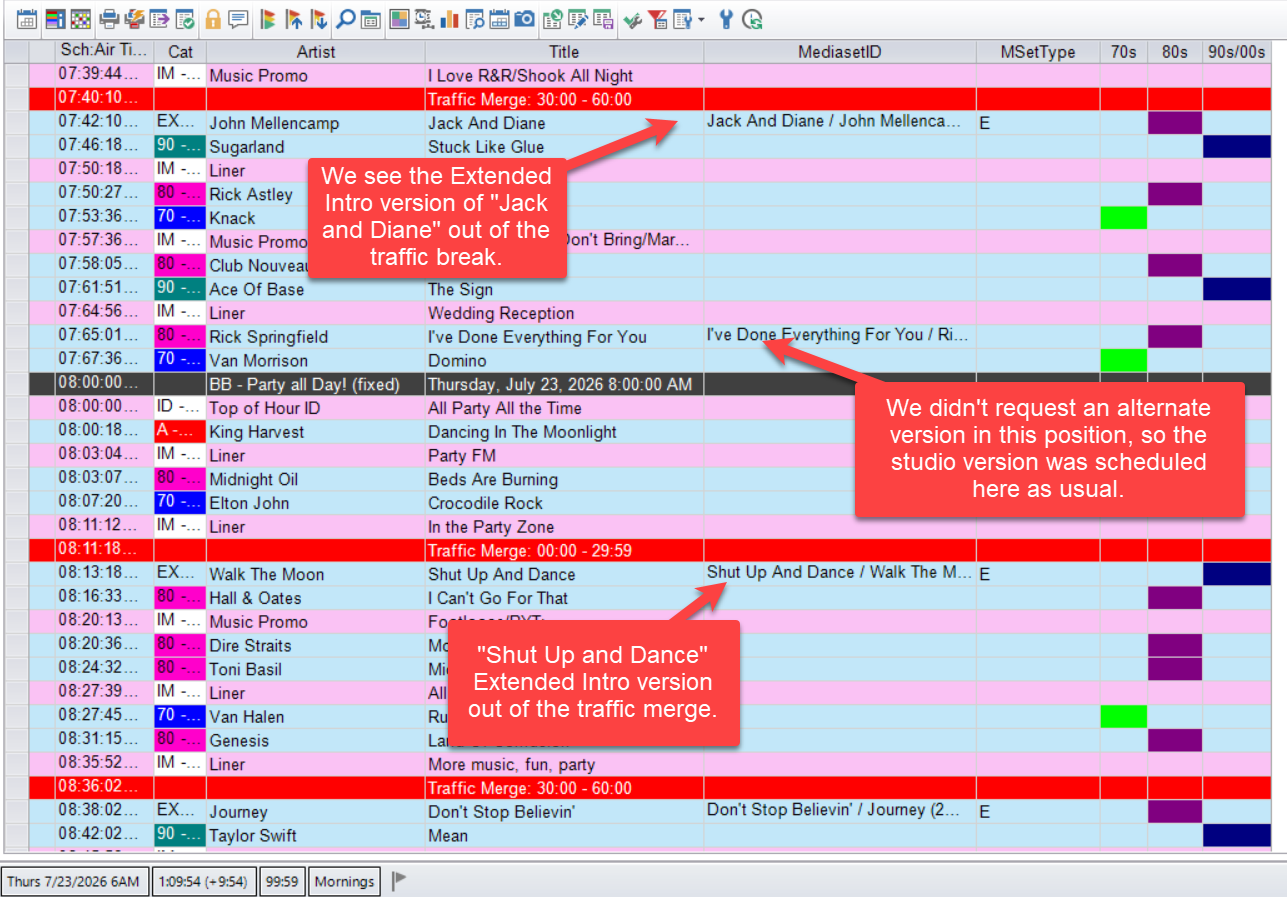
Now when scheduling using this clock, those positions will schedule normally, but if the song selected is part of a Media Set that contains a song coded for Extended Intro, that will be the song scheduled. Other positions will schedule normally unless we are calling for a specific Media Set Version or we edit a different item from the Media Set into the schedule by hand.

A screenshot of a computer

AI-generated content may be incorrect.

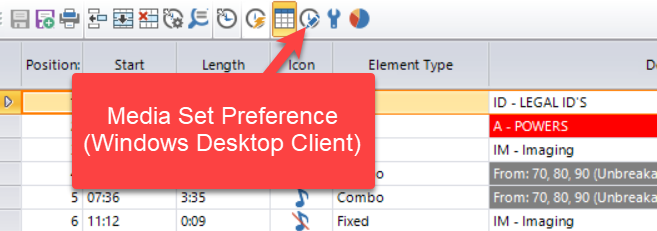
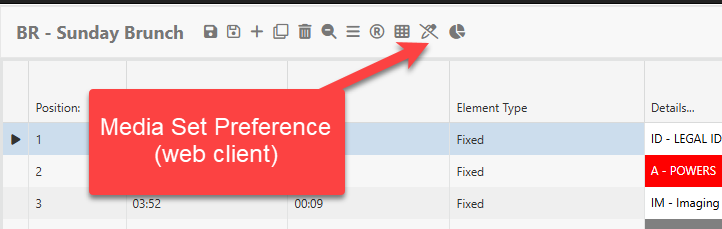
We can go another step further with the clock. We can click the Media Set Preference icon then set it for the entire clock all at once. We could indicate we want to focus on Acoustic versions of songs during our Sunday Brunch program, so we set the Media Set Preference accordingly. Now when that clock is used, if a position is to be filled by a song that is part of a Media Set that contains a version coded as Acoustic, that version will be scheduled.

A screenshot of a computer

AI-generated content may be incorrect.

A red square with white text

AI-generated content may be incorrect.

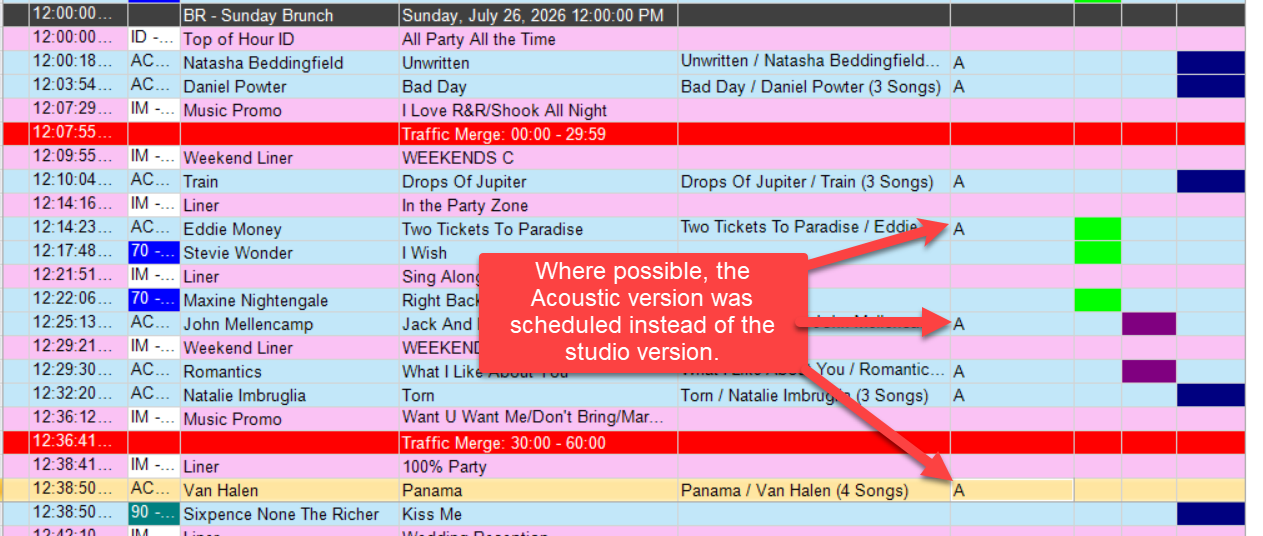
And once it is scheduled, you’ll see that Acoustic versions show up whenever the song that would have been scheduled from the clock category has a song coded as A within its Media Set.

Our developers at MusicMaster are always adding new and innovative features to the software. If you have an interesting idea, make sure to share it with your MusicMaster Scheduling Consultant. You never know, it might just show up in a future release!

What’s New in CS 3.4 geposted von Laurie Knapp am Juli 23rd, 2026

The latest release of MMCS contains an exclusive new feature for library version management, additional feature adds for the Web Client, and more.

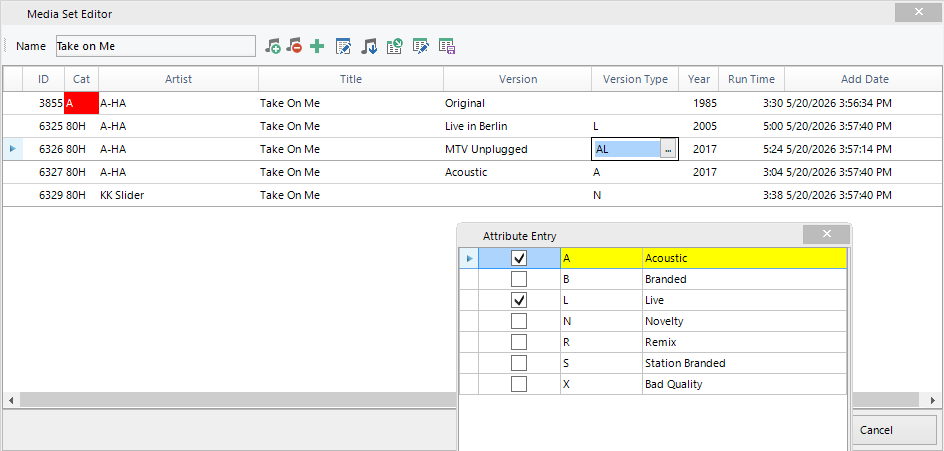
Media Sets are a new MusicMaster feature, exclusive to the CS edition, which allows you to manage and schedule songs where you have multiple different versions and recordings. The Media Set Editor allows you to assemble and combine multiple recordings of a song, designating version type attributes to each instance.

You can pull together song recordings from different categories in a Media Set, allowing you to have one or more in active rotation categories, and others in rest or hold categories that can still be easily scheduled as needed.

In the example above, only the Category A version of Take on Me is in an actual rotating category. By default, it will schedule as it normally would if it was not associated with the Media Set and the other recordings, being in a hold category, will not auto schedule at all.

When this song appears in the Schedule Editor, you can use the new option to Schedule from Media Set Members to place all recordings of this song into the replacement songs panel where you can manually choose to replace the original scheduled instance with another on demand.

You can also set Version Type Preferences on your Shows, Format Clocks and Clock Elements that can influence Media Set version selection and to swap out a song with an alternate version automatically. Again, using the example above, if you have a particular clock or show where you like to play live recordings when possible, you can set that as a preferred version type. Then, if the Automatic Scheduler attempts to schedule Take On Me in that time period, it will recognize that this song is part of a Media Set and if the copy it is trying to schedule does not have the preferred Live attribute, it will see if there is another recording available that does. In this case, there are two that have it. The Scheduler will swap out the original Category A song with the most rested of the available live recordings and attempt to schedule that song in the Category A position instead.

Media Sets have automatic history linking and a new display option in the History Graph so you can always see a combined view of all instances of Take on Me in History, as well as the ability to see where each individual recording played.

This new feature is available in both the Windows and Web clients.

Several new features have also been added to the Web Client in this release, including:

New drag and drop options for the Format Clock Editor. You can now drag many different items from the InfoBar to the Clock Editor to create and replace clock elements. The Elements panel is also available which lists all available clock element types

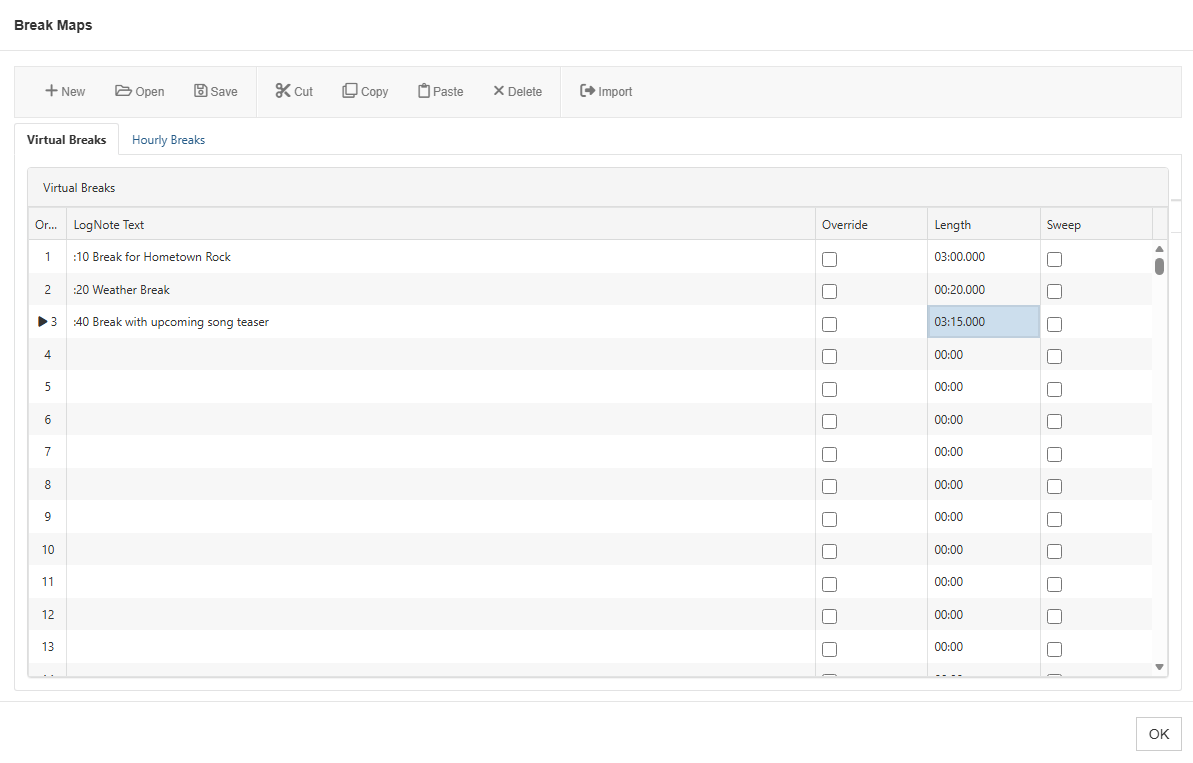
Virtual Breaks

Virtual Breaks allow you to export a single log from a station using multiple exports that can apply different breaknotes at selected times that can vary per export output.

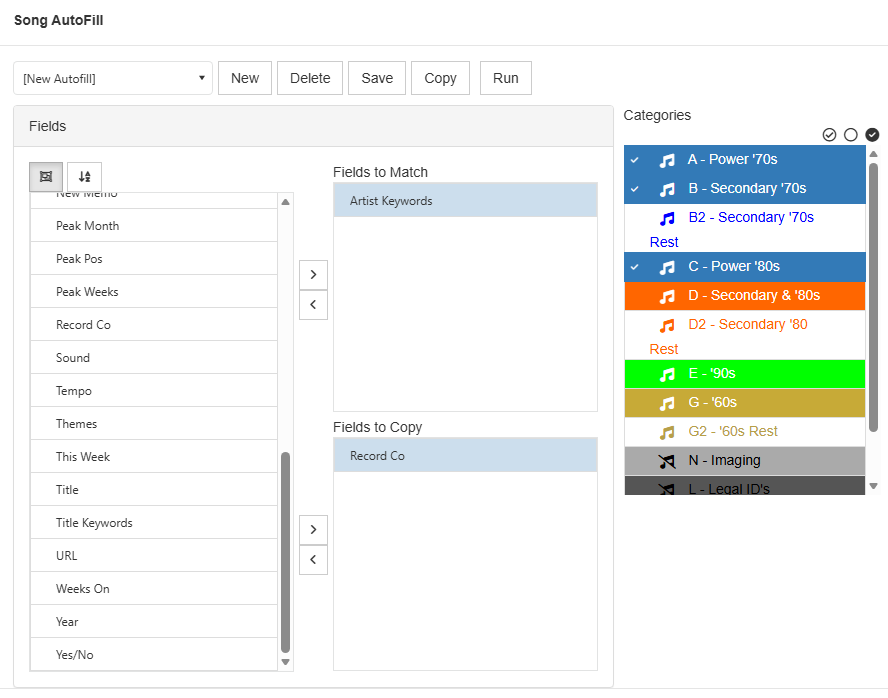
Library AutoFill

AutoFill allows you to match any given list of fields on a newly entered song against existing songs in your station, and then fill in values from the existing songs on the new one. Typical uses for this include information that would not change; i.e., if you match the Artist, the Birthdate information would be the same.

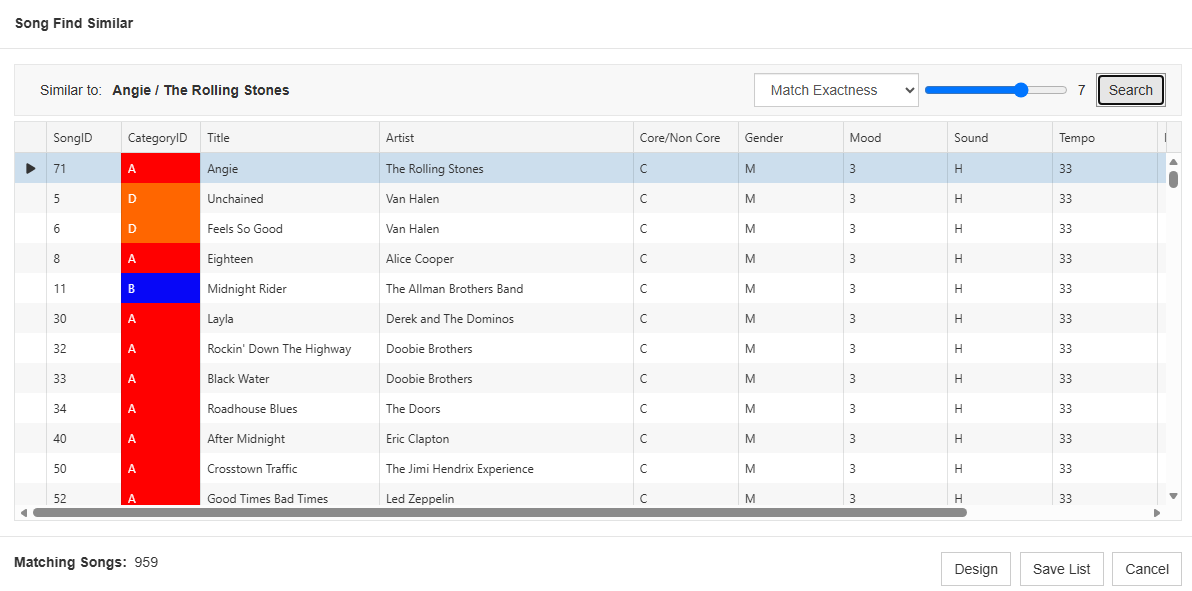
Find Similar

Find Similar shows you songs in your station that have values in selected attribute type fields that are a match or close match to the selected song.

Other improvements include:

New Hour Rotation rules for Keyword fields. You’ll have more control of your Keyword with these four new rules: Day Exclusion Mask, Exclusive Day Offset Window, Exclusive Play Offset Window and Play Exclusion Mask. These rules work the same way they do for Hour Rotation.

When you use F5 in the Schedule Editor, it swaps the elements and all of their properties. You can now use ALT-F5 and swap only the songs scheduled in the elements, not the elements and their properties. You can also go to Schedule Properties and configure F5 so it does this song swapping by default.

The MMCS Server now supports the use of Azure SQL databases.

There are also many other fixes and smaller improvements available as well. Please contact your Music Scheduling Consultant for more information and to schedule your upgrade.

MusicMaster Pro 8.0.17 geposted von Scott Wirt am Juni 22nd, 2026

MusicMaster Pro 8.0.17 is now available. You can update now via Help, Check for Update, or download from the MusicMaster website. Changes are as follows:

  • Added a new Exclusive Day Offset hour rotation rule for keywords.
  • Added a new Optimum Hour Timing goal that can give higher priority to songs that are more beneficial to meeting the required hour timing limits.
  • The Airplay Affidavit report can now optionally include Lognotes, with a text filter to determine which are eligible to include. Note that Lognotes cannot be included when you are reporting on archived history hours.
  • The [Alt-F5] swap songs function in the Schedule Editor can no longer be used on elements that are not scheduled songs.
  • Added a vertical scrollbar to the song memo editor, which also allows scrolling with the mouse wheel.
  • When using the Library Query filters for Last or Next X scheduled days, the last scheduled date is included for Last X but not for Next X. These are based on the Automatic Scheduler last scheduled hour.
  • Added a new NPR Digital Cadence Special History Report.
  • Added a new Gramex Music Content Special History Report for Finland.
  • The element property User1 and User 2 fields can now hold up to 110 characters of data each.
  • Added additional options for user tools command line options for Schedule Editor elements. You can now access element property values using %VFLD:TRANSITION%, %VFLD:USER1% and %VFLD:USER2%
  • Additional fixes and minor improvements

You can find the full list of changes under Help, Release notes. Please contact your MusicMaster Scheduling Consultant if you have any questions.

Tags:

Master Class: Schedule Editor Song Replacement geposted von Laurie Knapp am Juni 11th, 2026

Did you know there are about a dozen ways you can replace songs when editing your log? From swapping, querying, dragging-and-dropping, direct entry, matching neighboring songs and more, this short video tutorial will walk you through some options to help you save time when editing!

Tags:

Don’t Pull the Plug: Why „Resting“ Your Songs is Better Than Deleting geposted von Laurie Knapp am März 31st, 2026

by Joe Knapp, Musicmaster Founder/President

In the fast-paced world of music programming, it’s tempting to treat your MusicMaster database like a cluttered closet. When a song burns out or a „Current“ loses its luster, the gut instinct is often to hit the “Delete” key and scrub it from existence.

However, in the world of professional music scheduling, deletion is a permanent solution to a temporary problem. Before you purge that track, let’s look at why moving songs to an inactive „Rest“ category is the superior move for your data integrity, your reporting, and your sanity.

1. History is Valuable

Every time a song spins, MusicMaster logs a piece of data. This airplay history is the foundation of your station’s „memory.“ When you delete a song, you aren’t just removing the audio reference; you are ripping out every historical record associated with that song.

  • Analysis Gaps: If you run a „History Browser“ report to see what your station sounded like last summer, a deleted song will show up as a „Missing“ or „Unknown“ entry.
  • Reporting Nightmares: When it comes time for SOCAN, BMI/ASCAP, or SoundExchange reporting, having a „Swiss cheese“ history file makes it nearly impossible to provide accurate, defensible logs to regulatory agencies.

2. Guarding Against „The Great Return“

Music is cyclical. You may want to restore a song that you delete today somewhere down the road.

  • If you delete it: You must re-enter all the metadata (Artist, Title, Year, Sound Codes, Energy Levels) and re-link the automation ID.
  • If you „Rest“ it: You simply drag it from your „Rest“ category back into active rotation. All your previous coding and history remain intact.

3. Maintaining „Artist Separation“ Integrity

MusicMaster uses historical data to calculate rules like Artist Separation. If you delete a song by Artist X and then add a different song by Artist X a week later, the system may not „remember“ the last time that artist played. This can lead to clumping and poor rotation logic because the „chain of history“ was broken by the deletion.

4. Avoiding Automation Desync

Your MusicMaster database lives in a delicate marriage with your automation.

  • Deleting a song in MusicMaster while it still exists in your automation system can cause „reconciliation errors.“
  • By moving the song to an inactive category in MusicMaster, you keep the IDs synced without scheduling the track on air.

Best Practice: The „Rest“ Strategy

Instead of deleting, create a „Rest“ category that is excluded from your clocks.

Action Deleting Moving to „Rest“
Data Retention All history is lost forever. All history is preserved for reports.
Metadata Must be re-entered if the song returns. Stays saved and ready to use.
Reporting Causes „Unknown“ entries in logs. Maintains clean, professional reports.
Workflow Irreversible and high-risk. Reversible in two seconds.

Bottom Line

Your database is a living history of your station’s brand. Treat your songs like assets, even when they aren’t on the air. By using an inactive category, you keep your library clean without sacrificing the data that makes MusicMaster so powerful.

Next time you’re tempted to hit delete, let it rest instead.

Integrating MusicMaster CS with Windows Active Directory geposted von Laurie Knapp am März 2nd, 2026

by Jerry Parker, Director of Operations

If you manage a lot of users in MusicMaster CS, like schedulers, librarians, admins, or engineers, you already know the pain of maintaining separate logins. Accounts have to be created, rights assigned, and eventually disabled when someone leaves. That’s a lot of manual work and plenty of room for error.

With MusicMaster CS, you can connect user authentication directly to Windows Active Directory. No more juggling separate logins. Users simply sign in with their normal network credentials. IT controls the credentials, while MusicMaster CS handles the access and role mapping automatically. You can even restrict access so that only users with valid Active Directory credentials can open MusicMaster CS, reducing administrative load and keeping everything centralized.

In plain English, Active Directory integration gives you a simpler, centralized way to manage user access, onboarding, and departures, all from within IT’s existing directory tools.

Why integrate with Active Directory?

Here’s why connecting MusicMaster CS to Active Directory is a smart move:

  • Centralized authentication: Your IT team adds a new hire to Active Directory. Their credentials automatically grant access to MusicMaster CS as soon as the user is mapped to a corresponding MusicMaster CS User and Role set.
  • Automatic offboarding: When someone leaves the company, disabling the account in AD immediately blocks access to MusicMaster.
  • Stronger security posture: Password complexity rules, lockouts, two-factor authentication, and all your other directory-level security settings can apply to MusicMaster CS access.
  • Audit and compliance: MusicMaster CS shows who is logged in and when, while AD handles authentication, lockouts, and password aging.
  • Together, these benefits mean fewer surprises, cleaner audit trails, and complete alignment between IT policy and programming workflow.

What It Looks Like in Practice

  • In Active Directory, your IT team creates and manages user accounts and resource access.
  • In MusicMaster CS, each user is mapped directly to their Active Directory account.
  • You assign the appropriate MusicMaster CS role to match the user’s privileges.
  • When they log into Windows with their AD credentials, access to MusicMaster CS is granted automatically.
  • (Optional) Enable fail-over authentication, so MusicMaster CS can still present a login box if AD is unavailable.

Results: No more local passwords. No more “I forgot my MusicMaster login.” No more mystery accounts.

Planning Tips

  • Decide whether you’ll allow or disallow direct MusicMaster CS logins.
  • Lock down permissions in MusicMaster roles, not AD groups.
  • Keep at least one internal “super-admin” account as a safety valve if AD becomes unavailable.

The Result

  • You free yourself from user administration in multiple systems and align MusicMaster with the same security enforcement your organization uses everywhere else.
  • Your schedulers get one password.
  • Your IT team gets central control.
  • You get cleaner security and simpler onboarding and departure processes.

It’s a small change with a big payoff.

Requirements

  • Configure your MusicMaster CS Server(s) to enable LDAP/Active Directory
  • TEST your LDAP connectivity
  • Add users normally, and assign roles and stations
  • Decide whether to allow fail-over login
  • Click the “Select External Account” button in the User Edit screen.
  • Choose the correct user account and save your work.

That’s it! When a user logs into Windows with their AD credentials and opens MusicMaster CS, access is granted automatically. All local settings, profiles, screen layouts, and other user preferences are preserved exactly as before.

Configuring MMCS Server:

Right-click on your tray app, and access “Server Configuration.”

Choose the User Authentication Tab, and enter details for your LDAP Server.

(Don’t forget to specify the server by IP and PORT)


Once your server details are entered, click “Test” to validate the connection.

If you get a success message, the MMCS Server is configured correctly. Repeat for each of your MMCS Servers. Once all MMCS servers have LDAP enabled, your server configuration is complete!

Configuring MMCS USER accounts:

Select the “Gear” dropdown, choose “Manage Users and Accounts” to access the users and roles.

Next, choose a pre-defined user (or you can create a new one), right-click the intended user and choose “Edit.”

Next, choose “Select” to fetch “external Accounts” from LDAP/Active Directory:

The system will return a list of all Active Directory Users. Simply select the appropriate user and choose “OK” to map the MusicMaster CS User to the Active Directory User. Once mapping is complete, the user will be fully qualified for MMCS Access via their Windows logon credentials, allowing gated access to MMCS via Active Directory!

(Note: the checkbox “Show Accounts Already assigned to another MMCS user” will allow you to review any current MMCS/AD mappings saved in the system)

Final Thoughts

Integrating with Active Directory takes just a few minutes to configure but delivers lasting benefits. It centralizes access control, improves security, and eliminates duplicate user management. Once it’s in place, you’ll wonder how you ever managed without it.

Once configured, AD integration turns user management into a background task. Your IT policies handle authentication, your MusicMaster CS roles handle permissions, and the two stay in sync. It’s clean, reliable, and built for enterprise-grade operation.

It’s another example of MusicMaster CS quietly doing the heavy lifting in the background, so your team can focus on what really matters: great programming.

If you’d like help planning or testing your setup, our support team is ready to assist. We’ll walk you through the setup and best practices, and ensure you get it right the first time!