MusicMaster Scheduling
Your viewing experience of the MusicMaster website, as well as the web as a whole, would be much improved if you upgraded your browser.

MusicMaster Blog

Integrating MusicMaster CS with Windows Active Directory posted on March 2nd, 2026

by Jerry Parker, Director of Operations

If you manage a lot of users in MusicMaster CS, like schedulers, librarians, admins, or engineers, you already know the pain of maintaining separate logins. Accounts have to be created, rights assigned, and eventually disabled when someone leaves. That’s a lot of manual work and plenty of room for error.

With MusicMaster CS, you can connect user authentication directly to Windows Active Directory. No more juggling separate logins. Users simply sign in with their normal network credentials. IT controls the credentials, while MusicMaster CS handles the access and role mapping automatically. You can even restrict access so that only users with valid Active Directory credentials can open MusicMaster CS, reducing administrative load and keeping everything centralized.

In plain English, Active Directory integration gives you a simpler, centralized way to manage user access, onboarding, and departures, all from within IT’s existing directory tools.

Why integrate with Active Directory?

Here’s why connecting MusicMaster CS to Active Directory is a smart move:

  • Centralized authentication: Your IT team adds a new hire to Active Directory. Their credentials automatically grant access to MusicMaster CS as soon as the user is mapped to a corresponding MusicMaster CS User and Role set.
  • Automatic offboarding: When someone leaves the company, disabling the account in AD immediately blocks access to MusicMaster.
  • Stronger security posture: Password complexity rules, lockouts, two-factor authentication, and all your other directory-level security settings can apply to MusicMaster CS access.
  • Audit and compliance: MusicMaster CS shows who is logged in and when, while AD handles authentication, lockouts, and password aging.
  • Together, these benefits mean fewer surprises, cleaner audit trails, and complete alignment between IT policy and programming workflow.

What It Looks Like in Practice

  • In Active Directory, your IT team creates and manages user accounts and resource access.
  • In MusicMaster CS, each user is mapped directly to their Active Directory account.
  • You assign the appropriate MusicMaster CS role to match the user’s privileges.
  • When they log into Windows with their AD credentials, access to MusicMaster CS is granted automatically.
  • (Optional) Enable fail-over authentication, so MusicMaster CS can still present a login box if AD is unavailable.

Results: No more local passwords. No more “I forgot my MusicMaster login.” No more mystery accounts.

Planning Tips

  • Decide whether you’ll allow or disallow direct MusicMaster CS logins.
  • Lock down permissions in MusicMaster roles, not AD groups.
  • Keep at least one internal “super-admin” account as a safety valve if AD becomes unavailable.

The Result

  • You free yourself from user administration in multiple systems and align MusicMaster with the same security enforcement your organization uses everywhere else.
  • Your schedulers get one password.
  • Your IT team gets central control.
  • You get cleaner security and simpler onboarding and departure processes.

It’s a small change with a big payoff.

Requirements

  • Configure your MusicMaster CS Server(s) to enable LDAP/Active Directory
  • TEST your LDAP connectivity
  • Add users normally, and assign roles and stations
  • Decide whether to allow fail-over login
  • Click the “Select External Account” button in the User Edit screen.
  • Choose the correct user account and save your work.

That’s it! When a user logs into Windows with their AD credentials and opens MusicMaster CS, access is granted automatically. All local settings, profiles, screen layouts, and other user preferences are preserved exactly as before.

Configuring MMCS Server:

Right-click on your tray app, and access “Server Configuration.”

Choose the User Authentication Tab, and enter details for your LDAP Server.

(Don’t forget to specify the server by IP and PORT)


Once your server details are entered, click “Test” to validate the connection.

If you get a success message, the MMCS Server is configured correctly. Repeat for each of your MMCS Servers. Once all MMCS servers have LDAP enabled, your server configuration is complete!

Configuring MMCS USER accounts:

Select the “Gear” dropdown, choose “Manage Users and Accounts” to access the users and roles.

Next, choose a pre-defined user (or you can create a new one), right-click the intended user and choose “Edit.”

Next, choose “Select” to fetch “external Accounts” from LDAP/Active Directory:

The system will return a list of all Active Directory Users. Simply select the appropriate user and choose “OK” to map the MusicMaster CS User to the Active Directory User. Once mapping is complete, the user will be fully qualified for MMCS Access via their Windows logon credentials, allowing gated access to MMCS via Active Directory!

(Note: the checkbox “Show Accounts Already assigned to another MMCS user” will allow you to review any current MMCS/AD mappings saved in the system)

Final Thoughts

Integrating with Active Directory takes just a few minutes to configure but delivers lasting benefits. It centralizes access control, improves security, and eliminates duplicate user management. Once it’s in place, you’ll wonder how you ever managed without it.

Once configured, AD integration turns user management into a background task. Your IT policies handle authentication, your MusicMaster CS roles handle permissions, and the two stay in sync. It’s clean, reliable, and built for enterprise-grade operation.

It’s another example of MusicMaster CS quietly doing the heavy lifting in the background, so your team can focus on what really matters: great programming.

If you’d like help planning or testing your setup, our support team is ready to assist. We’ll walk you through the setup and best practices, and ensure you get it right the first time!

Take Control of Your Day: The Awesome Power of “Included Hours” for Scheduling! posted on March 2nd, 2026

by Chris Hulsether

Hey there, fellow schedulers!

Ever feel like you need to tackle your station’s schedule, but the thought of running the auto-scheduler for the whole day is just too much? Maybe you have a killer Morning Drive show you want to nail down first, or a special weekend program that needs your focused attention.

Well, good news! The “Included Hours” function in your auto-scheduler is here to make your life way easier. It works in both the desktop client and web version of MusicMaster, so you can focus on the parts of the day that matter most to you, right when you want to.

What is “Included Hours” and Why Should You Care?

Basically, “Included Hours” lets you tell the auto-scheduler: “Hey, ignore everything else for a minute—just focus on these specific hours.”

This is super handy when you want to:

  1. Prioritize Key Segments: Lock down your biggest shows (like Morning Drive or your specialty programs) first. You schedule those, make any manual tweaks, and then you can run the scheduler for the rest of the day, knowing your core content is solid.
  2. Schedule in Chunks: Instead of one massive run, you can schedule your day piece-by-piece: Morning Drive, then Middays, then Afternoons. It makes the whole process feel much more manageable!
  3. Fix Mistakes Without the Headache: Oops! Did you forget to add a new song to your library, and now it’s missing from two hours in the afternoon? No sweat! You can use “Included Hours” to unschedule just those specific hours. You don’t have to blow up the entire day’s schedule just for a small fix. Phew!

How to Use the “Included Hours” Function

It’s really easy to get started!

1. Find the Button:

In the Automatic Scheduler, look for the “Included Hours” button.

2. Select Your Time:

It defaults to all hours selected. You can select None, and it will unselect all hours. Click the button and select the specific hours you want to focus on.

3. Save Your Selections (Pro Tip!):

If you schedule Morning Drive every day, you can save your “Included Hours” setting! That way, you don’t have to re-select those hours every single time you use it.

4. Run the Scheduler:

Run the auto-scheduler to fill in only the hours you selected.

5. Finish Up:

Once those hours are scheduled and you’ve made any necessary manual adjustments, you can go back and run the auto scheduler again, just make sure to select the rest of the hours by clicking the All button. It will now schedule any elements in the day that are not already scheduled.

The best part? It works exactly the same for unscheduling!

Need to wipe out a few hours to fix an error?

  1. Click the “Included Hours” button.
  2. Select (or load a saved setting for) the hours you want to clear.
  3. Run the unschedule function.

Just those selected hours will be cleared out, and the rest of your day remains untouched!

If you’re using the Web version, the hours you select for “Included Hours” will be shaded in gray so you know exactly which hours you’re targeting.

Give “Included Hours” a try! It’s a fantastic tool for bringing order and focus to your scheduling workflow.

As always, if you have any questions or need a hand, the MusicMaster support team is ready to help!

Happy Scheduling!

Autoburn posted on January 30th, 2026

by Brian Wheeler

It’s time to talk Autoburn. What is it? Why would I use it?

First, let’s talk a little bit about scheduling theory. When programming a music-heavy radio station, our goal as broadcasters is to entertain our audience. We want to provide a product that pleases and entertains the listeners. Obviously, you’d do well to ensure that they’re listening to good music. The audience also likes to hear some variety in that music. That doesn’t necessarily mean you need a huge library of music. Rather, it’s equally important that you rotate your existing library in such a way that the music hits different dayparts and different hours regularly. The hope is that our audience, which is generally comprised of ‘creatures of habit,’ is exposed to a varied portion of your library at any given listening session. In that case, the perception by those listening is that you have a comprehensive, yet focused library you’re presenting to them whenever they tune in.

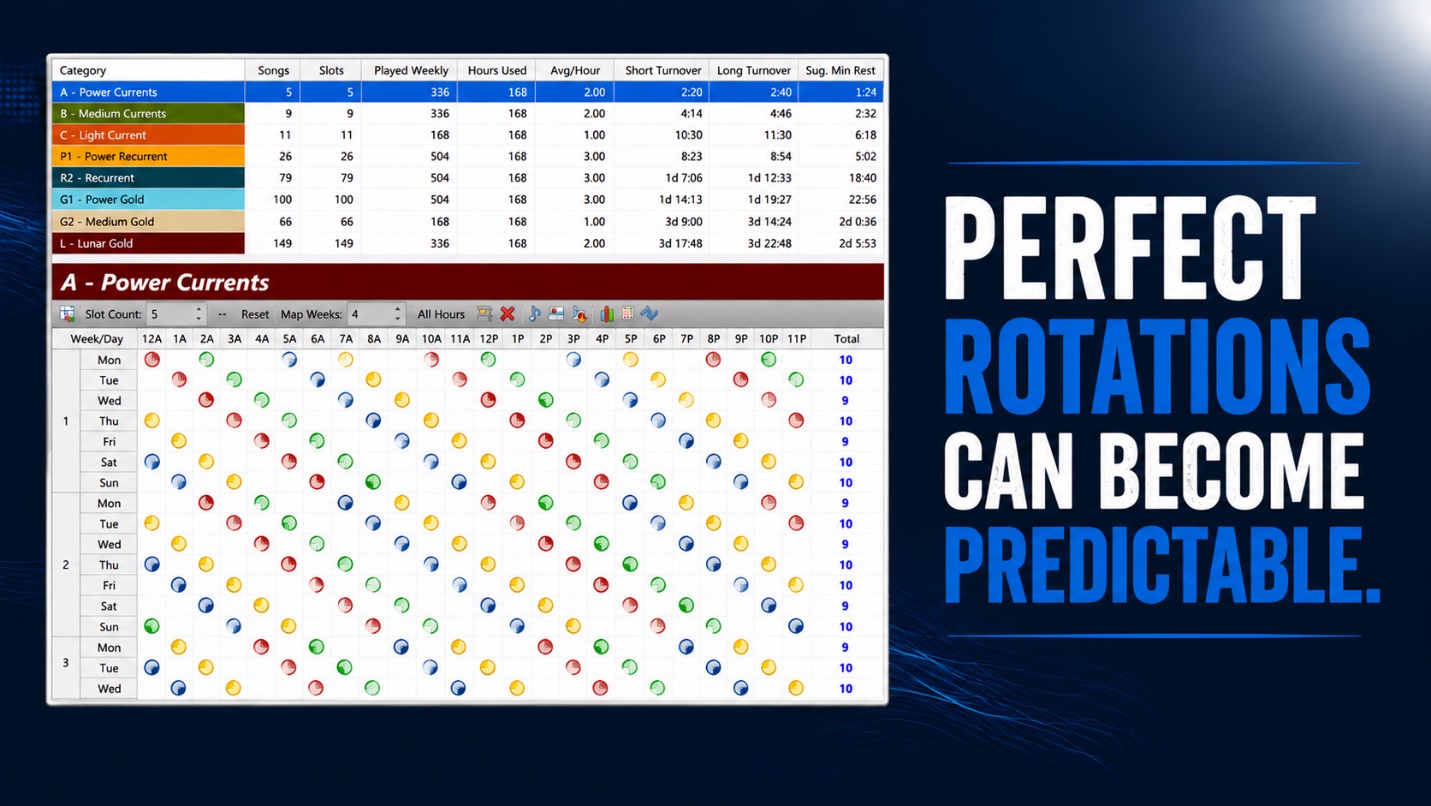
So how do we get more varied rotations? I get asked a lot about the ‘magic numbers’ needed to attain perfect rotations. While there are some numbers that sometimes work better than others, it really comes down to math. Not all numbers are equal in that respect. I CAN tell you that numbers I tend to avoid also evenly divide into 12 and 24, since we’re generally working with a 24-hour day. Here’s a brief illustration of that math.
A category that has 6 songs in it and is called for once an hour in your clocks will rotate like this:

The same song plays at midnight, 6am, noon, and 6pm every day. Your ‘creatures of habit’ listeners are now living in Groundhog Day and they are hearing “I Got You Babe” every morning courtesy of your radio station. That’s no good. A 12-song category would hit at midnight/12p, etc. etc. This is bad math, rotationally speaking.

The easy answer is, fix your math. Instead of 6 songs played once an hour, play 5 or 7 songs, right? Typically, this is the way.
But what if you can’t fix the math? What if you are mandated to play 6 songs? Or let’s say you’ve done an auditorium test and you’ve now got 144 great-testing gold songs you want to play, but you use 3 an hour and that combination makes your rotation look like this?

Here’s where Autoburn can shine. Autoburn is designed to throw a proverbial monkey wrench in the works. How does it work? You decide where you’d like to ‘burn’ one or more songs to offset the poor rotation brought on by category size and clock calls.

For example, you’ve got a 7-song current category that would rotate well, but you simply don’t play that category in your morning show. What should be a great rotation is fouled by the absence of your Power Category for three hours a day. Look at that stacking below! Hideous.

Turnover Analysis (shown in our Web Client) showing bad turnover:

But, if we simulate plays during those 3 hours a day, we can right the wrong.

Let’s add an Autoburn of one song to the three hours of the morning show. The Autoburn skips the next current to play in each of those hours to perpetuate the good stair-stepping pattern that our good math would have provided had we actually played the song.

Shown in CS:

Click OK, and MusicMaster will recalculate the rotations now that there is an Autoburn setting to offset the three missed plays in the morning show. Here is the result of our Autoburn setting.


Ah, yes… that lovely stair-step rotation almost brings a tear to the eye. All is well again.

When your rotations aren’t quite right, the first thing I’d recommend is checking your math. Using the Turnover Calculator is a very handy tool for doing a lot of math for you. Make sure your category size, clock calls, and any other factors and influences such as Dayparting and Gold Recycling are as intended. If you’re certain that everything checks out and you still require a rotation adjustment, Autoburn may be the tool that makes the difference.

As always, feel free to reach out to your MusicMaster MSC for more information or assistance in applying this tool if you’d like some help.

Tags:

Managing Multiple Stations Just Got Easier With MusicMaster CS  posted on January 30th, 2026

by Jerry Butler

Anyone who has programmed multiple stations simultaneously understands how fast the hours in a day can slip away. You make music updates in one station, then you repeat the same changes in another, and then another. Add new songs, research changes, category adjustments, and seasonal music, and suddenly it feels like you spend more time duplicating work than actually programming.

MusicMaster CS was designed to eliminate that cycle.

Two key features can streamline your workflow across stations:

• Category Sync
• Station Distribution

They solve different problems, but together they streamline everything from routine updates to enterprise-level format management.

Why Programmers Use These Features

Category Sync: One Update, Many Stations

A diagram of a task

AI-generated content may be incorrect.

Category Sync allows you to make updates in one station and automatically share that information with any other station you choose.

Programmers rely on Category Sync because it removes the most time-consuming parts of multi-station management. You enter a new song once, and MusicMaster CS sends it exactly where it needs to go. Every station receives the same enterprise-level metadata, coding, research scores, etc. This keeps formats aligned, reduces manual repetition, and ensures accuracy across the entire operation. Since all stations draw from the same updated information, you avoid inconsistent coding or forgotten changes that can throw off rotations.

Category Sync is especially valuable for clusters with multiple versions of the same format because it establishes a common foundation that stays consistent and easy to maintain.

Station Distribution: Flexibility When Stations Are Similar, But Not Identical

A diagram of a station distribution

AI-generated content may be incorrect.

Station Distribution is designed for operations where stations share parts of a format but still require their own unique sound.

Programmers use this feature because it provides selective, controlled sharing. You can choose exactly which songs, based on custom filters that you choose, to distribute. The destination stations then have the freedom to make local adjustments without altering the original source station. This is ideal for stations that share core music but differ in regionally important titles, seasonal rotations, or specialty formats.

Station Distribution helps clusters maintain consistency while preserving the flexibility each programmer needs in their own market.

Now that you understand why programmers use these features, here is how you can set them up.

Setting Up Category Sync

A screenshot of a computer

AI-generated content may be incorrect.

  • Click on the Enterprise gear Icon on the top left of your screen.
  • Go to Automated Tasks and click on Manage Automated Tasks. (You could also click Add New Automated Tasks)

A screenshot of a computer

AI-generated content may be incorrect.

  • Click Add Task
  • Select Category Sync in the Task Type Dropdown Menu.
  • Choose your source station.
  • Select how often you would like to run the category sync.
  • Click Details.

A screenshot of a computer

AI-generated content may be incorrect.

  • Select which categories you would like to sync between stations using the dropdown for all categories, music categories, non-music categories, or select categories only.
  • Select stations you want to update.
  • Save and MusicMaster CS handles the rest.

Station Distribution: Setting Up Patriotic Song Distribution Across Formats

A diagram of a station distribution

AI-generated content may be incorrect.

This Is Where Station Distribution Shines

Let’s say you’re preparing music for a patriotic holiday weekend. The fields you use for your filters have to be enterprise-level fields so you can filter the library from the enterprise level. Station-level attributes won’t be visible in the Enterprise. For this case, we’ve already coded our library by genre and specialty:

• Specialty = Patriotic
• Genre = Rock / Country / Pop

Setting Up Station Distribution:

A screenshot of a computer

AI-generated content may be incorrect.

  • In the Enterprise, click on the Enterprise gear Icon on the top left of your screen.
  • Go to Automated Tasks and click on Manage Automated Tasks. (You could also click Add New Automated Tasks)

A screenshot of a computer

AI-generated content may be incorrect.

  • Click Add Task
  • Select Station Distribution in the Task Type Dropdown Menu.
  • Set how often you want this automated task to run under Recurrence Type.
  • Click Details.

A screenshot of a computer

AI-generated content may be incorrect.

  • Select categories on the left.
  • Create your filters (ex: For this instance, we are using R for Rock in Genre and P for Patriotic song in Specialty.)
  • Select stations you would like to distribute the new songs to.
  • Save and let CS distribute automatically. New songs will be added to the uncategorized folder in the target stations.

Repeat these steps for each format, and songs will be distributed to the appropriate stations. This is just one example of how Station Distribution can be used. If you can filter it at the enterprise level, you can distribute.

As you can see, these powerful automation tools in MusicMaster CS allow you to manage multiple stations with greater consistency, accuracy, and efficiency. Whether your goal is to keep formats aligned through Category Sync or customize shared content with Station Distribution, these features reduce repetitive work and give you more time to focus on programming strategy. If you have questions or would like help setting up these features, contact your MusicMaster Scheduling Consultant.

Don’t Get Stuck In Traffic posted on November 25th, 2025

by Dave Tyler

Ok, so the word “Traffic” has a negative connotation in most cases, but inside a radio or TV station, the more traffic the better! We’re talking about the spots that pay the bills and keep the tower pumping more wattage to the cottage and ohms to the homes! Money baby!

So, what does this have to do with Music Scheduling? Well, it depends on your needs. Some folks want to see their traffic spots in the Schedule Editor so they can time their hours out a little more precisely, while others have automation systems that require a single combined music/traffic log to be exported.

To keep things simple, let’s just go over bringing traffic into MusicMaster for timing purposes. I will also go over how to import other “.Def” files for library synchronization and reconciliation. Creating a “Def” definition file for any of these is a topic for another day, but great information can be found in our Help section with a simple search. Your dedicated MusicMaster Support rep can help you as well.

This feature is available in all versions of MusicMaster, but I’ll be demonstrating it in MusicMaster CS and the Web Client.

First things first, we need to import a “Def” file. To do this, click on the dropdown for the Schedule Calendar and select “Traffic System Interface”. Below is how this looks in our CS Desktop and Web versions:

A screenshot of a computer

Description automatically generated

Once selected, the Traffic System Interface box will pop up. There are a couple of things we need to do here, but first, let’s import our Traffic Definition file. This is the file written to import the information from the traffic log into our MusicMaster Schedule Editor. Once you locate your def file, click “Open”, and it will import into your station. Here are the dual looks from the desktop and Web clients:

A screenshot of a computer

Description automatically generated

Nice job! Now that it is imported, we’ll get to those other things I had mentioned we needed to knock out. We want to check the boxes for “Import Spot Information from Your Traffic System” and if you are exporting traffic from MusicMaster you may want to “Enable Editing of Spot Assignments”. If you’re like me, if I am going to export traffic along with music, then having the ability to edit the order of the spots to keep the same voice or a similar client away from each other would be important. If not, then leave this unchecked.

A screenshot of a computer

Description automatically generated

Alright, we are cookin’ with gas now! We have successfully imported the def file, so what’s left to do? We need to set up our clocks with “Traffic Merge” elements. It is important to note that these Traffic Merge points can be wider/longer than the actual stopset. Think of them as funnels that suck in the spots from the traffic log and place them where you want them in the music log. In my example, I have a 20:00 Break that is 3 minutes long. I make my Traffic Merge point a bit wider to make sure it grabs all the spots scheduled for this time. I set it to capture any spots sent from my Traffic Department between 20:00-25:00 after for this hour. It is necessary to know when your traffic is being sent. If your Traffic Director is sending your 20 break spots at 19:00 after and your merge is looking for spots between 20:00-25:00 this will result in a “Loose Spot(s)”, and you will not see it in the editor unless you right-click on the traffic merge and choose “View Loose Spots”. You want to be on the same page with your Traffic Director on this point. Here is what the Traffic Merge will look like in your clock(s).

A screenshot of a desktop view of clock

Description automatically generated

A screenshot of a web view of clock

Description automatically generated

You will need these positions in any clocks you want to see traffic in. Save your clock(s) and enter them in the desired assignment grid (unless they already are in there).

Now we want to do a little work in the editor layout, so open your Schedule Editor and then click “Modify Editor Layout”. Scroll down on the bottom right until you reach the “Grid” section. You want “Auto Expand Child” set to “True”. This will allow MusicMaster to display the spots when you open the editor. With it set to false, there would be a small dropdown arrow to the left of the Traffic Merge position that you could click to see the commercials. Once done, click OK and then save the layout by clicking the small “Save” icon to the right of the Modify Editor Layout button. If the other parts of the above setup have been done, this step is not necessary in the Web version.

A screenshot of a desktop view

Description automatically generated

We have finally arrived at the grand reveal! Let’s open the Schedule Editor to a date that we know the traffic logs have already been sent, and voila! Spots!

A screenshot of a computer

Description automatically generated

A screenshot of a web view

Description automatically generated

Before wrapping things up here let’s look at how we can import a reconciliation and/or a Library Sync def file. Reconciling will update your logs in MusicMaster with what aired in automation. This is helpful if you have extra songs at the end of each hour that often get bumped, or if jocks change songs out during their airshift. This also assures your BMI/ASCAP, CRTC, Sound Exchange etc. reports are accurate.

To import a reconciliation file, click on Schedule/Reconcile:

A screenshot of a computer

Description automatically generated

Now you can click the Browse button and find the def file you need and click OK.

A screenshot of a computer

Description automatically generated

A screenshot of a computer

Description automatically generated

You can reconcile your past logs by going to Schedule/Reconcile and selecting the dates you want to reconcile, make sure the box is checked for the def file, then click Start.

A screenshot of a desktop view

Description automatically generated

A screenshot of a web view

Description automatically generated

Moving on, let’s import a Library Sync file. Library Syncs are used to add or update metadata (song and song info) from your automation system into MusicMaster. Importing the Def is similar to both the traffic and reconciliation processes. Click on Library/Synchronize.

A screenshot of a computer

Description automatically generated

Click to select the Library Synchronization Definition file from the location where you saved it. Click Open.

A screenshot of a desktop view

Description automatically generated

A screenshot of a computer

Description automatically generated

Once selected, if the “Add” button is not available, you may need to click “Convert” first, then “Add”.

A screenshot of a computer screen

Description automatically generated

Now you can synchronize your library by going to Library/Synchronize and running the file.

A screenshot of a computer

Description automatically generated

And that, my friends, is how you can import your Traffic, Reconciliation & Library Synchronization definitions into MusicMaster, as demonstrated in our CS Desktop and Web versions. It is worth noting that it is not necessary to do this process in both the Desktop AND the Web clients. Doing it in one does it for the others because they all reference the same database.

As always, if you have any questions, please contact your dedicated MusicMaster Scheduling Consultant.

Save Time with Category QuickMove posted on November 24th, 2025

by Vicky James

Back In the Day… I recall years ago being in a music meeting when the process of jotting down music changes, taking them back to my office, and manually making the changes in each category was still a thing. Nowadays, you can easily access categories and instantly make moves by dragging elements to the target category using Category QuickMove. You can also make changes to the song card data here as well! This feature is ideally used in smaller categories and allows up to 8 categories to be reorganized at a time.

QuickMove is available across all versions of MusicMaster: Pro, Client-Server, and the Web Client. We’ll demonstrate it using CS.

Click Dataset, Library, and Category QuickMove.

Note that the feature prompts a reminder that QuickMove works well with small categories.

A screenshot of a computer

AI-generated content may be incorrect.

Choose the Categories that you would like to view in QuickMove. You must select at least 2 and up to 8 categories, if needed. It will populate with only the description of each element. First, we will create a layout.

Select Modify Layout and add the fields you would like to view in the panel seen above. I suggest, at a minimum, adding the Title, Artist, and IDs to the view.

A screenshot of a computer

AI-generated content may be incorrect.

Once the layout is set, SAVE your layout.

A screenshot of a computer

AI-generated content may be incorrect.

Now that the view is configured, you can quickly click and drag elements to the new category. Notice the Song Count at the very bottom of the window shows the previous category song count, along with how many songs have been added or subtracted. Since the number of songs in your category affects your rotation patterns, you may want to track these changes to keep the counts consistent.

A screenshot of a computer

AI-generated content may be incorrect.

Category QuickMove is also available in the Web Client, complete with drag-and-drop capabilities!

A screenshot of a computer

AI-generated content may be incorrect.

The Power of Shows: Bringing Structure and Creativity Together posted on October 31st, 2025

by Chris Hulsether

Why Shows Matter

Every great station runs on rhythm, flow, and structure. Shows bring all of that together by giving your programming a clear framework. They make it easy to organize your content, manage long form segments, and control how songs and elements appear. When you use Shows, you’re not just scheduling time, you’re building an experience for your listeners. From morning drive to weekend countdowns, Shows help your station sound polished, consistent, and professional every single day.

Shows Made Simple

Shows are one of the best tools you can use to bring your programming together in MusicMaster. Think of a Show as a big container that holds other elements like songs, imaging, liners, or talk segments. A Show defines a time frame, but it doesn’t have to stay within a single hour. You could start a Show 30 minutes into the hour and let it run for several hours if you want.

The beauty of Shows is that they give you structure and flexibility at the same time. You can apply rules that control what plays and how often. You can run operations on a single Show without affecting others. Once you understand how to create and manage them, Shows become a powerful part of your daily scheduling routine.

Both MusicMaster Pro and Client-Server enable you to define a block of time as a show using Show Markers in your clocks. This comes in handy as a reference when exporting or printing a show logs. However, Client-Server has additional tools for configuration, as well as rules for scheduling songs in a show-aware manner. We’ll walk through all of that in this article:

Creating a New Show

To start, in MusicMaster Client-Server, go to the Clocks menu and select Shows, then choose New. This opens a fresh Show setup where you can fill in the details that define how it looks and behaves.

Same thing in the Web Client:

Name
This is the main title of your Show. Choose something descriptive so it’s easy to find later.

Color
Pick a color to represent your Show. This color will appear in your Shows listing in Format Clock Maintenance and in the Schedule Editor. It’s a great way to visually separate different programs at a glance.

Identification
This is a secondary description for your Show, handy if you want to add a subtitle or more information about the content.

Length
Set the total time for your Show. You can make it longer than 60 minutes if needed. Use the format HH:MM, such as 02:30 for a two-and-a-half-hour program.

Episode ID
Add a code or macro that helps identify each episode. For example, you might use a date or production number. If you use a date/time macro, it will automatically appear beside the Show name in the Schedule Editor.

Restrict Editing
If you only want certain people to edit this Show, check the box for Restrict Editing. Then click Role Permissions to choose which users or roles can make changes. This helps protect your setup from accidental edits.

Understanding Metadata

Metadata is extra information about your Show. It gives you the flexibility to record details that might not fit anywhere else. You can use Metadata in two ways: as simple notes or as structured fields with selectable values.

Some examples of simple Metadata include copyright details, host names, or producer information. Examples with values could include a field for Video Display where you can choose between color and black and white, or an Audio field where you mark whether something is live or studio quality.

To create Metadata, go to the Shows page in Format Clock Maintenance. At the bottom left, use the add or delete buttons to manage your Metadata items. On the right, you can enter the specifics:

Web Client:

  • Name is the title of the Metadata.
  • Category is a general label grouping related to Metadata together.
  • Description gives a longer explanation of what the Metadata represents.
  • Allowed Values are the list of options you can select from when using this Metadata in your clocks.

When you add a Show Marker in your clock, any Metadata you’ve created will appear as an option, complete with the drop-down list of allowed values.

Shows in the Schedule Editor

Once your Shows are built, they’ll appear in the Schedule Editor like any other element in your log. Double-clicking on a Show opens the Edit Show box, which displays all the information you set up earlier. Some functions are not available in the Web client yet, such as the ability to double click on the Show element in the schedule editor.

You’ll also see a Status drop-down that helps track where a Show stands in your workflow:

  • New means the Show has just been created and not yet reviewed.
  • Ready to Check means the Show is set for review.
  • Ready to Report means it’s been reviewed and is waiting to be reported.
  • Reported means it has been finalized and logged.

The Schedule Editor will also show the date and time when the Show was reported, who reported it, and what station it came from if it was imported from another source.

Operations You Can Perform with Shows

Once Shows are created, you can use them throughout the system in several ways. Look for the gear icon, then use the dropdown to select a specific Date or Show.

A screenshot of a computer

AI-generated content may be incorrect.

Web Client:

A screenshot of a computer

AI-generated content may be incorrect.

The available operations include:

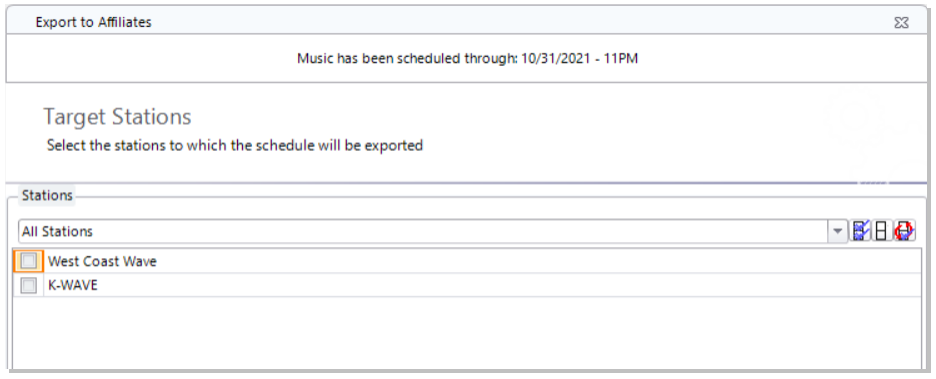
  • Export to Affiliates
  • Export to Automation (not available in Web Client)
  • Export to Web (not available in Web Client)
  • Import from Network
  • Print Logs (with a design page for printed versions)
  • Unschedule a Show if it needs to be removed

These options make it easy to move or share Show data and maintain consistency across stations or networks.

Rules That Keep Shows Running Smoothly

Rules make Shows work intelligently by controlling how songs and keywords appear. There are three main types of rules to consider in your Rule tree.

Keyword Show Separation
This rule prevents certain keywords from appearing too close together within the same Show. It’s helpful when you have recurring themes or artist names you want to space apart. For example, if you run a morning and afternoon Drive-Time Show, you can set the rule so the same keyword won’t appear in both Shows within a certain timeframe. The key is balancing your Show length with the separation value, so the rule works smoothly without unnecessary fails.

Song Show Skip
This rule controls how many Shows must pass before a song can play again. If you set the skip to two, that song won’t play for two full Shows after its last play. Keep in mind that this rule counts each Show instance separately, even if they share the same name. It also doesn’t prevent a song from playing more than once within the same Show.

Song Show Separation
This rule prevents songs from repeating within a single Show. The longer your Show and the higher your separation setting, the more distance you’ll create between repeated songs. For example, a five-hour Show with a six-hour separation rule means no repeats at all. The same setting at three hours could allow some repeats if they pass other scheduling rules. Since each new Show resets this rule, it helps to review your Show lengths and clock grid placement to choose the best setting.

Bringing It All Together

Shows are the heartbeat of your format structure. They give you creative control while keeping everything organized and flexible. With Metadata, color coding, permissions, and customizable rules, you can fine-tune every detail. Once you get comfortable using Shows, you’ll find that they simplify scheduling, make your logs cleaner, and open up new ways to manage and present your programming.

When everything is in place, your Shows become the framework for a schedule that runs smoothly, sounds consistent, and reflects your vision from start to finish.

If you’re ready to explore more ways to make Shows work for you, reach out to your Music Scheduling Consultant. They’ll be happy to walk you through ideas, help you fine-tune your setup, and make sure your Shows are running exactly how you want them to.

Importing Enterprise Songs in MusicMaster CS posted on October 31st, 2025

by Brian Wheeler

How cool would it be to be able to add songs to your station with just a click or two? I want to highlight a feature in MusicMaster Client-Server and the Web Client that allows you to ingest songs that are in the Enterprise database but not currently in your specific station.

This feature can be accessed through the Library menu, or when in the Library Maintenance menu, you can click on the icon on the toolbar to access the function.

A screenshot of a computer

AI-generated content may be incorrect.

To access this in your station, you must first have rights to access Enterprise and the setup. Once you have rights, you can add or modify the available assets in your station.

To configure the query that will enable your search of the available assets in Enterprise, you must first open Import Enterprise Songs within Enterprise. It’s here that you’ll provide a query for users to find songs they want to import into their station.

Add a new query, starting with the name of the query. Try to be specific in the description so it’s easy to tell precisely what the user can find using this query.

Now select the station(s) you want to receive these new songs.

The last step will be to create the actual prompts. Use the Query Prompt steps you’d normally use to create a Query, then save your settings.

Now that the preliminary settings are in place, if a user decides to import songs from Enterprise, they can click on Import Enterprise Songs at the station level and proceed to find their desired songs for importing.
This is how the query looks in the Web Client, which is similar to the CS view.

In this case, I’m looking for “Summer” songs for a bit I’m doing for a weekend show. The songs in gray are songs that already exist in the station. White songs are not currently in the station. I’ll select two more songs (seen here in gold) that are in Enterprise for my purposes.


and in the Web Client:

You may see that I elected to drop these songs into my Uncategorized folder. You can select any category to drop those songs in from Enterprise.

As with a library layout, you can add additional fields to the view by clicking on the Design option and adding fields to the view.

Now I’m ready to click Select and add these songs to my station! Pretty slick. Later, I can move these songs to any category I wish.

Of course you can use quite a few fields in your query, so if you’re searching for music with more subtle features, perhaps songs that match a mood or theme, you can search for those as well. As long as the songs exist in Enterprise and are coded accordingly, you can find them and import them.

If you have more questions regarding this or any other feature in MusicMaster CS or the Web Client, feel free to contact any of the MusicMaster Scheduling Consultants to get the answers.

MusicMaster Pro 8.0.16 posted on October 20th, 2025

MusicMaster Pro 8.0.16 is now available. You can update now via Help, Check for Update, or download from the MusicMaster website. Changes are as follows:

  • The Format Clock Editor properties column for clock filters now shows a new icon for Library Query elements that have query filters.
  • Improved the accuracy of the progress bar on the Automatic Scheduler status dialog.
  • Improved the Optimize by Field arrangement function when used on a multiple keyword field when there were songs where multiple heavily used keywords appeared on the same songs.
  • Adjusted the way Exact Hour Timing works when the TimingFlexibility option is enabled. This will now have a greater ability to leave positions unscheduled in favor of using longer songs to hit the timing requirement early.
  • The Schedule Editor function to remove all remaining unscheduled positions will now take the broadcast week into account.
  • When reconciling elements via Nexus, it is now possible to change the song that played in an element while you are updating the start time and runtime.
  • Updated Special History Reports for Finland, Hong Kong and Italy
  • Corrected an issue that could cause an application crash after changing to a different station
  • Additional fixes and minor improvements

You can find the full list of changes under Help, Release notes. Please contact your MusicMaster Scheduling Consultant if you have any questions.

Tags:

Sharing Logs Across Your Network posted on September 29th, 2025

by Paul Ziino

Many stations are part of large organizations who wish to schedule a format once and share that log with all the other stations of that same format. This can be done quickly and easily in MusicMaster using “Import from Network.” In the example below, we’ll be doing this in MusicMaster CS and the Web Client. This tool is also available in Pro, but CS has even more features!

In your base station—we’ll call that the “network”—schedule the date in question and edit it completely. Now open the target station—the “affiliate”—and go to Schedule/Import from Network.

The next screen that appears will allow you to choose the station you want to import from and the dates/times you intend to import. Note, you can also choose to import from an external station or network that also uses MusicMaster but is not part of your company’s Enterprise.

A screenshot of a web client

AI-generated content may be incorrect.

Click Next to get to the Network Import Time Period. Here you can skip hours you don’t want to import. In the images below we are skipping the network’s morning show so it can be scheduled locally. On this screen you can Time Shift if you wish, exclude hours that have overrides via the Format Scheduler, and determine how you want to merge the network songs with your local clocks.

A screenshot of a computer

AI-generated content may be incorrect.

For the Merge Network Songs setting you have multiple options. There are three that we see most often.

1) You can import the full log from the network station—this overwrites everything from your local clocks with an exact match to what is scheduled in the base/network station by selecting “No: Use Network Log Only.”

2) You could replace only the music elements with the music items scheduled in the network via “Yes: Replace Music Only.”

3) Another option allows you to choose specific categories you want replaced in your local affiliate station and what categories from the network you want to replace them with “Yes: Replace Specific Categories.”

Once you have that configured, click Next to get to the Network Library Import. Here you indicate where you want the songs from the network/base station to go in your local/affiliate station. If the songs are in the same categories in the network and affiliate stations, I would recommend you “Attempt to match the source station’s category by category code.” This way songs that are in Category 1 in the network will also be in Category 1 in the affiliate. If you don’t want the network songs to match up with those already in your station, you can “Import all songs uncategorized.” Your third option is to “Import songs into a specific category” that you can specify.

A screenshot of a computer

AI-generated content may be incorrect.

Click Next and you’re all set to click Finish (desktop client) or Import (web client) to finalize the import from your network.

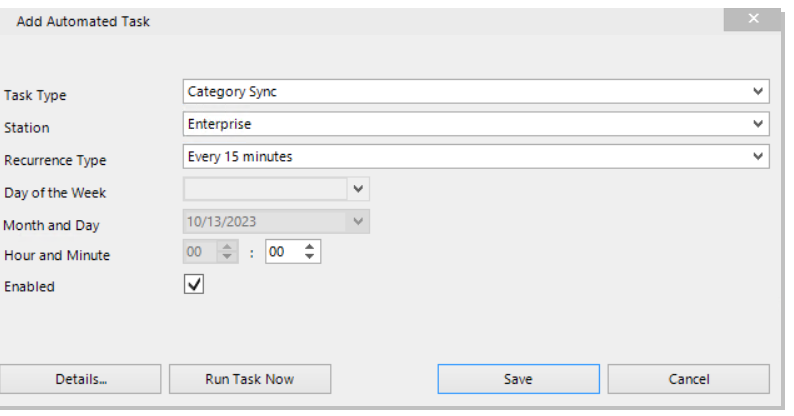
Now if this is something you wish to do on a regular basis, you can set up an automated task to do it for you (in the desktop client)! Click Enterprise/Automated Tasks/Manage Automated Tasks.

Set your Task Type to “Import from Network” and set your Station for the affiliate data. You can tell MMCS how often to run this task and at what time to do so.

A screenshot of a computer

AI-generated content may be incorrect.

(Please note, the Month and Day you see listed is only an example when greyed out. If you choose to run a task once a month, then you can indicate month and day.)

Click the Details button to finish setting up your task. Here you will indicate the network station, how you want the songs merged, time shifting, hours to be imported, etc. This should look familiar as it has the same settings we covered earlier.

A screenshot of a computer

AI-generated content may be incorrect.

When you click OK, you’ll return to the previous screen where you can save your automated task.

One last thing, make sure your administrator has automated tasks turned on at the MusicMaster Server Monitor (tray app) in the Server Configuration’s Options tab, otherwise your automated tasks will never run.

A screenshot of a computer

AI-generated content may be incorrect.

We have customers all over the world using Import from Network and automated tasks to do it for them. If you’d like to join that group, just let us know. Your MusicMaster Scheduling Consultant will be happy to assist you.