
New Testimonials posted on October 26th, 2011
Now you can see what some of our clients have to say about MusicMaster on our testimonials page.
MusicMaster uses Google Analytics and Statcounter to understand how visitors use this site so we can improve content and performance. Choose whether to allow analytics cookies.
Now you can see what some of our clients have to say about MusicMaster on our testimonials page.
Editor’s Note: Have you heard about Spotify? It’s a new way to listen to your music. Here is a way to use MusicMaster with Spotify! (more…)
by Paul Ziino
Whether you want to schedule a bunch of “car” songs leading up to the Indy 500 or “patriotic” songs for Independence Day, Theme Scheduling can get the job done. Here’s how in 10 easy steps… (more…)
By Drew Bennett
The Chart Editor is used to create an in-house music chart. This can be helpful when reporting your playlist, making music decisions or keeping general tabs on your library. (more…)
WEXR-FM, WOKK-FM, WJXM-FM, WZKS-FM, WYHL-FM, WJDQ-FM, WALT-FM, WKZB-FM, WHTU-FM, Meridian, MS; National Latino Broadcasting, Miami; KNOB-FM, Santa Rosa, CA; CKTY-FM, CKTO-FM, Truro, NS, Canada; KRKO-AM, KRKO-HD1, KKXA-FM, KKXA-HD1, Everett, WA; WYSU-FM, Youngstown, OH; CFXY-FM, CIBX-FM, CKHJ-AM, Fredericton, NB, Canada.
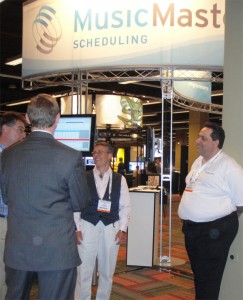 As always, it was great seeing existing clients, our industry partners, and meeting broadcasters with questions about how MusicMaster could work for them. The attendance this year was up from recent years, but most would agree the overall mood was up as well. There was great interest in MusicMaster Live which powers Blendella. If you haven’t checked it out yet, you can do so at beta.blendella.com. Register to participate, and check out the new Facebook app. We would love to get your thoughts!
In addition to the new look of our website, we also improved how support issues are handled through the web with the introduction of our new Support Center for American and Canadian clients. Using our Support Center, you can access downloads, submit new support cases, and even check-up on your existing cases.
If you’re an American or Canadian client and didn’t receive an e-mail containing your login information, getting your new password is as easy as visiting our Support Center and selecting “Forgot your password?” If you’re not a registered user or you have a new e-mail address, please request access to the Support Center and we’ll get your login details out to you right away.
Additionally, if you’re looking for our training videos, they now exist outside the Support Center and are easily accessed under Training in the menu on our new website.
Some of our clients have received correspondence from attorneys representing Mission Abstract Data, LLC (which also does business under the name Digimedia). They have filed suit against several broadcasters for infringement of the company’s intellectual property. Primarily, this deals with broadcasting music from a hard drive (or hard drives) that contain several hundred songs. Information can be found on their website at www.missionabstractdata.com. From what we understand, a significant challenge to the viability of the patent has been filed with the US Patent Office claiming other automation playback systems that incorporated this technology were already in existence prior to the filing date of this patent. A decision is still pending.
Using MusicMaster to schedule a playlist is not a violation of this patent and neither A-Ware Software or MusicMaster has been served notice of a claim that it does. If you have concerns regarding this case, we suggest you seek legal counsel.
 Several members of the MusicMaster staff got their first hands-on radio experience at a college station. Today we have many college radio stations as clients, which makes us proud to be a supporter of College Radio Day, Oct 11. So far over 150 college and high school stations have registered to participate in the event to increase the awareness about the role these stations play. Complete details can be found at their website http://www.collegeradioday.com/
 Potsdam, Germany: Thursday, November 10 through Friday, November 11:
Attendees for this workshop will have the opportunity to choose between one of three courses. There will be a beginners track for users relatively new to MusicMaster, a more advanced group for those users who want to take their skill set to a higher level, and and the third track will focus on special techniques for our television/video programmers. More information and registration information is available here. If you have additional questions contact Rainer Eichhorn.

 If you are planning to attend any of these upcoming events let us know. We would love the opportunity to say hello, share a cup of coffee, or help with any questions you may be having.
 Mark Patric is the APD and MD of 93.7 JRfm in Vancouver, British Columbia, Canada. Along with his 16 years of major market broadcast experience he has also worked as a music scheduling consultant and music research adviser for Albright and O’Malley Consulting for the past 10 years.
Contact Mark Patric at 604-575-1226 or magmedia@telus.net
 The MusicMaster Pro-Team is comprised of experienced broadcast consultants and programmers who are available to assist MusicMaster clients with programming advice. Their services are available under this cost effective program with no long term commitment required, and can be added to your existing software support plan. Information on each MusicMaster Pro-Team member is available below. If you would like to retain the services of one of the MusicMaster Pro-Team members or have questions about the specifics of the program contact Mark Bolke Vice President/COO at (651) 405-9119 or Mark@MusicMaster.com.
See the complete MusicMaster Pro-Team Roster.
 Quick Tip: Rule Groups and Categories
If you only use Rule Groups that apply to all your categories, there are many more options you can utilize to simplify your Rule Tree. A Rule Group has Song and Clock Restrictions options. In a nutshell, these options let you tailor what is affected by the rules in the Group. For instance, you can pick only certain categories or filter for a specific characteristic in Song Restrictions. With Clock Restrictions you can determine which clocks the rules will apply to. The benefit of these options is that you’ll have fewer places where a rule is listed, which means fewer places to review and change saving you time and potentially preventing mistakes.
View Category Rule List
By Paul Ziino
We often are asked by customers to help them figure out why songs are scheduling that violate rules. Usually, the problem is that the rule being violated isn’t active for the category in question. How can we figure this out? The answer is “View Category Rule List”. (Read more.)
 Barb Richards
Program Goddess
Majic 95.1, WAJI
Fort Wayne, IN
“The feature I like best is the playdate history window. I look at every song and can quickly see where it played the day before so I can maximize rotations. Usually the program has already picked the perfect song for the time slot but every once in a while, I have to go digging a bit further then the rules allow. To me the music log is a big puzzle and our job as programmers is to find the perfect fitting pieces to make a great picture!”
By Marianne Burkett
When was the last time you took a critical look at your database or databases? You may be so busy at work, that the thought of a review seems like the last thing you’d like to do. With MusicMaster there are some easy steps you can take to keep your data “honest”. The truth has no agenda, but it certainly is revealing! (more…)
By Paul Ziino
We often are asked by customers to help them figure out why songs are scheduling that violate rules. Usually, the problem is that the rule being violated isn’t active for the category in question. How can we figure this out? The answer is “View Category Rule List”. (more…)
By Marianne Burkett
What is a “Virtual Show”? Here we’ll define it and give you some examples of how you might use it. (more…)
By Aaron Taylor
Want to add your song data from iTunes straight into MusicMaster? How about creating playlists that can then be played out via iTunes? There’s got to be a way, right? In this article, we’ll lay out the steps to do just that.
First off, you’ll want to get in touch with your MusicMaster Scheduling Consultant to discuss your needs and plans. They will assist you in reviewing your database(s) to identify whether additional fields will be needed to allow the integration to work. Your MSC will also provide you with the needed files to add to your database, and your Music Master directory.
Synchronizing your iTunes music library with MusicMaster
Your MusicMaster Scheduling Consultant will need to forward you our library synchronization.def for iTunes (we’ve already done most of the set up work on this for you). We’ll likely need to schedule a call/GTM session with you to direct on configuring where the library file from iTunes will be sent, and where the field data from that program will be imported into MusicMaster. That shouldn’t take more than five or ten minutes.
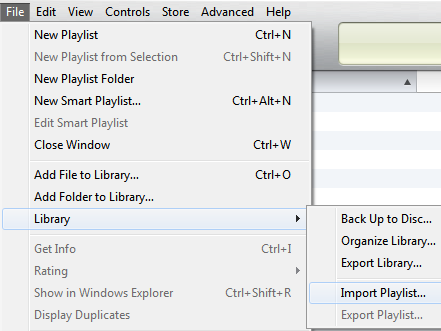
Once this is customized to your database, then you are ready to go into iTunes and export your library to MMWIN. In iTunes, you will want to go to FILE-LIBRARY-EXPORT LIBRARY.
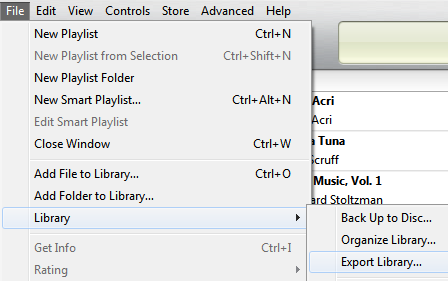
The library.XML will then appear in the directory you designate in the export path in iTunes. Once that step is completed, you’ll then go to your MusicMaster database and run the library synchronization def.
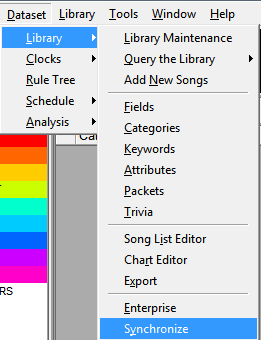
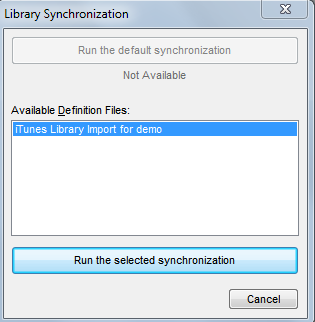
When you run the synchronization, you will find the songs you imported from the iTunes library in the NEW category list (this category will be created for you automatically if it does not already exist). From here, you’ll likely add the songs to their proper categories and get ready to schedule a playlist for export.
Exporting a scheduled playlist to iTunes for play out
Your Music Scheduling Consultant will also need to forward you our export XML template for iTunes, (again, we’ve done most of the work here already), and we’ll just need to align the fields in the template design to the available fields in your database. If you’ve had prior experience adding in a “template” design we’ve provided to you in the past, this is the same procedure. Of course, we are happy to assist in this process! This is done via the MMExportDesignEditor.exe found in your c:\mmwin directory.
Next, we’ll assume here that you’ve already scheduled and edited a playlist; you wish to export to iTunes.
Now, you’ll want to go ahead and export the playlist you’ve created to a place that your iTunes can find it. Export the playlist the same way you export currently…DATASET-SCHEDULE-EXPORT-EXPORT TO AUTOMATION. Select your iTunes export this time, and you probably should double check the Export Path and Export Filename boxes at this time as well.

Once the file has been exported, go to your iTunes application and import the playlist.
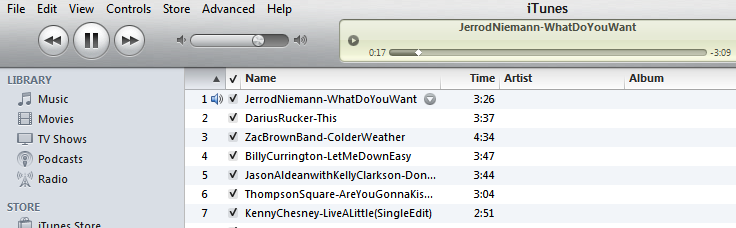
And play when ready!
If you’d like more information on the set up of this functionality, or further assistance, please contact your Music Scheduling Consultant for assistance.
Music Choice New York; KYSL-FM Dillon; Hot 97 Kingstown; Worldband Media Toronto; MVS Mexico City; RTL Radio Letzebuerg; Antenne Thuringen
 The NAB Radio Show is coming up on Sep 14-16 in Chicago, and we are looking forward to spending some time with our existing clients and making new friends. If you are planning on going to the show and have some specific questions we can answer for you about MusicMaster, we would be happy to schedule a personal appointment. If you aren’t planning on attending the convention, but would like to meet with us in the exhibit area we have a limited number of VIP Passes. Mark Bolke.
Several members of the MusicMaster staff got their first hands-on radio experience at a college station. Today we have many college radio stations as clients, which makes us proud to be a supporter of College Radio Day, Oct 11. So far over 150 college and high school stations have registered to participate in the event to increase the awareness about the role these stations play. Complete details can be found at their website www.collegeradio.com
 Thursday and Friday November 10-11 Potsdam, Germany Attendees for this workshop will have the opportunity to choose between one of three courses. There will be a beginners track for users relatively new to MusicMaster, a more advanced group for those users who want to take their skill set to a higher level, and and the third track will focus on special techniques for our television/video programmers. More information and registration information is available here. If you have additional questions contact Rainer Eichhorn.
If you are planning to attend any of these upcoming events let us know. We would love the opportunity to say hello, share a cup of coffee, or help with any questions you may be having.
 Santos Latin Media, Corp. is an independent radio and media consulting firm based in Southern California, that currently programs and consults over 25 radio stations (AM’s and FM’s) in the United States and Mexico. Among them are radio properties in California, Florida, Nevada, New Mexico, Oregon, Texas and Washington (State).
We specialize in all Spanish / Latin formats, as well as the development of innovative Spanish language formats (based on current market conditions).
Current Formats under Santos Latin Media supervision or programming:
Spanish AC
Spanish Pop
Regional Mexican
Spanish Adult Hits
CHR-Rhythmic
Spanish Oldies
Tropical
Spanish News/Talk
Santos Latin Media, Corp. specializes in consulting overall operations of radio and media properties; including programming, marketing, promotions and sales; as well as general operations of radio broadcast facilities, internet and multi-media platforms.
We currently oversee programming, sales and promotional/marketing efforts in Portland, OR; Seattle-Tacoma, WA; Fresno, CA; Bakersfield, CA; Santa Maria-Lompoc, CA; Las Vegas, NV; Albuquerque, NM; Austin, TX; San Antonio, TX; McAllen-Brownsville, TX; Laredo, TX; Waco, TX; West Palm Beach-Boca Raton, FL; Ft Myers-Naples-Marco Island, FL; Clewiston, FL; as well as stations in Mexico (Reynosa and Nuevo Laredo, Tamaulipas). The formats are various in different markets, based on the competitive environment and market conditions.
Contact Jose Santos at (661) 993-5701 or santoslatinmedia@gmail.com

The MusicMaster Pro-Team is comprised of experienced broadcast consultants and programmers who are available to assist MusicMaster clients with programming advice. Their services are available under this cost effective program with no long term commitment required, and can be added to your existing software support plan. Information on each MusicMaster Pro-Team member is available below. If you would like to retain the services of one of the MusicMaster Pro-Team members or have questions about the specifics of the program contact Mark Bolke Vice President/COO at (651) 405-9119 or Mark@MusicMaster.com.
See the complete MusicMaster Pro-Team Roster.
Quick Tip: Format Clock Analysis While you could count up all the different elements and categories you use in a clock, there’s no need to. Use the pie chart icon on the clock screen and you’ll open a view with more tabs including Category Usage and Element Usage. Each of these does all the calculations for you. Category Usage lists your categories in the same order you see in the InfoBar. The Element Usage breaks the counts into Song, Break and the other elements a clock can contain. This tab also breaks the information out into the time allotted for each so you’ll know how much of your hour is music and how much is talk.
You can find many more MusicMaster tips like this one on the MusicMaster Blog.
MusicMaster/iTunes Integration
By Aaron Taylor
Want to add your song data from iTunes straight into MusicMaster? How about creating playlists that can then be played out via iTunes? There’s got to be a way, right? In this article, we’ll lay out the steps to do just that… (Read more.)
 Nick Shulz
Head of Music
Radio Basel
Switzerland
“I’d been using RCS (DOS) for 20 years (20 years ago it was great!) Since then, MusicMaster has steamed ahead with with new features and a clean Windows look and feel. And of course, the support is just brilliant!
My favorite features in MusicMaster are the Rule Tree and The Special Rule Tree Items, keyboard commands for quick programming, and Library Maintenance (mass changes, rotation analysis).”